AI Talking Avatars
Lifelike presenters that speak your script — no camera, no studio.
7-day free trial · Cancel anytime · No design skills needed
0
cameras, studios, or reshoots
0 –15 s
talking clips per generation
Auto
lip-sync matched to every word
0
canvas for avatars + animation
The problem
Sound familiar?
Not everyone wants to be on camera
Plenty of great communicators would rather do anything than film themselves talking.
Filming is a production
Camera, lighting, quiet room, wardrobe, seventeen takes — a talking-head video costs far more than it looks.
Every edit means a reshoot
One changed sentence in the script and you're rebooking the whole setup.
The Glintia way
Sometimes a video needs a human face. Glintia's AI avatars are photoreal presenters that speak your script: pick an avatar, paste your lines, choose a voice, and the AI generates a 3–15 second talking clip with matching lip movement. Drop it straight into your animation alongside characters, text, and scenes — perfect for intros, hooks, and key lines.
Benefits
Why creators love it
Photo-realistic presenters
Browse a gallery of AI presenters — filter by gender and location — and get broadcast-style talking-head video without filming anything.
Natural voices and lip-sync
Scripts are spoken with lifelike AI voices, and the avatar's lips and face move in sync with every word.
Mix avatars with animation
Avatars live on the same canvas as your animated characters, so you can combine a presenter with animated scenes, text, and effects.
Rewrite, don't reshoot
Script changed? Update the text and regenerate — no reshoots, no scheduling, no crew.
Deep dive
A closer look
Presenters on demand
Browse a gallery of AI presenters with different looks, filter by gender and location, pick the one that fits your brand, and put them to work — no casting, no scheduling, no release forms.
Voice and lips that match
Your script is spoken with a lifelike AI voice you choose, and the avatar's mouth and face move in sync with every word. Rendering continues even if you switch tabs, and you get a notification when the clip is ready.
One canvas, every format
Avatars are regular items in the editor — layer them with animated characters, whiteboard scenes, text effects, and footage. A presenter intro can hand off to an animated explainer in the same video.
Try the AI avatars yourself
Full HD export, no watermark. Cancel before your trial ends and you won't be charged.
Three steps
How it works
Pick a presenter
Browse the avatar gallery and choose the right look for your video.
Write the script
Paste your text and pick a voice that fits your tone.
Generate and place
The talking avatar renders in the background — you get a notification when it lands in your scene.
Compare
The old way vs. the Glintia way
| The old way | With Glintia | |
|---|---|---|
| Presenter video | Studio, lighting, on-camera talent | Pick an avatar, paste the script |
| Script changes | Rebook and reshoot | Edit the line, regenerate |
| Cost per video | Crew and studio rates | Your plan's monthly AI credits |
| Mixing formats | Separate editing suite | Same canvas as your animation |
Who uses it
Who uses the AI avatars
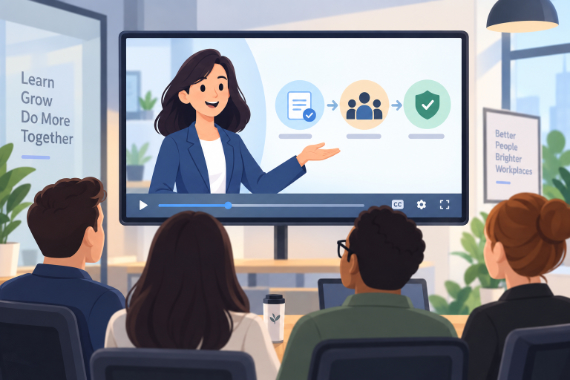
Corporate Training
Break workplace processes into focused video lessons teams can revisit.
Explore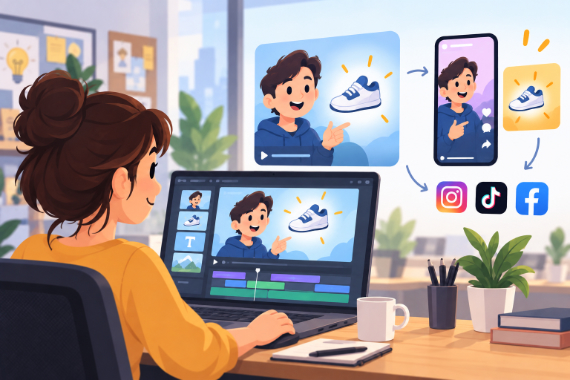
Marketing Teams
Build ads, product explainers, and social clips around one clear benefit.
Explore
Healthcare
Create visual explanations of care instructions for your team to review.
Explore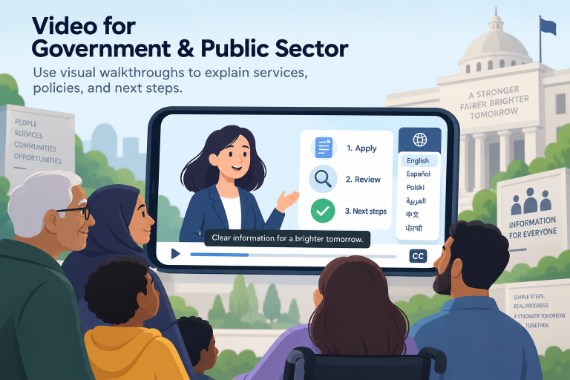
Government & Public Sector
Use visual walkthroughs to explain services, policies, and next steps.
ExploreDo I need to record anything?
Can I use avatars together with animated characters?
How long can an avatar speak?
Which plans include AI avatars?
Can I use my own photo as an avatar?
Keep exploring
More features to explore
Animation Maker
Build animated explainers and stories with characters, scenes, and motion.
Learn moreAI Video Generator
Describe your video — AI Director drafts the script, voiceover, visuals and music for you to edit.
Learn moreCharacter Builder
Design unique animated characters — or bring your own artwork to life.
Learn moreTry the AI avatars free for 7 days
Get the full features of the plan you pick — Full HD, no watermark. Cancel before the trial ends and you won't be charged.
7-day free trial on Basic, Pro & Advance · Cancel before it ends and you won't be charged