Automatic Subtitle Generator
Transcribe, style, and translate captions without leaving the timeline.
3-day free trial · Cancel anytime · No design skills needed
0
caption style presets
0
translation languages
0
ways in — AI, manual, or SRT/VTT
Every
plan includes auto subtitles
The problem
Sound familiar?
Accurate captions still look wrong
A perfect transcript in default white Arial makes a polished video look unfinished.
Styling captions by hand takes longer than writing them
Font, outline, shadow, position, timing — per caption, per video, every time.
Translation breaks the timing
Export, translate elsewhere, re-import, discover every cue has drifted.
The Glintia way
Most caption tools stop at accuracy. Getting the words right is the easy half — making them look like they belong in your video is the part that eats an afternoon. Glintia transcribes your audio, then hands you 51 designed presets, karaoke word-highlighting, and AI translation into 20 languages, all on the same timeline as everything else. Captions arrive finished, not just correct.
Benefits
Why creators love it
Three ways in
Let AI transcribe your audio, write captions by hand, or import an existing SRT or VTT file. Whichever you pick, you land in the same editor.
Captions that look designed
51 presets across five styles — Clean & Professional, Bold & Viral, Keyword Highlight, Elegant & Editorial, and Stylish & Creative — including TikTok Bold, Neon Glow, Hormozi, Beast Yellow, and Elegant Serif.
Karaoke word highlighting
Highlight each word as it is spoken, with your own highlight color. It's one toggle — and made for muted social feeds.
Translate without re-timing
AI translates your captions into any of 20 languages and keeps the timing. Show the original, the translation, or both at once for bilingual audiences.
Deep dive
A closer look
Transcription that stays editable
AI generates the first pass, then you work with it directly — split a cue, merge it with the next, nudge the timing, or rewrite the text. Nothing is baked until you export.
A preset system, not a font picker
51 caption styles built for where the video is going: clean, professional looks for long-form, TikTok Bold and Beast Yellow for vertical, keyword highlights for punchy hooks, Elegant Serif for formal work. Apply one to every caption at once, or override individual cues.
Built-in content filtering
AI scans the transcript for profanity, sensitive data like phone numbers and emails, and your own custom words — then masks the caption, mutes or bleeps the audio, and can even censor a character's mouth. Essential when you're captioning interviews, user-generated footage, or anything you didn't script yourself.
Try the subtitle generator yourself
Full HD export on every plan. Cancel before your trial ends and you won't be charged.
Three steps
How it works
Pick your media
Choose any clip or audio track on the timeline and transcribe it.
Choose a style
Apply a preset, then fine-tune the font, stroke, glow, and position.
Translate if you need to
Pick one of 20 target languages and let AI handle the rest.
Compare
The old way vs. the Glintia way
| The old way | With Glintia | |
|---|---|---|
| Getting a transcript | Type it out or pay per minute | AI transcribes any clip on the timeline |
| Making captions look right | Style every cue by hand | 51 presets, applied to all at once |
| Translating | Export, translate, re-import, re-time | AI translate, timing preserved |
| Tool switching | A separate captioning app | Same timeline as your edit |
Who uses it
Who uses the subtitle generator
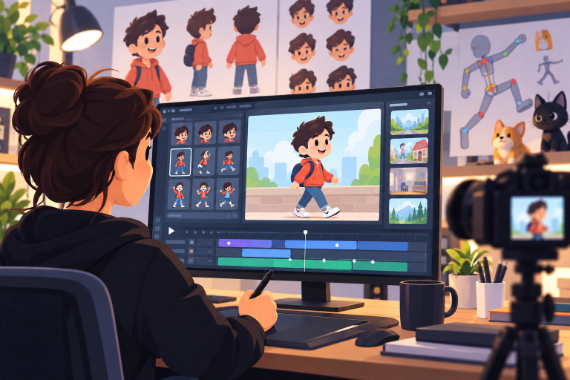
Content Creators
Give your next story an animated cast and develop your own visual style.
Explore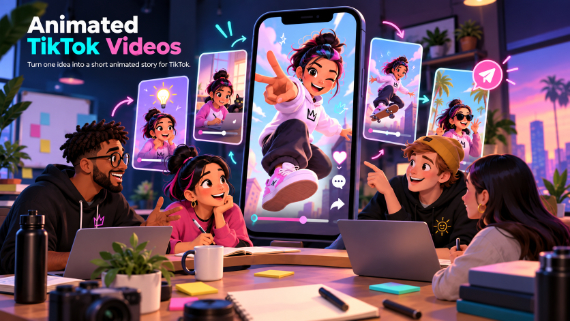
TikTok
Turn one idea into a short animated story for TikTok.
Explore
Teachers & Educators
Teach one concept at a time with visual lessons learners can revisit.
Explore
Marketing Teams
Build ads, product explainers, and social clips around one clear benefit.
ExploreWhich plans include auto subtitles?
Can I import subtitles I already have?
What is karaoke mode?
Can I show two languages at once?
Can I edit the AI transcript?
Keep exploring
More features to explore
Animation Maker
Build animated explainers and stories with characters, scenes, and motion.
Learn moreAI Video Generator
Describe your video — AI Director drafts the script, voiceover, visuals and music for you to edit.
Learn moreAI Avatars
Lifelike presenters that speak your script — no camera, no studio.
Learn moreTry the subtitle generator free for 3 days
Make a real video in Full HD on the plan you pick. Cancel before the trial ends and you won't be charged.
3-day free trial on Basic, Pro & Advance · Cancel before it ends and you won't be charged