Remove Any Background
One click removes image backgrounds. Chroma key cleans up green-screen footage.
3-day free trial · Cancel anytime · No design skills needed
0 click
to remove an image background
0
AI credits per image
Every
plan includes background removal
Non-destructive
masks, editable any time
The problem
Sound familiar?
It is always a round trip
Upload to one tool, download a PNG, re-import, realise the edge is wrong, repeat.
Hair and fine edges give it away
One-click tools handle solid shapes fine and fall apart on anything soft.
A cut-out is only half the job
A transparent PNG still has to be placed, layered, and matched to a scene somewhere else.
The Glintia way
Background removers are usually a detour: upload somewhere else, download a PNG, import it back, discover the edges are wrong. Glintia's runs inside the editor, so the cut-out lands directly in a scene that already has your characters, captions, and effects on it. No round trip, and the mask stays editable afterwards. Shot on a green screen? Chroma key removes it from your footage on the same canvas.
Benefits
Why creators love it
One click on images
AI removes the background in place, on every plan, for 0.25 AI credits. The image stays where it was, with everything layered around it untouched.
Chroma key for green-screen footage
Key out a green screen — or any solid backdrop color — from your video, with control over how aggressively it keys. Green-screen and black-plate VFX clips from the library composite automatically.
Masks you can fix
AI gets hair and edges close. When it does not, the mask editor lets you brush in or erase the difference by hand instead of starting over.
Nothing is destroyed
Masks are non-destructive. Edit one, remove it, or restore the original image at any point.
Deep dive
A closer look
Removal that happens in place
Because it runs inside the editor, the result composites immediately against whatever is behind it — a background, a scene, a character. You see the real composite while you work, not a checkerboard preview in a different tab.
Keying for footage and effects
Chroma key removes a green screen — or another solid, saturated backdrop color — from footage you shot, with a strength control. VFX clips from the library come ready: green-screen clips are keyed and black-plate clips are blended automatically.
Manual masking when AI is not enough
The mask editor is a real brush tool with erase and restore modes, not a slider. You can also use a shape as a mask, invert it to show everything outside, or remove the mask entirely and get the original back.
Try the background remover yourself
Full HD export on every plan. Cancel before your trial ends and you won't be charged.
Three steps
How it works
Select your image or clip
Pick an uploaded image, or footage shot on a green screen.
Remove or key
One click for images; chroma key for green-screen video.
Clean up if needed
Open the mask editor to refine edges by hand.
Compare
The old way vs. the Glintia way
| The old way | With Glintia | |
|---|---|---|
| Workflow | Upload elsewhere, download, re-import | Happens on the canvas |
| Seeing the result | Checkerboard preview, guess the composite | Composites live against your scene |
| Fixing bad edges | Start over or accept it | Brush the mask by hand |
| Green-screen footage | A separate keying app | Chroma key on the same canvas |
Who uses it
Who uses the background remover
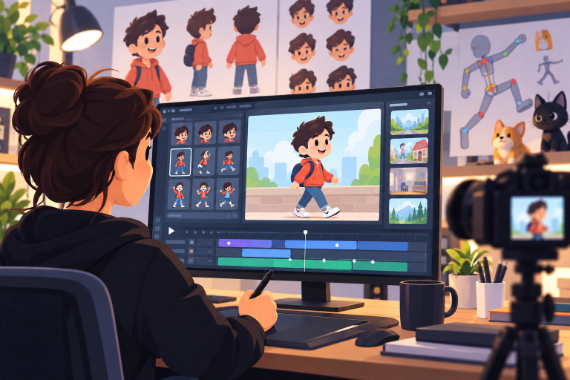
Content Creators
Give your next story an animated cast and develop your own visual style.
Explore
Marketing Teams
Build ads, product explainers, and social clips around one clear benefit.
Explore
Small Business
Show how your service works and answer questions before customers ask.
Explore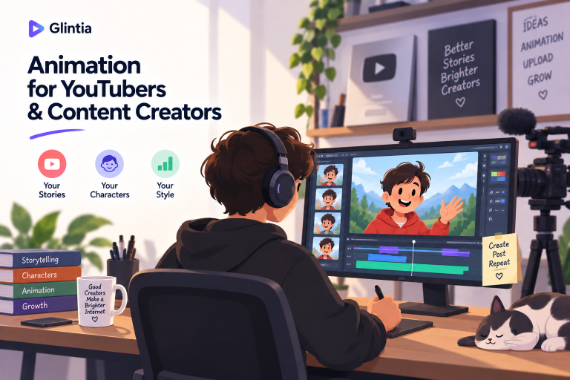
YouTube
Create animated explainers and character-led stories for your channel.
ExploreDoes it work on video as well as images?
What if the AI gets the edges wrong?
Can I undo a background removal later?
Which images can I use it on?
Which plans include it?
Keep exploring
More features to explore
Animation Maker
Build animated explainers and stories with characters, scenes, and motion.
Learn moreAI Video Generator
Describe your video — AI Director drafts the script, voiceover, visuals and music for you to edit.
Learn moreAI Avatars
Lifelike presenters that speak your script — no camera, no studio.
Learn moreTry the background remover free for 3 days
Make a real video in Full HD on the plan you pick. Cancel before the trial ends and you won't be charged.
3-day free trial on Basic, Pro & Advance · Cancel before it ends and you won't be charged