AI Video Editing
Edit footage by editing its transcript, pull highlight clips, and dub it.
7-day free trial · Cancel anytime · No design skills needed
0
AI tools — Edit by Text, Auto Clips, Smart Edit, Dubbing
0
long video becomes a batch of clips
0 %
of AI edits stay reviewable
0
dubbing languages
The problem
Sound familiar?
Raw footage piles up
Webinars, streams, and recordings sit unpublished because editing them is a project.
Hours of editing per minute published
Scrubbing the timeline for the right sentence, tightening pacing, and captioning by hand is where creator time disappears.
Repurposing never happens
Everyone knows the long video should become ten clips. Almost nobody has time to make them.
The Glintia way
Editing raw footage is the slowest part of making videos. Glintia's AI transcribes your video and turns the edit into something you can read: delete a sentence from the transcript and it's cut from the video. Auto Clips pulls captioned highlights out of long recordings, Smart Edit trims a clip to its strongest stretch with captions and B-roll in a style you choose, and AI Dubbing re-voices it in 20 languages.
Benefits
Why creators love it
Edit by Text
Your video becomes a document. Delete a passage to cut it; rewrite a line and the AI re-voices it, with optional lip-sync. Version history lets you restore any earlier take.
Auto Clips
Turn one long video into a set of short highlight clips — each on its own slide, trimmed from the source, with captions ready to style.
Smart Edit
Pick an editing style and the AI trims the clip to its strongest stretch, adds styled captions, and drops in stock B-roll.
AI Dubbing
Translate and re-voice your video in 20 languages, with optional lip-sync when someone is on camera.
You stay in control
Every AI edit lands as regular edits you can review, tweak, or undo — nothing is baked in until you export.
Deep dive
A closer look
Edit by Text: cut video like a document
The AI transcribes your footage so you can edit the words instead of scrubbing a timeline. Delete a sentence and the video follows. Rewrite one and a new AI voice reads it — add lip-sync so the speaker's mouth matches. Every change is versioned, so you can always go back.
Auto Clips: one video, many posts
Point it at a long recording and get back short highlight clips, each on its own slide with captions. Post them as Shorts, Reels, and TikToks and let the long video work harder.
Smart Edit and Dubbing: finish and localize
Smart Edit trims a clip to its strongest stretch and adds captions and B-roll in the editing style you pick. AI Dubbing then carries the same video into 20 languages, with optional lip-sync.
Try the AI video editing yourself
Full HD export, no watermark. Cancel before your trial ends and you won't be charged.
Three steps
How it works
Upload your video
Add the raw footage you want to improve — up to 200MB.
Choose an AI tool
Edit by Text, Auto Clips, Smart Edit, or Dubbing.
Review and export
The AI's edits appear in your project — adjust anything, then export.
Compare
The old way vs. the Glintia way
| The old way | With Glintia | |
|---|---|---|
| The rough cut | Hours scrubbing the timeline | Delete words from the transcript |
| Shorts & Reels | Re-editing by hand | Auto Clips finds the highlights |
| Other languages | A new edit per language | AI dubbing in 20 languages |
| Control | Black-box auto-editors | Every edit reviewable and undoable |
Who uses it
Who uses the AI video editing
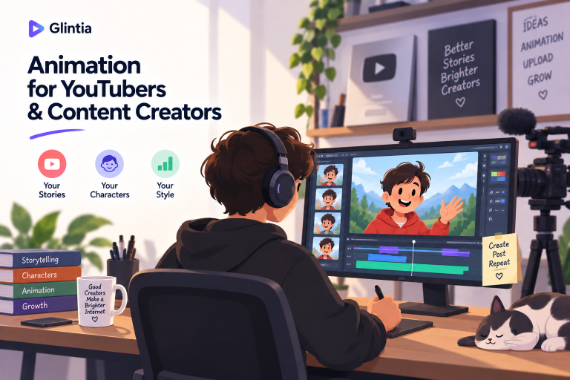
YouTube
Create animated explainers and character-led stories for your channel.
Explore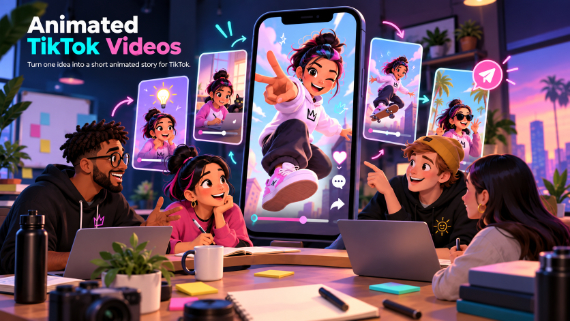
TikTok
Turn one idea into a short animated story for TikTok.
Explore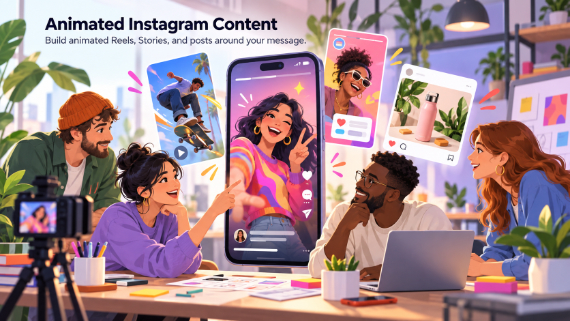
Instagram & Reels
Build animated Reels, Stories, and posts around your message.
Explore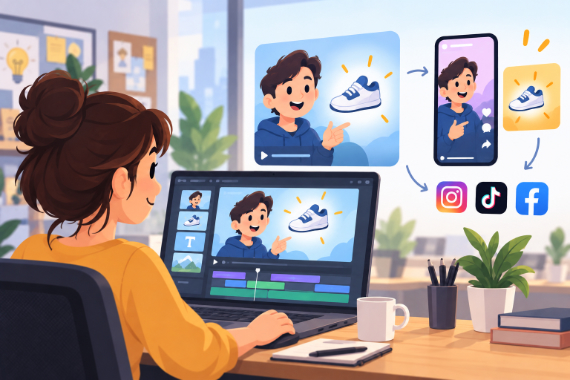
Marketing Teams
Build ads, product explainers, and social clips around one clear benefit.
ExploreHow does Edit by Text work?
What does Smart Edit do?
Can I adjust what the AI did?
What is Auto Clips best for?
Keep exploring
More features to explore
Animation Maker
Build animated explainers and stories with characters, scenes, and motion.
Learn moreAI Video Generator
Describe your video — AI Director drafts the script, voiceover, visuals and music for you to edit.
Learn moreAI Avatars
Lifelike presenters that speak your script — no camera, no studio.
Learn moreTry the AI video editing free for 7 days
Get the full features of the plan you pick — Full HD, no watermark. Cancel before the trial ends and you won't be charged.
7-day free trial on Basic, Pro & Advance · Cancel before it ends and you won't be charged