Turn a Script Into a Talking Character
Paste a line. Pick a character and a voice. It performs.
3-day free trial · Cancel anytime · No design skills needed
0
paths — animated character or AI avatar
0
credits for the animation itself
0 %
editable after it generates
Auto
lip-sync to every line
The problem
Sound familiar?
Every regeneration costs money
Script-to-video tools charge per render, so iterating on a line you are not happy with gets expensive fast.
The output is a flat video
You get a file, not a scene. Want to move the character or change the background? Start again.
Lip-sync alone looks lifeless
A mouth moving on a static body reads as a talking photo, not a performance.
The Glintia way
Script-to-video tools usually offer one path: generate an AI avatar video, spend the credits, and accept whatever comes back. Glintia gives you two. The animated path performs your script with a rigged character right in the editor — lip-synced, gesturing, and fully editable afterwards, with only the voiceover drawing on AI credits. The AI avatar path generates a photoreal talking video when that is what the project needs. Most of the time, the animated one is the right answer.
Benefits
Why creators love it
The animated path stays editable
An animated character performs your script with lip-sync and matched actions — and the animation itself costs no AI credits; only the voiceover does. The result is a normal, editable scene, not a flat video file.
Direct the performance, not just the mouth
A description like "cheerful, gesturing with hands" shapes how the character acts. When your action library has nothing for a moment, the AI animator creates a new action for it. Lip-sync is the floor, not the feature.
No length limit on the animated path
Animated characters can speak as long as your script runs. AI avatar clips are capped at about 15 seconds of speech, perfect for a hook or a key line.
Avatars render in the background
On the avatar path, switch tabs and keep working. Rendering continues server-side, you get a notification when it is ready, and subtitles can be generated in the same step.
Deep dive
A closer look
Two paths, one panel
The animated path uses a rigged character in the editor — the animation is free, quick to iterate, and editable like any other scene; only the voiceover uses AI credits. The AI avatar path generates a photoreal talking video and uses credits by audio length. You choose per script, so the realism goes only where it earns its cost.
Performance description shapes the acting
The description field drives gesture and energy, not just mouth shapes. The same line delivered as "nervous, hesitant" and "confident, big gestures" produces visibly different performances from the same character.
Iteration is the point
On the animated path, change the text and the character re-animates — the only cost is the new voiceover, a couple of credits a minute with neural voices. That changes how you work: you write the line, watch it, rewrite it, rather than committing to a script before you have seen it performed.
Try the talking character yourself
Full HD export on every plan. Cancel before your trial ends and you won't be charged.
Three steps
How it works
Write the script
Paste your line and describe how it should be delivered.
Pick a character and voice
Choose an animated character or an AI avatar, then preview voices.
Generate
The performance lands on your slide, ready to edit or regenerate.
Compare
The old way vs. the Glintia way
| The old way | With Glintia | |
|---|---|---|
| Iterating on a line | Pay per regeneration | Re-animate free — only the voice uses credits |
| What you get back | A flat video file | An editable scene |
| Performance | Mouth movement on a static body | Gestures and expression from a description |
| Waiting on renders | Keep the tab open | Avatars render server-side and notify you |
Who uses it
Who uses the talking character

Marketing Teams
Build ads, product explainers, and social clips around one clear benefit.
Explore
Teachers & Educators
Teach one concept at a time with visual lessons learners can revisit.
Explore
Corporate Training
Break workplace processes into focused video lessons teams can revisit.
Explore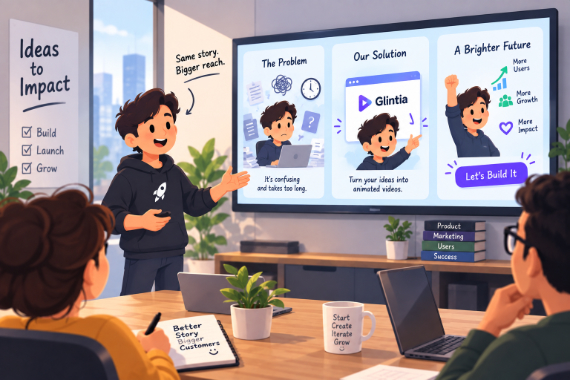
Startups
Show the problem, introduce your product, and give customers a next step.
ExploreWhat is the difference between the two paths?
Can I change the script after generating?
Do I have to keep the tab open while it renders?
Can I use my own voice instead of a generated one?
Keep exploring
More features to explore
Animation Maker
Build animated explainers and stories with characters, scenes, and motion.
Learn moreAI Video Generator
Describe your video — AI Director drafts the script, voiceover, visuals and music for you to edit.
Learn moreAI Avatars
Lifelike presenters that speak your script — no camera, no studio.
Learn moreTry the talking character free for 3 days
Make a real video in Full HD on the plan you pick. Cancel before the trial ends and you won't be charged.
3-day free trial on Basic, Pro & Advance · Cancel before it ends and you won't be charged