Billing, Trial and Cancelling
Glintia subscriptions are paid by card through Stripe, and you manage yours from the Billing & Subscription page. This article covers the free trial, starting your plan early, upgrading, updating your card, what happens when a payment fails, and how cancelling works. For what each plan includes, see Plans, Limits and Usage.
Open the Billing page
Section titled “Open the Billing page”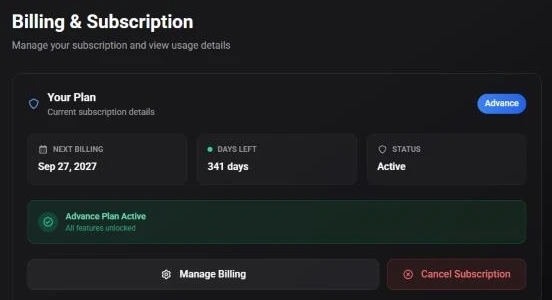
Click Billing in the left sidebar of your dashboard. You can also open it from the menu under your account initial in the top-right corner, or from Usage & billing in the plan pill.
The page is titled Billing & Subscription. The Your Plan card shows:
- your plan’s name
- Next Billing: the date your current billing period ends
- Days Left until then
- Status: Active, or Expired once a plan has ended
Below the card, banners show anything that needs your attention, such as Free Trial Active, Subscription Cancelled or Subscription Expired. Then come the buttons:
- Manage Billing: opens Stripe’s billing portal (see Update your card)
- Upgrade to the next plan up: shown on Basic and Pro
- Cancel Subscription: shown while your plan is active and not already cancelled
At the bottom, Usage Overview shows how much of your monthly allowance you’ve used. See Check your usage.
Your free trial
Section titled “Your free trial”- Basic, Pro and Advance each come with a 7-day free trial of that plan.
- A payment card is needed to start it, and you’re charged nothing during the 7 days.
- If you cancel before the trial ends, you’re never charged.
- There’s one free trial per person. There’s no free plan.
- The trial has a smaller starter allowance than a full month, and trial exports carry a Glintia watermark. See During the free trial.
While you’re on the trial, the plan pill in the top bar shows a Trial tag. Click it to see how many days are left. The Free Trial Active banner on the Billing page shows the days remaining and the date the trial ends. Glintia also adds a Your Free Trial Is Ending notification 3 days and 1 day before the end.
When the trial ends, your plan starts on its own and the card you added is charged for the first month or year. Your plan’s full monthly allowance starts that day, and the watermark comes off the editor and every new export.
Start your plan early
Section titled “Start your plan early”If you’ve seen enough and want the full allowance and clean exports now, you don’t have to wait for the trial to end.
-
Click Start my plan now in the Free Trial Active banner on the Billing page. You can also click Start plan now in the plan pill, or Remove it next to the watermark note in the export panel.
-
The Start your Pro plan now dialog (with your plan’s name) shows what happens, all taken from Stripe: Charged today (the amount), Card (the card on file) and Renews (the next renewal date).
-
Click the pay button, which shows the amount, for example Pay $45.00 and start now. Click Keep my trial if you’d rather wait.
-
If your bank needs to confirm the payment, you’ll see Finish your payment. Click Complete payment to finish on Stripe’s secure page, where you can confirm with your bank or use another card. Your trial stays as it is until the payment goes through. Back in Glintia, the dialog checks for the payment by itself, or click I’ve paid, check again.
-
When it’s done, you’ll see Your Pro plan is active: “The watermark is gone. New exports are clean.” Click Done.
Starting early means:
- your plan’s full monthly exports and AI credits start today, with a fresh month
- the trial watermark comes off the editor and every new export
- billing starts today instead of when the trial would have ended
- you can still cancel anytime from Billing
Files you already exported during the trial keep their watermark. Export them again for a clean copy.
Upgrade or change your plan
Section titled “Upgrade or change your plan”You can move up to a higher plan from three places:
- Upgrade in the plan pill. The popup has a Monthly / Yearly switch and an Upgrade Now button.
- The plans page, which has a Monthly / Yearly switch at the top. Your plan is marked Current Plan, and higher plans show Upgrade to and the plan’s name.
- Upgrade to the next plan on the Billing page.
Each one takes you to Stripe’s secure checkout for the new plan. If you have a promotion code, you can enter it there. Once the payment goes through, the new plan applies right away and its full monthly allowance starts that day.
On the plans page, lower plans show Switch to and the plan’s name, which takes you to the Billing page. To move to a lower plan, or between monthly and yearly billing, contact us. Enterprise is set up with our team too: click Contact Sales on the plans page.
Update your card and billing details
Section titled “Update your card and billing details”Click Manage Billing on the Billing page. It opens Stripe’s secure billing portal for your account in a new tab, and brings you back to Billing when you’re done. Use it to change the card your subscription is charged to.
Glintia doesn’t list invoices or receipts on the Billing page itself. Open Manage Billing to see your billing details in Stripe, or contact us if you need a copy of an invoice.
If a payment fails
Section titled “If a payment fails”If a renewal charge (or the first charge after your trial) doesn’t go through, Stripe tries again for a while, and Glintia lets you know:
- a red banner across the top of the dashboard and a Payment failed pill in the editor’s top bar
- a Payment Failed (or Confirm Your Payment) notification
- an email, “Your Glintia payment didn’t go through”, or “Action needed: confirm your Glintia payment” when your bank needs you to confirm
Everything keeps working. The banner reads “We couldn’t charge your card. Pay by” and a date, “to keep exports and AI tools running.”
Your plan’s monthly exports and monthly AI credits are paused: “We couldn’t charge your card, so exports and AI tools on your plan are paused. Your projects are safe — pay now to turn everything back on.” You can still edit and save your designs, download exports you’ve already made, and use AI credits you bought separately.
To fix it, click Pay now in the banner. It opens Stripe’s page for the unpaid invoice, where you can pay with another card or confirm the payment with your bank. Change card takes you to the Billing page, where Manage Billing lets you replace your card. Once the payment goes through, everything turns back on.
If the first charge after a free trial is still unpaid 3 days after the trial ended, the subscription is stopped and the plan doesn’t start.
Cancel your subscription
Section titled “Cancel your subscription”You can cancel at any time.
-
Open the Billing page and click Cancel Subscription.
-
Read the confirmation. What it says depends on whether you’re on a paid plan or the free trial (see below).
-
Click Yes, Cancel (or Yes, end my trial) to confirm, or Never mind to keep your subscription.
Cancel Subscription? “Your subscription will not renew. You keep full access until the end of your current billing period.”
Nothing is charged again. You keep using Glintia, with your full allowance, until the Next Billing date, and then the plan ends. The Billing page shows Subscription Cancelled in the meantime.
Cancel your free trial? “Your trial ends right away. You will lose access to the editor, exports and AI tools now, and you won’t be charged.”
Cancelling a trial doesn’t wait for the 7 days to run out: it ends at once. Download anything you’ve exported first. You can’t start another free trial afterwards.
What happens to your work
Section titled “What happens to your work”When your plan or trial ends:
- Your designs, characters and uploads are kept. Nothing you made is deleted.
- You can’t work on them until you subscribe again. The dashboard shows a “Welcome to Glintia!” card asking you to subscribe instead of your designs, and the editor and the Renders page need an active plan.
- Finished exports are kept for 30 days after they finished, whatever your plan, and then removed. Since the Renders page needs an active plan, download the files you want to keep before your plan ends.
- AI credits you bought stay on your account for when you come back. Your monthly allowance ends with the plan.
Subscribe again
Section titled “Subscribe again”To come back, click Choose a plan in the plan pill to open the plans page, or Upgrade Now on your dashboard, and pick a plan. Your designs are waiting where you left them. A new subscription is paid from the start, because the free trial is one per person, and its monthly allowance starts the day you subscribe.