Exporting Your Video
When your design is ready, you turn it into a file from the editor’s Download button. Glintia renders the file on its own servers, so you can keep working while it’s made. This article walks through the export panel option by option. To follow an export after you start it, or to download it again later, see Cloud Rendering and the Renders Page.
Export a video
Section titled “Export a video”-
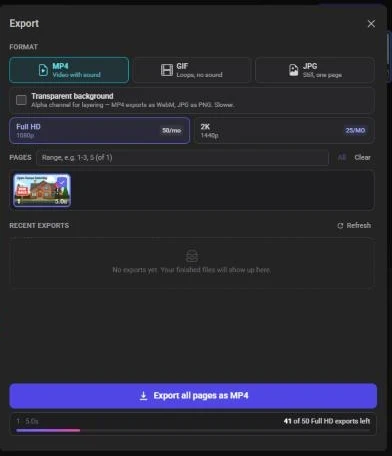
In the editor, click Download in the top-right corner. In a narrow window it shows only a download icon. The Export panel opens on the right.
-
Under Format, choose MP4, GIF or JPG. To export with a see-through background, also tick Transparent background (see Transparent backgrounds).
-
Choose a quality: Full HD or 2K.
-
Under Pages, choose what to include. Every page is selected when the panel opens.
-
Click the export button at the bottom. Its label says exactly what will happen, for example Export all pages as MP4 or Export 2 pages as GIF.
-
A message confirms the export is queued: “You can keep editing while it renders.” When it’s done, it shows as Ready under Recent exports in the same panel. Click the download icon next to it to save the file.
Glintia saves your design before the export starts and renders the design as it was at that moment. Changes you make while it renders don’t affect it. To include them, export again.
Formats
Section titled “Formats”| Format | What you get | Sound | Pages |
|---|---|---|---|
| MP4 | Video | Yes | One or more |
| GIF | Looping animation | No | One or more |
| JPG | Still image | No | One |
| WebM (with Transparent background) | Video with a transparent background | Yes | One or more |
| PNG (with Transparent background) | Still image with a transparent background | No | One |
- MP4 is the best choice for YouTube, social media, presentations and most video players.
- GIFs are capped at 1080 pixels wide. A wider design is scaled down to fit, and a narrower one keeps its size.
- A JPG or PNG shows the page as it looks at its very first frame. Anything that animates in later, or has an entrance effect, may not be visible yet.
Transparent backgrounds
Section titled “Transparent backgrounds”Tick Transparent background to export with an alpha channel, so you can layer the result over other footage in another video editor. A tag next to the option shows which file you’ll get:
- MP4 becomes WebM
- JPG becomes PNG
Transparent export removes the page background. If you’ve placed a full-frame image or shape behind everything, delete it too, or it will still fill the frame. Transparent exports take longer than normal ones.
The option is greyed out while GIF is selected, because GIF transparency leaves jagged edges. Choose MP4 to get a transparent WebM instead.
Choose a quality
Section titled “Choose a quality”- Full HD (1080p) is included on every plan. Its badge shows your monthly exports, for example 10/mo.
- 2K (1440p) is included on the Advance and Enterprise plans. On other plans the button shows an Advance badge, and clicking it explains what 2K export is and which plan includes it.
Exports are never enlarged. Full HD fits your design within 1920 × 1080 (1080 × 1920 for portrait), and 2K fits it within 2560 × 1440 (1440 × 2560 for portrait). A design bigger than that is scaled down, and a smaller one keeps its own size. For the three canvas sizes, that means:
| Canvas | Full HD export | 2K export |
|---|---|---|
| Landscape (1920 × 1080) | 1920 × 1080 | 1920 × 1080 |
| Portrait (1080 × 1920) | 1080 × 1920 | 1080 × 1920 |
| Square (1920 × 1920) | 1080 × 1080 | 1440 × 1440 |
Choose pages
Section titled “Choose pages”Each scene in your design appears as a page in the export panel, with its number and length on the thumbnail.
- Click a thumbnail to add it to or remove it from the export.
- Or type a range in the box next to Pages, such as
1-3, 5. The thumbnails update to match. - Click All to select every page, or Clear to start over.
The pages you choose are joined into one file, always in page order, whatever order you clicked them in. The bar below the export button sums up your choice and its total length, for example “1-3 · 1:30”. If nothing is selected, the button reads Select at least one page.
For JPG and PNG, the section is called Pick a page and you choose a single page.
What an export uses
Section titled “What an export uses”Each export uses one of your plan’s monthly exports, however many pages it includes. A 2K video uses two. The bar at the bottom of the panel shows what’s left at the quality you’ve chosen, for example “8 of 10 Full HD exports left”. If an export fails, it’s credited back to you automatically.
When your monthly exports are used up, you can still export by paying AI credits:
- An extra export costs 50 AI credits, or 100 for a 2K video.
- The button adds the cost, for example Export all pages as MP4 · 50 credits, and the bar below it reads “Monthly limit reached — this export costs 50 credits”, with the number of credits you have left.
- If you don’t have enough credits, it reads “Limit reached — extra exports cost 50 credits” and the button is disabled. Top up your credits, upgrade your plan, or wait for your allowance to reset. See Plans, Limits and Usage.
If your design uses a satellite or street map, a note under the export button says roughly how many extra credits the map will cost. Switch the map to the vector style to avoid the charge.
Video length limit
Section titled “Video length limit”Each plan has a maximum video length per export: 15 minutes on Basic, 30 on Pro, 40 on Advance and 60 on Enterprise. The free trial has a shorter limit.
Trial exports and the watermark
Section titled “Trial exports and the watermark”During the free trial, every export carries a Glintia watermark: a repeating diagonal “Glintia / FREE TRIAL” mark across the frame and a “Made with Glintia · Free trial” badge in the bottom-right corner. You see the same watermark in the editor during the trial.
The export panel reminds you with “Trial exports include a Glintia watermark.” Click Remove it to start your paid plan straight away. If you’ve used your trial exports, the panel says so and offers Start plan instead. See Billing, Trial and Cancelling.
Exports on a paid plan have no watermark. Files you exported during the trial keep theirs, so export them again once your plan has started.
Frame rate, sound and subtitles
Section titled “Frame rate, sound and subtitles”- Designs play and export at 30 frames per second. There’s no frame-rate setting.
- MP4 and WebM files include your audio, such as music, sound effects, voiceovers and the sound of video clips, mixed the way you hear it in the editor. GIF, JPG and PNG have no sound.
- Subtitles you’ve added to the design are drawn into the video.
”Rendered with N warnings”
Section titled “”Rendered with N warnings””If a file your design needs can’t be found at export time, for example an upload you’ve since deleted, the export still finishes. Under the finished export, Recent exports shows “Rendered with 1 warning” (or more). The same note appears in the Render Complete notification.
Click the note to see the details: “These files could not be found, so the export shows what the editor shows when a file is missing.” Each entry names the kind of file (Image, Video, Audio, Font, Character, Character action, Animation, Map or File), the item and the page it’s on, and the file name with the reason.
To fix it, open the page, replace or re-add the missing file, and export again.
Troubleshooting
Section titled “Troubleshooting”- “Media you just added is still being processed”: a file you uploaded moments ago isn’t ready for the renderer yet. Wait a moment and click export again.
- The 2K button shows “Advance”: your plan doesn’t include 2K. Full HD works on every plan.
- I can’t tick Transparent background: GIF is selected. Choose MP4 or JPG.
- My video is shorter than my design: it reached your plan’s maximum video length. See Video length limit.
- My JPG is missing items: stills show the first frame of the page, before items with entrance effects have appeared.
- What’s the file called? Files download as
glintia-export.mp4(or.gif,.jpg,.webmor.png). Rename them after downloading.