Quick Start
Get up and running with Glintia in just a few minutes. This guide will walk you through creating your first animated video.
Prerequisites
Section titled “Prerequisites”Before you begin, you’ll need:
- An up-to-date desktop web browser, such as Chrome, Edge or Firefox. A laptop or desktop is recommended, and the Character Editor requires one
- An internet connection
- A Glintia account with a plan or a 7-day free trial
Creating Your Account
Section titled “Creating Your Account”- Visit glintia.com and click Start free trial
- Sign up with your email address and a password, or click Sign Up with Google
- If you signed up with email, enter the confirmation code we email you
- Answer two quick questions, “What do you want to create?” and “What describes you best?”, so Glintia can recommend a plan
- Click Start my 7-day free trial, or compare all plans first
Creating Your First Video
Section titled “Creating Your First Video”-
Create a New Design
After logging in, click New Design in the left sidebar.
-
Choose What You’re Making
Under “What do you want to create?”, pick a mode, then choose a canvas size: Landscape, Square or Portrait. You can switch modes later from the editor header.
Characters, actions and keyframes. The editor opens on the Template panelHand-drawn explainer style. The editor opens on the Elements panelEdit footage, subtitles and audio. The editor opens on the Upload panelGenerate content with AI. The editor opens on AI StudioEvery tool in one place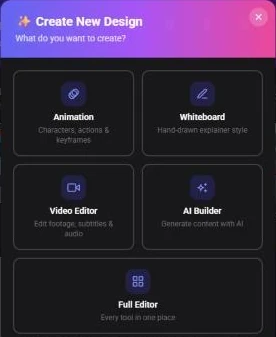
Pick a mode, then a canvas size. Your design opens with an empty canvas. Start from a template in the Template panel, or build from scratch.
-
Add Your Content
- Add characters from the Character panel, or build your own with New Character
- Add text from the Text panel and graphics from the Elements panel
- Set the scene with a template, a background color, or an image from the Background panel
-
Add Animation
- Select an item and click Effects in its toolbar to choose an entrance (“on Enter”) and exit (“on Exit”) effect. Hover over an effect to preview it on your item
- Click Animations for looping motion such as Float, Wiggle or Breathe
- For characters, click Actions and Expressions
- Add transitions between scenes, and press Space to preview your animation
-
Add Audio
- Use text-to-speech for voiceover: select a character and click Lip Sync, then Text to Speech
- Upload your own audio files from the Upload panel, or record your voice
- Add music and sound effects from the Audio panel
-
Export Your Video
- Click Download in the top right of the editor
- Choose a format (MP4, GIF or JPG, or transparent WebM or PNG) and a quality: Full HD on every plan, or 2K on Advance and Enterprise. 2K enlarges square designs to 1440×1440 and a 2K video uses two downloads; landscape and portrait designs come out at Full HD either way, so keep Full HD for those
- Exports render in the cloud, so you can keep editing. You’ll get a notification when it’s ready to download
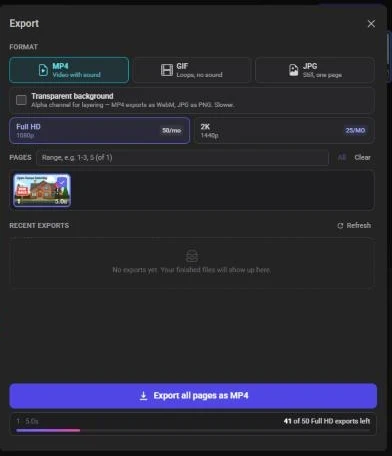
The Export panel.
What’s Next?
Section titled “What’s Next?”Now that you’ve created your first video, explore more features:
- Character Builder Guide - Create custom characters
- Whiteboard Videos - Create hand-drawn animations
- Text-to-Speech - Add professional voiceovers