Cloud Rendering and the Renders Page
Glintia renders every export on its own servers, not in your browser. Once you click export, you can keep editing, open another design, or close the tab. This article shows where to follow an export, where to download it again later, how long finished files are kept, and what to do when an export fails. To set up an export in the first place, see Exporting Your Video.
How cloud rendering works
Section titled “How cloud rendering works”- When you start an export, Glintia saves your design and renders it exactly as it was at that moment. Edits you make while it renders don’t change it. To include them, export again.
- Rendering carries on if you close the tab or your browser. Come back later and download the file.
- If a render server is interrupted, Glintia restarts your export on its own, up to two times. While that happens you may see a status such as “Interrupted by capacity — restarting (1/2)” or “Network trouble — restarting (1/2)”. You don’t need to do anything.
Follow an export
Section titled “Follow an export”You can watch an export’s progress in three places.
In the editor, click Download to reopen the Export panel. Recent exports lists every export of this design, newest first, with:
- the format (MP4, GIF, JPG, WebM or PNG) and the pages it covers, such as “All pages” or “Pages 1-3”
- its status, with a progress bar, a percentage and a short message while it renders
- when it finished and how long it took, for example “took 1m 20s”
Click Refresh to update the list. When an export is Ready, click the download icon next to it.
The Background jobs button in the editor’s top bar shows a progress ring while anything is running, including exports. Click it and choose the Exports filter to see Exports of this design. A finished export has a Download button. A failed one reads “Failed · export refunded”.
The Renders page lists every export you’ve started, across all your designs. See The Renders page below.
While an export renders, its status message tells you what’s happening, for example “Queued”, “Preparing resources…”, “Starting render…” and “Rendering 45 seconds of video…”.
| Status | What it means |
|---|---|
| Rendering | The export is in progress. The percentage and message update as it goes. |
| Ready (in the editor) or Completed (on the Renders page) | The file is finished and ready to download. |
| Failed | The export didn’t finish. It has been credited back to your monthly exports. See When an export fails. |
Notifications
Section titled “Notifications”When an export finishes or fails, Glintia adds a notification. On the dashboard, click the bell in the top bar to see your latest notifications, and View all notifications to open the Notifications page, where you can filter by All or Unread and click Mark all as read.
- Render Complete: “Your video … has finished rendering and is ready for download.” If any files were missing, it adds “Rendered with 1 warning” (or more) and lists them. See Rendered with N warnings.
- Render Failed: “Your video … failed to render.”, followed by the reason.
Click a notification to read all of it. In the window that opens, the archive button puts it away. Render notifications appear inside Glintia only. They aren’t sent by email, and they don’t contain the file, so download it from the export panel or the Renders page.
The Renders page
Section titled “The Renders page”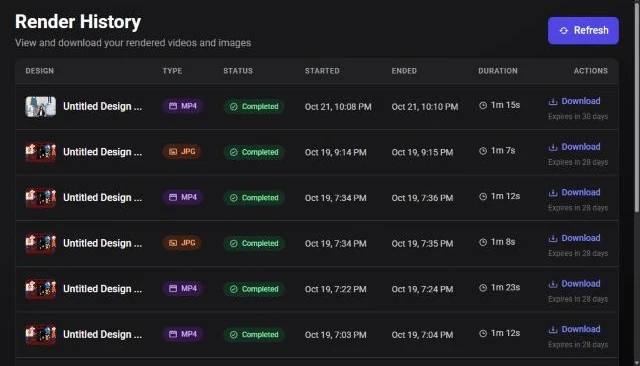
To open it, click Renders in the left sidebar of your dashboard. The page is titled Render History: “View and download your rendered videos and images”.
At the top, cards show Renders this month (exports used out of your monthly allowance), Total Renders, Completed, Failed and In Progress. Click Refresh to update them and the list.
The table lists your exports, newest first:
| Column | What it shows |
|---|---|
| Design | The design’s thumbnail and title. Click it to open the design in the editor. |
| Type | The file format, such as MP4, GIF or PNG. |
| Status | Rendering with a progress bar, Completed or Failed. |
| Started / Ended | When the export started and finished. |
| Duration | How long it took to render. |
| Actions | Download, Try again or Expired. |
In a narrower window, the Ended and Duration columns are hidden and the time taken appears under Started. On a small screen, each export is shown as a card.
Use Rows per page (10, 20 or 50) and Previous / Next to move through a long history.
Download a finished export
Section titled “Download a finished export”-
Find the export in Recent exports in the editor’s export panel, in Background jobs, or on the Renders page.
-
Click Download (the download icon in the export panel).
-
Your browser saves the file. It’s named
glintia-exportwith the format’s extension, for exampleglintia-export.mp4, so rename it to something you’ll recognise.
You can download the same export as many times as you like while it’s kept. Downloading again doesn’t use another export.
How long files are kept
Section titled “How long files are kept”Finished exports stay available for 30 days after they finish. On the Renders page, each one shows how long it has left under its Download button, for example “Expires in 12 days” or “Expires today”.
After 30 days the file is removed and the row shows Expired. If you try to download it, you’ll see “This export was removed after 30 days. Export the design again to download it.” Your design itself isn’t affected, so you can export it again at any time. A new export uses one of your monthly exports.
When an export fails
Section titled “When an export fails”A failed export is credited back to your monthly exports automatically, so a failure doesn’t cost you anything. The message under Failed explains what happened, for example:
- “Render stopped after 2 capacity interruptions. Your export has been credited back.”
- “Render stopped unexpectedly. Your export has been credited back — you can try again.” An export that still hasn’t finished 90 minutes after it started is stopped this way.
- “Your export could not be started. It has been credited back - please try again in a moment.”
You have two ways to try again:
On the Renders page, click Try again next to the failed export. It re-runs the same export, with the same pages, format and quality, from the design as it was when you first exported it.
- Each failed render can be retried once. After that, you’ll see “This render has already been retried once. Export again from the editor to start a new render.”
- Because the failed attempt was credited back, the retry uses your monthly exports again, the same as the original export did (two for a 2K video). If you don’t have enough left, you’ll see a message saying so.
Open the design and start a new export from Download. This picks up any changes you’ve made since, and is the way to go when a retry has already been used or you’ve fixed something in the design.
If the same design keeps failing, contact us with the design’s name and the message shown under Failed.