Canvas Sizes and Resizing a Design
Every design has a fixed canvas size that you pick when you create it. The size sets the shape of your video, which templates you see, and the resolution of your export. This article helps you pick the right one.
The three canvas sizes
Section titled “The three canvas sizes”| Canvas | Size in the editor | Shape |
|---|---|---|
| Landscape | 1920 × 1080 | 16:9, wide |
| Square | 1920 × 1920 | 1:1 |
| Portrait | 1080 × 1920 | 9:16, tall |
These are the only sizes. There’s no custom size option. All designs play at 30 frames per second.
Pick a size when you create a design
Section titled “Pick a size when you create a design”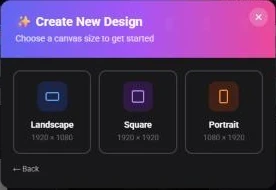
- On the dashboard, click New Design
- Under “What do you want to create?”, pick an editor mode
- Under “Choose a canvas size to get started”, click Landscape, Square or Portrait. Each option shows its size in pixels
To see the size of an existing design, switch the dashboard to List view. Each row shows the design’s size, for example 1080 × 1920.
Which size for which platform
Section titled “Which size for which platform”| Where the video will be shown | Canvas |
|---|---|
| YouTube, websites, presentations, most ads and explainers | Landscape |
| YouTube Shorts, Instagram Reels, TikTok, Stories | Portrait |
| Square posts in social feeds | Square |
If you need the same video in more than one shape, plan to make one design per shape. See Can I resize a design later? below.
Templates and text designs follow your canvas size
Section titled “Templates and text designs follow your canvas size”The Template panel shows only the scene templates and layouts made for your design’s shape. A Portrait design shows Portrait templates, a Square design shows Square templates, and so on. The animated text designs in the Text panel are filtered the same way.
So if you can’t find a template you saw in another design, check that both designs use the same canvas size.
Can I resize a design later?
Section titled “Can I resize a design later?”No. A design keeps the canvas size it was created with, and there’s no option to change it in the editor.
To make a version in a different shape:
- Create a new design with New Design and pick the canvas size you need
- Rebuild your scenes there, starting from templates made for that size if you like
- Reuse what’s saved to your account: your uploads (in the Upload panel and My Files), the characters you’ve built or rigged, and your Brand Kit (Advance plan) are available in every design
Export resolution for each canvas
Section titled “Export resolution for each canvas”When you export, you choose a quality in the export panel: Full HD (1080p) on every plan, or 2K (1440p) on the Advance and Enterprise plans. Exports are never upscaled, so the result depends on your canvas:
| Canvas | Full HD export | 2K export |
|---|---|---|
| Landscape | 1920 × 1080 | 1920 × 1080 (same as Full HD) |
| Portrait | 1080 × 1920 | 1080 × 1920 (same as Full HD) |
| Square | 1080 × 1080 | 1440 × 1440 |
- Only Square designs gain from 2K. Landscape and Portrait designs already fit inside 1080p, so a 2K export comes out at the same size as Full HD
- 2K video uses more of your allowance. A 2K video export counts as two exports, even when the output is the same size as Full HD. For Landscape and Portrait designs, keep Full HD selected
- GIFs are at most 1080 pixels wide. A Landscape GIF, for example, comes out 1080 pixels wide
For formats, transparency and the rest of the export panel, see Exporting Your Video.
- Choose the size before you start. Because it can’t be changed, pick the canvas for your main platform first
- Square is the sharpest option on Advance. If you’re on Advance or Enterprise and posting square video, export in 2K for 1440 × 1440
- Check your templates. If the Template panel looks emptier than expected, you may be in a different canvas size from the one you used before