Templates
Templates help you create professional videos faster by providing pre-designed scenes with layout, motion, timing and color already working together. Simply customize the content to match your message.
What’s in the Library
Section titled “What’s in the Library”- 110 scene templates for explainers, product promos, lessons and social clips
- 288 intro and outro designs
- Multi-scene templates you can add all at once or one scene at a time
- Around 400 animated text designs in the Text panel
- Text designs animate when you hover over them, so you can preview the motion
- Landscape (1920 × 1080) for YouTube and presentations
- Portrait (1080 × 1920) for Reels, TikTok and Shorts
- Square for the feed
- The Template panel shows the templates that match your design’s canvas size
Every plan includes the free template library. Pro templates and premium assets unlock on Pro and above.
Using Templates
Section titled “Using Templates”- Click New Design, choose what you want to create, and pick a canvas size
- Open the Template panel in the left rail. It opens automatically in the Animation and Full Editor modes
- Search templates or narrow the list with the All, Animation and Whiteboard filters and the category chips
- Click a template. For a multi-scene template, click a scene to add it on its own, or click Add All
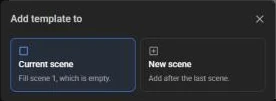
- Under “Add template to”, choose Current scene or New scene
- Replace the placeholder content with your own
Customizing Templates
Section titled “Customizing Templates”Every element in a template can be customized:
- Change headlines and body text
- Adjust fonts, colors, and sizes
- Apply text styles such as Neon, Outline, Glitch or Extrude
- Change the entrance and exit effects, and drag effect edges on the timeline to adjust their timing
Characters
Section titled “Characters”- Swap characters from the Character panel or your own saved characters
- Change clothing colors
- Choose different actions and expressions
Colors
Section titled “Colors”- Apply your brand colors
- Change the scene’s background color or image
- Adjust element colors
- Replace the placeholder voiceover
- Change the background music
- Adjust audio timing on the timeline
Reusing Your Work
Section titled “Reusing Your Work”Templates are a starting point for every new design. To keep a series consistent from one video to the next:
- Duplicate Scene: copy a finished scene inside a design and change only what’s different
- My Characters: characters you build or rig are saved to your account and available in every design
- Brand Kit (Advance plan): store your logos and brand colors, then use Apply brand colours to recolor a whole design, optionally including characters
Best Practices
Section titled “Best Practices”- Start with the right format: Choose the canvas size for your output platform before you pick a template
- Don’t over-customize: Templates are designed for visual balance
- Keep brand consistency: Use templates as a starting point for brand guidelines
- Test before finalizing: Preview on the target platform
Related Features
Section titled “Related Features”- Quick Start - Get started fast
- Character Builder - Customize characters
- Text-to-Speech - Add voiceovers