Selecting, Arranging and Aligning Items
Everything you add to a scene, such as a character, a shape, text, an image or a video, is an item on the canvas. This article covers the everyday handling of items: selecting them, moving and sizing them, lining them up, and finding your way around the canvas.
Select items
Section titled “Select items”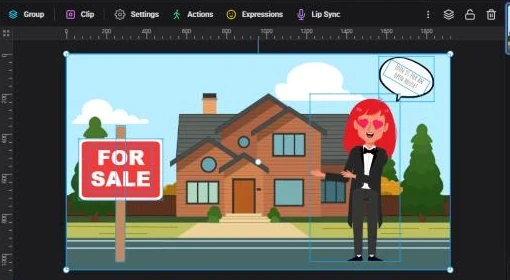
- One item: click it. Its toolbar appears above the canvas, and a floating toolbar appears next to the item
- Several items: hold Shift or Ctrl (Cmd on Mac) and click each one. Click a selected item the same way to take it out of the selection
- Everything in a box: press on an empty part of the canvas and drag. Anything the box touches is selected. Hold Shift while dragging to add to what’s already selected
- Everything in the scene: press Ctrl+A (Cmd+A on Mac)
- Nothing: click an empty part of the canvas, or press Esc
Clicking an item that’s part of a group selects the whole group. To pick one item inside a group, double-click it. Items hidden behind others are easiest to reach from the Layers panel. See Layers, Groups and Locking.
Move, resize and rotate
Section titled “Move, resize and rotate”Move: drag the item. While you drag, guide lines show when its edges or center line up with other items or with the scene, and the distances between items appear in pixels. The item snaps into place along those lines.
Nudge: press the arrow keys to move the selection 1 pixel at a time, or Shift plus an arrow key for 10 pixels.
Resize: drag a handle on the selection box.
- Hold Shift while dragging a handle to keep the item’s proportions
- Characters always resize in proportion, so they only have corner handles
- Text boxes have side handles and corner handles. The side handles change the width and the text rewraps to fit. The corner handles scale the whole text, font size included
- Very small items show only the corner handles
Rotate: drag the round rotate handle below the item. The handle moves above the item when it’s near the bottom of the scene. The angle shows next to the pointer while you turn it.
Exact numbers: click Position & Layers (the layers icon) in the toolbar. Under Advanced, type a Width, Height, X, Y or Rotate value. The Ratio padlock beside the size boxes starts locked, so changing the width also changes the height. Click it to change them separately. You’ll find the same values, plus Opacity and Timing, in the Properties panel: click More Tools in the toolbar, then Properties.
Click Position & Layers in the toolbar, then Flip Horizontal or Flip Vertical under Flip.
Duplicate, copy, paste and delete
Section titled “Duplicate, copy, paste and delete”- Duplicate: click Duplicate in the toolbar, press Ctrl+D (Cmd+D on Mac), or right-click and choose Duplicate. The copy appears slightly offset from the original and is selected. A copy made inside a group stays in that group
- Copy and paste: press Ctrl+C and Ctrl+V (Cmd+C and Cmd+V on Mac), or use Copy and Paste in the right-click menu. Items are pasted into the scene you’re on, so this is how you move items from one scene to another: copy, open the other scene, paste. Pasted items are slightly offset and are set to show for the whole scene
- Delete: press Delete or Backspace, click Delete in the toolbar, or right-click and choose Delete
Made a mistake? Press Ctrl+Z (Cmd+Z on Mac) to undo.
Copy one item’s style to another
Section titled “Copy one item’s style to another”- Select the item whose look you like, click More Tools in the toolbar, then Copy Style under Style
- Select another item of the same type, for example another text box
- Click More Tools, then Paste Style
Paste Style stays greyed out until the selected item is the same type as the one you copied from. On Windows, the shortcuts are Ctrl+Alt+C and Ctrl+Alt+V.
Align and distribute
Section titled “Align and distribute”Select one or more items and click Position & Layers in the toolbar.
- Align to Page places each selected item on the scene, using a 3 × 3 grid of positions: Top Left, Top, Top Right, Left, Center, Right, Bot Left, Bottom and Bot Right. Top, for example, puts the item at the top edge, centered across. When you’re working inside a group, this section is called Align to group and lines items up with the group instead
- Align objects appears when two or more items are selected. It lines them up with each other: Align left, Align center, Align right, Align top, Align middle and Align bottom
- Horizontal and Vertical distribute appear when three or more items are selected. They space the items out evenly
The same panel also holds Layer Order (see Layers, Groups and Locking), Flip, and the exact size and position boxes.
Rulers, guides and the grid
Section titled “Rulers, guides and the grid”Rulers run along the top and left of the canvas, measured in pixels of your scene. They’re on when you first open the editor.
The ruler button sits on the right of the bar above the timeline. Click it to open View Options:
- Show Rulers (Ctrl+R, or Cmd+R on Mac)
- Show Guides (Ctrl+;), with the number of guides in brackets once you’ve added some
- Show Grid (Ctrl+’) and Grid Size: 10, 20, 25, 50 or 100 px. The grid is a visual aid for lining things up by eye
- Clear All Guides
Add and manage guides
Section titled “Add and manage guides”- Press on the top ruler at the position you want and let go. A vertical guide appears there. You can slide along the ruler before you let go; a line shows where the guide will land
- Do the same on the left ruler to add a horizontal guide
- Drag a guide to move it. Hover over it to see its exact position
- To remove a guide, hover over it and click the red ×, or right-click it. To remove them all, click the small square where the two rulers meet
Items snap to your guides when you drag them near, just like they snap to other items.
Zoom and pan the canvas
Section titled “Zoom and pan the canvas”The zoom control is on the right of the bar above the timeline.
- Click − or + to zoom out or in by 5%. The canvas zooms up to 150%
- Click the percentage to fit the whole scene on screen
- Hold Ctrl (Cmd on Mac) and turn the mouse wheel to zoom toward the pointer. A pinch on a trackpad does the same
- When you’re zoomed in, scroll to move around the canvas, or hold the middle mouse button (the wheel) and drag
During playback the canvas always shows the whole scene, so the zoom buttons are unavailable until you pause.
The right-click menu
Section titled “The right-click menu”Right-click an item to open a menu for it. If the item wasn’t selected, right-clicking selects it first. If you right-click one item of a multiple selection, the selection is kept. Depending on the item, you’ll see:
- Replace image or Replace video, to swap the media but keep its position and settings
- Set as background, to make an image or video fill the scene behind everything
- Replace character, to swap a character but keep its animation, audio and lip sync
- Group, when several items are selected
- Clip and Release clip, for clipping items to a shape
- Ungroup and Enter group, for groups
- Duplicate, Copy and Paste
- Lock or Unlock
- Delete
Right-click an empty part of the canvas to Paste.
More ways to transform an item
Section titled “More ways to transform an item”Click More Tools in the toolbar (or press Ctrl+Shift+D) to open a panel of extra tools for the selected item. Its Transform section holds modes that change what dragging the handles does. Only one can be on at a time:
- Scale: the corner handles scale the whole item instead of resizing its box
- Pivot point: drag the dot to move the point the item rotates and scales around
- Crop: drag the edges to crop the item without changing its box. Not offered for text
- Round corners: drag the corner handle to round the corners. Not offered for text
- Warp / skew: drag each corner on its own for skew and perspective. Not offered for characters
Groups don’t have these modes. While a mode is on, a banner on the canvas shows its name. Click Done or press Esc to leave it. Once a mode has changed something, a Reset tile appears so you can undo it in one step. The same section has 3D effects, ready-made tilt, turn and fold presets, and Properties.
Choose where the toolbar appears
Section titled “Choose where the toolbar appears”Click the Toolbar Mode button on the right of the bar above the timeline:
- Show Both (the default) shows the toolbar above the canvas and the floating toolbar next to the selection
- Static Only keeps just the toolbar above the canvas
- Floating Only keeps just the floating toolbar
Under Floating Position, choose Above Item or Right (2 columns).
Keyboard shortcuts
Section titled “Keyboard shortcuts”These work while the canvas has focus, not while you’re typing in a text box or a panel field. On a Mac, use Cmd where the table says Ctrl.
| Shortcut | What it does |
|---|---|
| Ctrl+A | Select every item in the scene |
| Shift+click or Ctrl+click | Add an item to the selection, or take it out |
| Esc | Leave the current mode or group, then deselect |
| Delete or Backspace | Delete the selection |
| Ctrl+C / Ctrl+V | Copy / paste into the current scene |
| Ctrl+D | Duplicate |
| Arrow keys | Nudge 1 pixel (Shift for 10 pixels) |
| Hold Shift while resizing | Keep proportions |
| [ / ] | Send back / bring forward one layer |
| Ctrl+G / Ctrl+Shift+G | Group / ungroup |
| H | Hide or show the selected item |
| 1 to 9, 0 | Set opacity from 10% to 90%; 0 sets 100% |
| S | Turn snapping off or on |
| Ctrl+R, Ctrl+;, Ctrl+‘ | Show or hide rulers, guides, grid |
| Ctrl+Z / Ctrl+Y | Undo / redo |
For the full list, see Keyboard Shortcuts and the Command Palette.
Troubleshooting
Section titled “Troubleshooting”- An item won’t move or resize. It’s probably locked. A small lock badge shows on it when it’s selected. Click Unlock in the toolbar, or right-click it and choose Unlock.
- Items no longer snap. Snapping may have been switched off with S. Click an empty part of the canvas and press S once.
- I can’t click an item that’s behind another one. Select it from the Layers panel instead.
- The arrow keys move a slider instead of the item. The slider still has focus. Click the item on the canvas, then use the arrow keys.
- Zoom buttons do nothing. The video is playing. Pause it first.