The Timeline
The timeline runs along the bottom of the editor. It is where you play your video, move the playhead, and decide when each item, effect, sound and scene starts and stops. This article covers the views it offers, playback, timing items and scenes, audio, zoom and snapping.
Find and resize the timeline
Section titled “Find and resize the timeline”On a laptop or desktop the timeline is always open under the canvas. Drag its top edge up or down to make it taller or shorter. It can grow to about two thirds of the window, and Glintia remembers the height you pick.
On a phone, tap the Timeline icon at the bottom of the editor to open it. The phone layout always uses the scrollable, zoomable timeline described under Zoom in and out.
The row of controls above the tracks has three parts:
- Left: the view tabs (Scenes, Scene, Camera, Tracks), then Fit, Scroll, Grid and the zoom buttons
- Centre: the time readout and the playback buttons
- Right: canvas tools, including Split
Choose a timeline view
Section titled “Choose a timeline view”Click a tab to switch views, or press Shift+Tab to cycle through them. On narrow screens the tabs show only their icons.
The open scene on its own. The top row is the scene bar. With nothing selected, the rows below it are the scene’s sounds. Select an item and its own rows appear: the item bar, then Animations, and for characters Actions, Expressions, Voice and mouth shapes, plus Item audio. This is the view the editor opens in, and the one you will use most.
The whole video. Every scene sits side by side on one row, so you can see how long each one is and where the transitions fall. Sounds that span the video get rows of their own. Click a scene to open it, or double-click it to jump to its Scene view. The Video Editor mode opens in this view.
The open scene’s camera shots. Switching to this view opens the Camera panel and shows the camera frame on the canvas. See Keyframes, Motion Paths and Camera Moves.
The whole video laid out like a video editor: a strip of scenes on top, every item of every scene on numbered video tracks (V1 at the bottom), and every sound on audio tracks (A1, A2 and so on). See Use the Tracks view.
A fifth tab, Animation, appears only while you are editing an animation’s keyframes in detail. See Keyframes, Motion Paths and Camera Moves.
Play, pause and scrub
Section titled “Play, pause and scrub”The playback controls sit in the middle of the control row:
- Play / Pause: starts and stops playback
- Go to start: stops and puts the playhead back at 0
- Mute: silences playback in the editor (it doesn’t change your design)
- Fullscreen playback: plays the canvas full screen
- Speed: preview at 1 frame/s, 0.25x, 0.5x, 0.75x, 1x, 1.5x, 2x or 5x. This only changes the preview, not your video. It is hidden on phones
- The time readout shows where the playhead is and how long the view is
To move through time, click anywhere on the time ruler to jump there, or drag the red playhead. To step one frame at a time, click the timeline first so it has focus, then press the Left or Right arrow key.
| Shortcut | What it does |
|---|---|
| Space or K | Play / Pause |
| J / L | Back / forward 10 seconds while playing |
| Left / Right arrow | Back / forward 5 seconds while playing |
| Left / Right arrow with the timeline focused | Move one frame |
| 0 | Go to start while playing |
| Home | Stop playback |
| M | Mute / unmute playback |
| F | Enter / exit fullscreen playback |
| Shift+Tab | Switch to the next timeline view |
Set when an item appears
Section titled “Set when an item appears”Every item has a bar that shows when it is on screen. Select an item to see its bar in the Scene or Scenes view.
- Move it: drag the middle of the bar left or right. Its length stays the same
- Change when it starts or ends: drag the bar’s left or right edge. A bar can’t be shorter than half a second, and it can’t run past the end of its scene
- Type exact times: open the Properties panel (Ctrl+Shift+S, or Cmd+Shift+S on a Mac, or More Tools → Properties in the item’s toolbar). Under Timing, enter From (ms) and To (ms) in milliseconds. 1000 ms is one second
Entrance and exit effects ride on the item bar as small chips. An entrance effect is pinned to the start of the bar and an exit effect to its end, so they move with the item. Drag the free edge of a chip to make the effect longer or shorter, or click it to open the Effects panel. See Entrance, Exit and Looping Effects.
The rows under an item
Section titled “The rows under an item”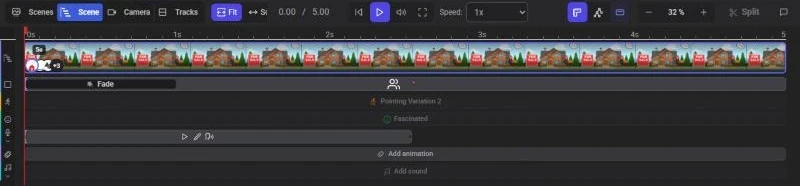
When you select one item (or one group), its rows appear under the scene bar:
- Animations: hand-placed animations such as Pulse or a keyframe path. Each animation is a bar with keyframe diamonds on it. An empty row shows Add animation, which opens the Animations panel
- Actions, Expressions and Voice (characters only): see Adding and Directing Characters and Lip Sync and Mouth Shapes
- Item audio: sounds attached to this item. An empty row shows Add sound
The narrow column at the left of the timeline labels each row. On rows that can be switched off, click the icon: on an item row it hides the item, and on a sound row it mutes that sound during playback. Sound rows with several clips also have a chevron that expands the row so overlapping clips each get a line.
Change a scene’s length
Section titled “Change a scene’s length”New scenes are 5 seconds long. A scene can be anywhere from 1 second to 5 minutes. There are three ways to change it:
- Drag the right edge of the scene bar, in the Scene or Scenes view
- With nothing selected, use the scene duration control (the clock icon) in the toolbar and enter a length in seconds
- Open the scene’s menu (the … button on the scene bar, or right-click the bar) and set Duration
When you change a scene’s length, items that lasted until the old end of the scene stay with the end as it moves. Every other item keeps its own timing, and is pulled back inside the scene if the scene gets too short for it.
The scene bar shows pictures of the scene across its length, the scene’s length in the top-left corner, and a small picture of each item at the moment it comes on. Click one of those pictures to select that item.
The scene menu
Section titled “The scene menu”Click … on a scene bar, or right-click it, for these options:
- Split Scene: cuts the scene in two at the playhead. Pause first, and place the playhead at least 1 second from either end
- Combine with Previous Scene / Combine with Next Scene: joins two scenes into one, played in sequence. This removes the transition at the join
- Duration: the scene’s length in seconds
- Scene Transition: opens the Transitions panel for the change into the next scene. See Scene Transitions
- Duplicate Scene
- Remove Scene (not available when it is the only scene)
Split a scene or a clip
Section titled “Split a scene or a clip”Click Split (the scissors button) on the right of the control row:
- With a video selected, it splits the video at the playhead. Each side needs at least 0.5 seconds of video. To split a looping clip, turn off its Loop first
- With nothing selected, it splits the open scene at the playhead. Each side needs at least 1 second
To cut a scene somewhere other than the playhead, hold Ctrl (Cmd on a Mac) over the scene row. A scissors and a dashed line follow the mouse; click to cut there.
Work with audio on the timeline
Section titled “Work with audio on the timeline”Each sound is a bar with its waveform drawn on it.
- Scene sounds (music and sounds added to the scene) appear as rows in the Scene view when nothing is selected, and in the Scenes view. In Scenes, each scene bar also shows thin strips along its bottom where its sounds play
- Item sounds and voices appear in the selected item’s Item audio and Voice rows
On a scene sound bar you can:
- Drag the bar to move the sound in time
- Drag its right edge to make it play for a shorter or longer time
- Double-click it to trim: handles appear at both ends to set the in and out points, and dragging the middle changes which part of the file plays. Click Finish trimming or press Esc when you are done
- Click the play button on the bar to preview the sound on its own
- Click X to remove it
Volume, fades and other sound settings are in the sound’s options panel, which opens when you click the bar. See Music, Sound Effects and Audio Settings.
Zoom in and out
Section titled “Zoom in and out”- Fit squeezes the whole view into the width of the timeline. It is best for short designs
- Scroll lets the timeline run wider than the screen so you can zoom. Use - and + to zoom from 100% to 800% in 50% steps, and click the percentage to go back to 100%
- Hold Ctrl (Cmd on a Mac) and scroll the mouse wheel, or pinch on a trackpad, to zoom around the mouse pointer. Doing this in Fit switches to Scroll
When a design opens, Glintia picks Scroll if any scene is longer than 20 seconds or the whole video is longer than 30 seconds, and Fit otherwise. While a scrolling timeline plays, it follows the playhead.
Snap bars into place
Section titled “Snap bars into place”When you drag a bar or its edge close to the edge of another bar, it snaps to line up with it, and a guide line flashes where it landed.
Click Grid to draw grid lines for each row and for the main times on the ruler. With the grid on, bars, edges and keyframes also snap to the grid lines, and the lines get finer as you zoom in. Glintia remembers whether you had the grid on. When dragging a keyframe, hold Alt (Option on a Mac) to place it between grid lines.
Use the Tracks view
Section titled “Use the Tracks view”The Tracks view shows the whole video at once. Items higher up the tracks are in front of items lower down, so the track an item sits on is its layer order.
- Click the Tracks tab
- Drag a clip left or right to change when it plays, or up and down to move it to another track (and so in front of or behind other items)
- Drag a clip’s edges to trim when it starts and ends
- Drag the right edge of a scene in the top strip to change its length, or click the scene to open it
Things to know about Tracks:
- Edges snap to scene boundaries, other clips, the playhead and the start and end of the video. Hold Alt while dragging to move without snapping
- Most clips can be dragged across a scene boundary. The clip is then cut into one linked piece per scene and moves as one clip. Right-click it and choose Unlink parts (one clip per scene) to separate them. Backgrounds always stay in their own scene
- Shaded ends on a clip show its entrance and exit effects
- Right-click a clip for Edit animations in Scene timeline, Bring to front, Send to back, Show / Hide, Lock / Unlock and Delete
- Double-click a clip to open it in the Scene view, where its effects and animations are edited
- Use the eye and lock buttons on a V track’s header to hide or lock everything on it, and the speaker button on an A track to mute it
- Locked items can be selected but not moved here
- If the video has no sound yet, click Add music or sound on the audio track to open the Audio panel
Troubleshooting
Section titled “Troubleshooting”Playback only plays one scene. You are in the Scene or Camera view. Switch to Scenes or Tracks to play the whole video.
I can’t see an item’s Animations or Actions rows. Select just that one item. With several separate items selected, the rows are hidden.
A bar won’t move. The item is probably locked. Unlock it from its toolbar or the Layers panel.
Split is greyed out. Pause playback, and move the playhead at least 1 second from either end of the scene (0.5 seconds of video for a clip). For a looping video, turn off Loop.
A bar’s end is cut off. A bar can’t run past the end of its scene. Make the scene longer first, then drag the bar’s edge.