Text, Fonts and Text Styles
Text in Glintia is an item like any other: you can move it, animate it and layer it. This article covers adding text, editing it, choosing fonts, styling it with effects, and the advanced typography settings. It also covers dynamic text, which fills itself in with a date, a scene number or live captions.
Add text
Section titled “Add text”The Text panel is on the left rail in every editor mode.
- Click Text on the rail
- Click Add a text box. A text box reading “sample text” appears on the current scene, set to last for the whole scene
- Double-click the text box and type your own words
You can also press T to add a text box straight away, as long as you aren’t typing somewhere else.
Start from a ready-made text design
Section titled “Start from a ready-made text design”Below Add a text box, the Text panel shows ready-made text designs: headings, titles and text combinations with the styling already done. Designs that include an animation play it when you hover over them, so you can preview the motion.
- Click a design to add it in its designed position, or drag it onto the canvas to drop it where you let go
- Designs with several lines of text are added as one group. Double-click a line to edit it without ungrouping
- Use Search texts… to find a design. The designs shown match your canvas shape: landscape, portrait or square
- A design that needs a higher plan opens an upgrade prompt instead
Edit the words
Section titled “Edit the words”- Start typing: double-click the text box. The cursor lands where you clicked
- Select a word: double-click it while you’re typing
- Stop editing: press Esc or click outside the text box
Dynamic text (see below) can’t be typed into. Its words come from its settings.
To change the size of a text box, drag its handles. The side handles change the width, and the text rewraps to fit. The corner handles scale the whole text, font size included.
Change the font, size, color and alignment
Section titled “Change the font, size, color and alignment”Select a text item and use its toolbar:
| Control | What it does |
|---|---|
| Font name box | Opens the Fonts panel (see below) |
| Font size box | Type a size from 1 to 500, or use the arrows |
| Text color swatch | A solid color or a gradient |
| Text Background swatch | A color behind the text |
| Bold, Italic, Underline | Toggle each style. Shortcuts: Ctrl+B, Ctrl+I, Ctrl+U (Cmd on Mac) |
| Text Alignment | Align Left, Align Center, Align Right or Align Justify |
| Styles | Opens the text styles and effects panel (see below) |
If a font has no real bold or italic version, Glintia simulates it, and the button’s tooltip tells you so: “Bold is simulated - this font has no bold weight”.
Style only part of the text
Section titled “Style only part of the text”- Double-click the text box and highlight the characters you want to change
- Change the font, size, color, bold, italic or underline. Only the highlighted characters change
While you’re typing, press Ctrl+Shift+. to make the highlighted text’s font size 2 larger, or Ctrl+Shift+, to make it 2 smaller (Cmd on Mac). When the Fonts panel or Advanced settings panel is working on highlighted characters, it says “Applying to selected text”. Click Whole text to apply changes to the whole text box again.
Choose a font
Section titled “Choose a font”Click the font name box in the text toolbar, or press Ctrl+Shift+F (Cmd+Shift+F on Mac), to open the Fonts panel. There are more than 1,900 fonts: fonts from Google Fonts, plus Arial, Arial Black, Courier New and Comic Sans MS.
- Type in Search fonts… to find a font by name
- Use the category buttons to narrow the list: All, Popular (the 100 most popular), Sans, Serif, Display, Script and Mono
- Each font is previewed in its own typeface. Click one to apply it
Suggested pairings
Section titled “Suggested pairings”Above the font list, Suggested pairings shows cards with a heading font and a body font that look good together. Click a card to apply its heading font to the selected text. The body font’s name is on the card, so you can apply it to your body text yourself.
Click Suggest fonts to have the AI design assistant suggest pairings based on the text in your design. Each press uses 0.5 AI credits. Pairings are hidden while you search or pick a category.
Upload your own fonts
Section titled “Upload your own fonts”Uploading fonts is available on the Pro, Advance and Enterprise plans. On Basic, the Upload font button shows a PRO badge and opens an upgrade prompt.
- Open the Fonts panel
- Under Your fonts, click Upload font
- Pick one or more font files: TTF, OTF, WOFF or WOFF2, up to 10 MB each
- Your fonts appear under Your fonts, previewed in their own typeface. Click one to apply it
Uploaded fonts belong to your account, so they’re available in all your designs. To remove one, hover over it and click the trash button (Remove font). Only upload fonts you have a license to use.
Text styles and effects
Section titled “Text styles and effects”Select a text item and click Styles in its toolbar. The panel has three tabs: Styles, Filters and Adjustments.
Styles
Section titled “Styles”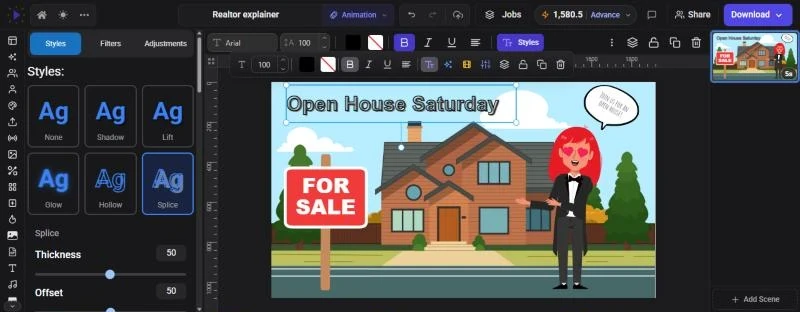
Click None to remove an effect, or click one of the 15 effects. Its settings open right under the card:
| Effect | Settings you can change |
|---|---|
| Shadow | Offset, Direction, Blur, Transparency, Color |
| Lift | Intensity |
| Glow | Intensity, Color |
| Hollow | Thickness |
| Splice | Thickness, Offset, Direction, Color |
| Outline | Thickness, Color |
| Echo | Offset, Direction, Color |
| Glitch | Offset, Direction, Color |
| Neon | Intensity |
| Background | Roundness, Spread, Transparency, Color |
| Extrude | Offset, Direction, Color |
| Long Shadow | Offset, Direction, Transparency, Color |
| Emboss | Intensity |
| Engrave | Intensity |
| Stamp | Thickness, Blur, Color |
After the effects come 25 one-click styles that set a color, an effect and a font together, such as Neon Lights, Gold Foil, Chrome, Comic Pop, Vaporwave and Chalk. You can adjust a style’s settings after you apply it.
Custom and Curve
Section titled “Custom and Curve”Under Custom & Curve:
- Custom lets you combine pieces freely. Turn on any mix of Shadow, Outline, Transparent fill, Glow and Background, each with its own settings
- Curve bends the text along an arc. Use the Bend slider, from -100 to 100: negative values arch downward, positive values arch upward, and the ends of the range form a full circle. Curve works together with any effect. Click Curve again to straighten the text
Filters and Adjustments
Section titled “Filters and Adjustments”Filters applies one-click looks to the text. Adjustments has sliders such as Brightness, Contrast, Hue, Saturation and Blur.
Spacing and advanced typography
Section titled “Spacing and advanced typography”Select a text item and click More Tools in the toolbar (or press Ctrl+Shift+D).
- Spacing sets the Line Height and the Char Spacing (the space between letters)
- Typography opens the Advanced settings panel, with more control:
Letter spacing from -20 to 100, and Line spacing from 0.5 to 3.
Align to top, Align to middle or Align to bottom decides where the text sits when the box is taller than the text. Resize the text box vertically to see the anchor take effect.
Text position: Normal, Superscript or Subscript, for things like footnote marks or chemical formulas.
Kerning on or off: refines the spacing between particular letter pairs. Ligatures on or off: joins certain letter pairs, such as “fi”, into a single shape, in fonts that support it.
If you highlight characters before opening Advanced settings, letter spacing, text position, kerning and ligatures apply to those characters only. Line spacing and the anchor always apply to the whole text box.
Dynamic text
Section titled “Dynamic text”Dynamic text is “Text that fills itself in when the video plays”. Use it for a date, a running timer, a scene number, or captions that follow your narration.
Add dynamic text
Section titled “Add dynamic text”- In the Text panel, click the lightning button (Dynamic text) next to Add a text box, then pick a type
- In the AI Builder mode, you can also click Dynamic Text on the rail
| Type | What it shows |
|---|---|
| Subtitle | The caption being spoken at that moment, from a video, audio track or subtitle file |
| Date | The current date |
| Time | The current time of day |
| Date & Time | Both |
| Video Title | The file name of a video in your design |
| Slide Number | The number of the scene it’s on |
| Video Time | A timer that counts up from when the text appears |
Change its settings
Section titled “Change its settings”Select the dynamic text and click Dynamic text in its toolbar. Depending on the type, you can set:
- Format for dates and times. Letter codes are replaced with real values: YYYY for the year, MMMM or MMM for the month name, MM or M for the month number, DD or D for the day, HH or H for 24-hour hours, hh or h for 12-hour hours, mm for minutes, ss for seconds, and A for AM/PM. The default date format is MMM D, YYYY, and the default time format is HH:mm. For Video Time, use H, m and s codes, such as mm:ss
- Prefix and Suffix: text added before and after the value, such as “Scene ” before a scene number
- Fallback: text “Shown when empty”, for example between captions
- For Subtitle: the source to follow and, when the source has translations, the Language. If the captions aren’t tied to a video or audio track, click Manual to type them or Upload to add an .srt or .vtt file
- For Video Title and Video Time: which Video to use
Style dynamic text like any other text: font, size, color and effects all work. For captions, see Subtitles and Captions.
Animate your text
Section titled “Animate your text”Select the text and click Effects in its toolbar to choose how it enters (“on Enter”) and leaves (“on Exit”). With a text item selected, the panel includes text-only effects such as Type, Split Words, Scramble and Wave. Click Animations for looping motion. See Entrance, Exit and Looping Effects.
Troubleshooting
Section titled “Troubleshooting”- Double-clicking doesn’t let me type. The text is probably dynamic text, which takes its words from its settings. Select it and click Dynamic text in its toolbar to change what it shows.
- Bold looks a little off. The font has no real bold weight, so Glintia simulates it. Pick a font with a bold weight for the cleanest result.
- My change only affected some letters. Characters were highlighted. In the Fonts or Advanced settings panel, click Whole text, or click outside the text box and select it again.
- The Upload font button opens an upgrade prompt. Font upload is part of the Pro, Advance and Enterprise plans.
- The anchor setting seems to do nothing. Make the text box taller than its text; the anchor only matters when there’s spare room.