A Tour of the Editor
This tour walks through every part of the editor so you know where things are before you start building. The layout is the same in every editor mode. Only the panels on the left rail change (see Choosing an Editor Mode).
The layout at a glance
Section titled “The layout at a glance”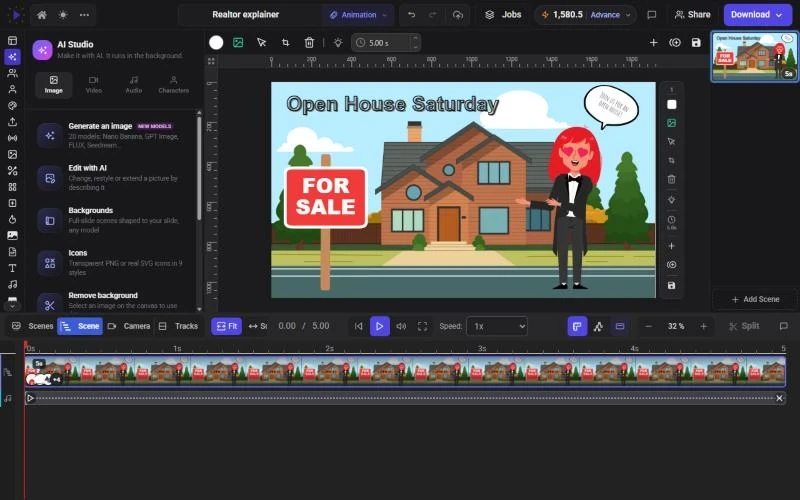
- Header (top): home, the design’s name, the mode switcher, undo and redo, save status and Download
- Left rail and side panel: the icons you add things from, and the panel each one opens
- Toolbar (above the canvas): controls for the scene, or for whatever you’ve selected
- Canvas (center): the current scene, where you place and arrange items
- Scene strip (right): a thumbnail of every scene, in order
- Timeline (bottom): when each item appears, plus the playback controls
The header
Section titled “The header”Left side
- Glintia logo and Home: save the design and go back to the dashboard. You’ll see “Saving your design…” for a moment first
- Sun or moon icon: switch between light and dark themes
- More (three dots):
- Keyboard shortcuts (Ctrl+/, Cmd+/ on a Mac): a searchable list of every shortcut
- Version history: earlier saved versions of the design. See Autosave, Undo and Version History
- The language list: change the app’s language
Center
- Design name: click it and type to rename the design. New designs show “Untitled Design …” until you do
- Mode switcher: the current editor mode. Click it to switch modes
Right side
- Undo (Ctrl+Z) and Redo (Ctrl+Y or Ctrl+Shift+Z). On a Mac, use Cmd instead of Ctrl
- Save (Ctrl+S): your design saves automatically, and this icon shows the status: a spinner while saving, a green check when saved, and a warning triangle if a save failed. Click the warning to retry
- Background jobs: AI generations and exports keep running while you work. Click to follow them and pick up the results, filtered by All, Images, Videos or Exports
- Credits and plan pill: your AI credits and plan, with Top up, Upgrade and, during a trial, Start plan now
- Download: opens the export panel. See Exporting Your Video
The left rail and side panel
Section titled “The left rail and side panel”The rail is the column of icons on the far left. Click an icon to open its panel beside it, for example Template, Character, Text or Upload. Then click or drag something from the panel to add it to the scene.
- Hover over an icon to see its name and shortcut, for example “Layers (⌘/Ctrl+Shift+Y)”
- If not every icon fits, arrows at the top or bottom of the rail scroll it
- Some panels open other panels. When that happens, a “Back to …” row at the top of the panel takes you back
Which icons you see depends on your editor mode. Panels that edit a selected item, such as Effects or Lip Sync, open from the item’s toolbar instead of the rail.
The canvas
Section titled “The canvas”The canvas shows the current scene. Click an item to select it, drag to move it, and use its handles to resize or rotate it. Right-click an item for quick actions such as Copy, Paste, Duplicate and Lock.
Zoom and pan
- Use the zoom control at the right end of the timeline bar: − and + zoom out and in, and clicking the percentage fits the scene to the window
- Hold Ctrl (Cmd on a Mac) and scroll the mouse wheel, or pinch on a trackpad, to zoom around the pointer
- Scroll normally to move around a zoomed-in scene, or hold down the mouse wheel and drag to pan
Rulers, guides and grid: the view options button in the timeline bar turns on Show Rulers, Show Guides and Show Grid, and sets the Grid Size. Drag from a ruler to create a guide. Shortcuts: Ctrl+R for rulers, Ctrl+; for guides and Ctrl+’ for the grid.
See Selecting, Arranging and Aligning Items for everything you can do on the canvas.
The toolbar
Section titled “The toolbar”The toolbar has two states.
Nothing selected: scene controls. The bar above the canvas shows settings for the current scene:
- The background color swatch, and a button to add or change a background image. Once a scene has a background image you can also select, crop or remove it here
- Scene Transition: the transition into the next scene (not shown on the last scene)
- The scene duration, in seconds (from 1 second to 5 minutes)
- On the right: Add New Scene, Duplicate Scene and Remove Scene
Something selected: the item toolbar. The controls depend on what you selected. A text item gets font, size, color and Styles, a character gets Actions, Expressions and Lip Sync, an image gets Edit Image and Remove BG, and so on. Most items also get:
| Button | What it does |
|---|---|
| Effects (Ctrl+E) | Entrance and exit effects |
| Animations (Ctrl+Shift+A) | Looping motion |
| More Tools (Ctrl+Shift+D) | Opens the More Tools panel (see below) |
| Position & Layers | Layer order, alignment, distribution, flip, and exact size and position |
| Lock (L) | Stops the item from being moved by accident |
| Duplicate (Ctrl+D) | Makes a copy |
| Delete (Del) | Removes the item |
On a narrow window, controls that don’t fit move into a … overflow menu.
Two toolbars. By default the toolbar appears in two places: above the canvas, and floating just above the selected item. To change this, click the Toolbar Mode button in the timeline bar and choose Show Both, Static Only or Floating Only. Under Floating Position, choose Above Item or Right (2 columns).
The More Tools and Properties panels
Section titled “The More Tools and Properties panels”These two panels change the item you’ve selected. They have no rail icon.
- More Tools (Ctrl+Shift+D, or More Tools in the item toolbar): a grid of extra controls for the selected item, grouped into Appearance, Transform and Style. What’s in it depends on the item, for example outlines, corner radius and shadows, plus Copy Style and Paste Style
- Properties (Ctrl+Shift+S, or the Properties tile in More Tools): exact Position (X, Y) with Align to page, Size (Width, Height, Lock aspect ratio), Rotate, Opacity, and Timing (From (ms) and To (ms), when the item appears and disappears)
On a Mac, use Cmd instead of Ctrl for these shortcuts.
The scene strip
Section titled “The scene strip”The column of thumbnails on the right shows every scene in order. A video is made of one or more scenes played one after another.
- Click a thumbnail to edit that scene
- Drag a thumbnail up or down to reorder scenes
- Hover a thumbnail and click its … button for Add Scene, Duplicate Scene, Combine with Previous Scene, Combine with Next Scene and Remove Scene
- Click the small button between two thumbnails to choose the transition between those scenes
- Click Add Scene at the bottom of the strip, or press Ctrl+Alt+N (Windows), to add a new scene
See Working with Scenes and Scene Transitions.
The timeline
Section titled “The timeline”The timeline runs along the bottom. Drag its top edge to make it taller or shorter.
The control bar, from left to right:
- Timeline view: Scene (the items in the current scene), Scenes (all scenes in a row), Camera (camera moves) and Tracks (every item of every scene on tracks, the whole video at once). Press Shift+Tab to cycle through them
- Fit shows the whole timeline in the available width. Scroll gives a scrollable timeline you can zoom with its − and + buttons. Grid shows grid lines that bars snap to
- Playback controls (center): the current time and length, Go to start, Play/Pause (Space), mute (M), fullscreen playback (F) and a playback speed menu for previewing slower or faster. The speed only affects the preview
- View options, Toolbar Mode and the canvas zoom control (right)
- Split: cuts the current scene at the playhead into two scenes, or, with a video selected, cuts that clip at the playhead
Each item in the scene appears as a bar. Drag a bar to change when the item appears, and drag its ends to change how long it stays. See The Timeline.
The command palette and shortcuts
Section titled “The command palette and shortcuts”Press Ctrl+P (Cmd+P on a Mac) to open the command palette, then type what you want to do, for example “add text”, “switch to whiteboard” or “open layers”. It lists editing commands, panels, mode switches and AI Animation Director, with their shortcuts.
A few shortcuts worth learning first:
| Shortcut | Action |
|---|---|
| Space | Play or pause |
| Ctrl+Z / Ctrl+Y | Undo / redo |
| Ctrl+S | Save now |
| Ctrl+D | Duplicate the selected item |
| T | Add a text box |
| Ctrl+P | Command palette |
| Ctrl+/ | List of all shortcuts |
On a Mac, use Cmd instead of Ctrl. For the full list, see Keyboard Shortcuts and the Command Palette.
On smaller screens
Section titled “On smaller screens”When the window is narrower than 1024 pixels, the editor switches to a compact layout. The scene strip and timeline move into tabs at the bottom, next to the playback controls, and the panel icons sit in a row underneath. Panels open as a sheet above them. For the full set of tools, a laptop or desktop screen works best.