AI Studio and AI Credits
AI Studio is the editor panel that puts every Glintia AI tool behind one door: image, background and icon generators, AI video, music and sound effects, dubbing, talking characters, avatars and the AI Animation Director. Every AI feature is paid for with AI credits, a monthly allowance that comes with your plan. This article covers both: how to find the tools, and how credits work.
Open AI Studio
Section titled “Open AI Studio”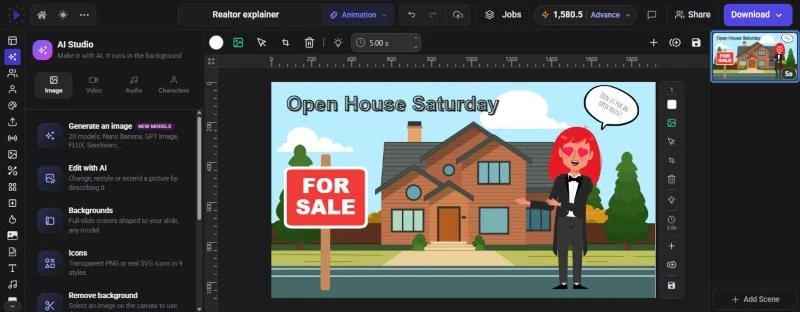
- Click AI Studio on the left rail of the editor. It is on the rail in every editor mode: Animation, Whiteboard, Video Editor, AI Builder and Full Editor.
- In AI Builder mode the editor opens on AI Studio, and each generator also gets its own rail button (Talking Character, AI Video Generator, AI Image, AI Background, AI Icon, AI Sound and Avatars).
- From anywhere in the editor, press Ctrl+P (Cmd+P on a Mac) to open the command palette and choose Open AI Studio.
When you open a generator from AI Studio, a Back to AI Studio row appears above it so you can return to the hub.
What’s in AI Studio
Section titled “What’s in AI Studio”The panel has four tabs. Click a tool to open it.
| Tab | Tool | What it does |
|---|---|---|
| Image | Generate an image | Opens the AI Image generator. See Generating Images, Icons and Backgrounds |
| Edit with AI | Opens the image generator with the selected picture as a reference, so you can change, restyle or extend it | |
| Backgrounds | Full-scene backgrounds shaped to your canvas | |
| Icons | Transparent PNG or SVG icons in 9 styles | |
| Remove background | Cuts the subject out of the selected image. See Removing Backgrounds | |
| Video | Generate a video | Opens the AI Video generator on a text prompt. See AI Video, AI Actor and Avatars |
| Animate a picture | Brings a still image (the selected one, if any) to life | |
| Start → end frame | A shot that moves between two pictures | |
| Consistent characters | Uses reference images to keep a person, mascot or product the same | |
| VFX effects | Opens the Visual FX panel. See Visual Effects (VFX) | |
| AI video editor | Opens the AI Video Editor panel. See AI Video Editing Tools | |
| Edit by transcript | Opens Edit by Text. See Edit Video by Transcript | |
| Audio | Music & sound effects | Opens the AI Sound panel. See AI Sound Effects |
| Dub a video | Translates and re-voices the selected clip. See Dubbing a Video into Another Language | |
| Characters | AI Director | Opens the AI Animation Director. See AI Animation Director |
| Talking character | Makes a character speak your script | |
| Avatars | Lifelike presenters for your scenes |
Remove background needs an image selected on the canvas, and Dub a video needs a video clip selected. Until you select one, the tool’s description reads “Select an image on the canvas to use this” (or “a video clip”).
AI jobs run in the background
Section titled “AI jobs run in the background”AI generations keep running while you work. You don’t have to wait in the panel.
- While something is running, a strip at the top of AI Studio shows how many jobs are running.
- The Background jobs button in the editor’s top bar lists running and recent jobs. Results wait there until you add them.
- When a job finishes you get a notice such as “Your image is ready”. If it fails, you get a notice instead and the credits are refunded.
- The Latest creations grid at the bottom of AI Studio shows your newest AI images and videos. Click one to add it to the current scene.
Every result is saved to your files, so you can also find it later in the Upload panel.
AI credits
Section titled “AI credits”Monthly credits per plan
Section titled “Monthly credits per plan”| Plan | AI credits per month |
|---|---|
| Basic | 400 |
| Pro | 500 |
| Advance | 600 |
Enterprise plans are arranged with our team.
During the 7-day free trial you get a smaller starter allowance. Your plan’s full monthly credits start with your first payment, or straight away if you click Start my plan now on the Billing page (or Start plan now in the credits menu). See Billing, Trial and Cancelling.
How you’re charged
Section titled “How you’re charged”- You see the price first. Each generator shows the cost before you start, next to the Generate button. It updates as you change the model, length or quality.
- Credits are taken when a job starts and refunded automatically if it fails.
- Some costs settle to the real figure. Voiceovers are priced from your script, then adjusted to the real length of the audio. The AI Animation Director holds credits while it builds and charges only what the video used.
- Costs are rounded up to the nearest quarter credit (0.25).
What each AI feature costs
Section titled “What each AI feature costs”| Feature | Cost in AI credits |
|---|---|
| Text-to-Speech, standard voices | 2 per minute of audio |
| Text-to-Speech, premium voices | 0.5 per second of audio |
| Speech-to-text transcription (for example, automatic subtitles) | 0.25 per minute of audio, 0.25 minimum |
| Translating a subtitle track | 1 per track |
| Background removal (images) | 0.25 per image |
| AI images, backgrounds and icons | Depends on the model and settings, from 0.5 per image. The default model, Nano Banana 2.1, is 5 per image at 1K. GPT Image 2.5, the default for icons, is 1.5 per icon at Standard quality |
| AI video clips | Depends on the model, length, quality and sound, from 5 per clip. The default for animating a picture, Kling 3.0 Pro, is 70 for 5 seconds with sound or 46.75 without |
| AI sound effects | 0.5 per second (1 to 10 seconds, so 0.5 to 5 per effect) |
| AI music | Sonilo: 44 for any length up to 2 minutes. ElevenLabs: 45 per started minute |
| AI Animation Director | What the video actually used, at least 5 per video. The Generate button shows an estimate of the most it should cost |
| Talking Character, animated character | The voiceover only, at the Text-to-Speech rates above |
| Talking Character, AI avatar | 0.5 per second for the voice plus 8.5 per second for the video |
| Avatars (Make it talk) | 5 per second of finished video, voice and lip-sync included. Views that can only be animated from a still picture cost 8.5 per second |
| Dubbing | 1 to translate the script, 0.5 per second of new voice, and 3 per second if you match the speaker’s mouth (lip-sync) |
| AI upscale (image or video toolbar) | Priced by the output size, shown in the Upscale popover before you start |
| Extra exports after your monthly limit | 50 per export (a 2K video counts as 2 exports, so 100) |
A few small AI helpers also use credits, for example 0.5 per font-suggestion request. For character tools, an editable AI action is free while a video action uses AI credits, and the AI steps for rigging your own character show their cost in the wizard.
Check your balance
Section titled “Check your balance”Your balance is always in the credits menu in the top bar of both the dashboard and the editor. The button shows a lightning bolt, the number of credits you can spend and your plan name. The number turns amber when you have fewer than 25 credits left, and red at zero.
Click it to see:
- credits available: everything you can spend right now
- a bar and a line such as “320 of 400 monthly”, which is what’s left of this month’s allowance
- “N purchased”, if you have bought extra credits
- Top up, to buy a credit pack
- Upgrade (or Choose a plan if you don’t have one yet). Advance and Enterprise have no Upgrade button
- Usage & billing, which opens the Billing page
On the Billing & Subscription page, the Usage Overview shows AI Credits used against your monthly total, plus your other monthly meters. If your plan includes AI Animation Director videos, they appear there as AI Video Scenario.
When credits reset
Section titled “When credits reset”Your monthly AI credits renew once a month, on the same day of the month as your last reset. Unused monthly credits don’t carry over to the next month.
Purchased credits are separate. They never expire and are not reset.
If you run out
Section titled “If you run out”When you don’t have enough credits for a job, the job doesn’t start and nothing is charged. In AI Studio you’ll see “You don’t have enough AI credits for this” and the Buy AI Credits window opens. You’ll also get a Usage Limit Reached notification.
You can:
- wait for your monthly reset,
- upgrade to a plan with more credits, or
- buy a one-time credit pack.
Buy more credits
Section titled “Buy more credits”- Click the credits menu in the top bar and choose Top up
- In Buy AI Credits, check Your Current Credits: your remaining subscription credits and any bonus credits you’ve already bought
- Under Select a Credit Pack, pick a pack. Each one shows its price and price per credit, and the cheapest per credit is marked BEST VALUE
- Click Buy Credits and complete the payment on Stripe’s secure checkout page
Credit packs are a one-time purchase and never expire. Your monthly credits are always used first.
Tips for spending fewer credits
Section titled “Tips for spending fewer credits”- Draft cheaply, then upgrade. In the image and video model pickers, sort by Cheapest first or look in the Best value section. Try your prompt there, then switch to a premium model for the final version.
- Generate fewer at a time. Image tools make 2 to 4 pictures per run by default. Lower the count with the − button if you only need one.
- Keep video short. AI video is priced per second, and higher quality costs more. On models where Sound is optional, switching it off is cheaper.
- Listen before you render. In an avatar’s Script window, Generate voice is free, so check the take before you click Make it talk.