Brand Kit
The Brand Kit keeps your logos and brand colors in your account, so they’re one click away in every design. It can also recolor an existing design, such as a template, to match your brand palette. The Brand Kit is part of the Advance and Enterprise plans.
Who can use it
Section titled “Who can use it”The Brand Kit is included on the Advance and Enterprise plans. On Basic or Pro, the Brand panel shows “Brand Kit is on Advance” with an Upgrade button.
If you move from Advance to a lower plan, the logos and colors you saved stay in your account, but you can’t edit or apply the kit until you’re back on Advance or Enterprise. Your logo files also stay in My Files. Designs you already recolored keep their colors, because applying a kit changes the colors in the design itself.
Open the Brand panel
Section titled “Open the Brand panel”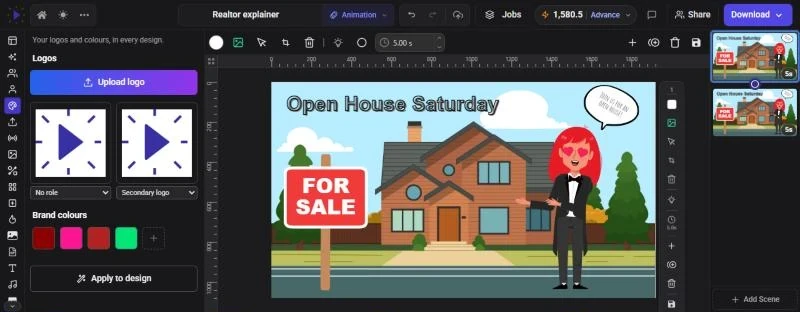
- Click Brand on the rail. It’s there in the Animation, Video Editor and Full Editor modes
- Or press Ctrl+Shift+B (Cmd+Shift+B on Mac), or press Ctrl+P (Cmd+P) and run Open Brand Kit. These work in every mode
The panel has two sections, Logos and Brand colours, and an Apply to design button at the bottom.
Add your logos
Section titled “Add your logos”- In the Brand panel, click Upload logo
- Choose a PNG or JPEG file. Use a PNG with a transparent background if you want the logo to sit cleanly on any color
- When it has uploaded, the logo appears in the grid
- Optional: use the menu under the logo to give it a Logo role: Primary logo, Secondary logo or Icon / mark
You can keep up to 20 logos. Each role can belong to one logo at a time, so giving a role to a new logo takes it from the old one.
Logos are stored as ordinary uploads, so they count toward your plan’s storage and upload limits, and they show up in My Files. To take a logo out of the kit, hover over it and click Remove from kit (the ×). The file itself stays in My Files. If you delete the file from My Files, it disappears from the kit as well.
Put a logo in a design
Section titled “Put a logo in a design”- Click a logo to add it to the middle of the current scene, or drag it to where you want it
- Drag it onto a frame or grid cell to fill it
- To swap a picture for your logo, select the picture, click Replace and choose the Brand chip at the top of the canvas
Update logos across a design
Section titled “Update logos across a design”A logo you added from the kit remembers its role. If you later give that role to a different logo, for example after a rebrand, the Brand panel shows Update N logos in this design. Click it to swap every placed copy for the new logo.
Add your brand colors
Section titled “Add your brand colors”- Under Brand colours, click the + button (Add colour)
- Pick a color in the picker, click one of the starter swatches, or type a hex code such as
#1A73E8in the Hex value field - Click Apply, or press Enter. Press Esc or click Cancel to close without saving
You can keep up to 20 colors. Click a color to change it, or hover over it and click × (Remove colour) to remove it. Brand colors are solid colors without transparency.
Your brand colors then appear in every color picker in the editor: in a Brand colours section, and in the swatch row under the picker. That includes shape fills and borders, text, text backgrounds and the scene background. See Backgrounds and Colors.
Apply your brand colors to a design
Section titled “Apply your brand colors to a design”Apply to design looks at every color used in the current design and suggests a brand color for each one. You can review and change every suggestion before anything changes.
- Open the design you want to recolor, for example one you started from a template
- In the Brand panel, click Apply to design. The Apply brand colours step opens and lists “Each colour in this design, and what it becomes”
- Check each row. On the left is a color from the design and how many times it’s used. On the right is the brand color it will become. A warning icon means “Not a close match”
- To change a row, click a different brand color under it. Click ∅ to Leave unchanged, or the reset button to go back to the suggestion
- Optional: tick Include characters to recolor characters too
- Click Apply
Glintia shows how many items were recolored, for example “Recoloured 12 items.” The whole change is a single undo step, so Ctrl+Z (Cmd+Z on Mac) puts everything back at once.
What gets recolored
Section titled “What gets recolored”- Shape fills and borders, and border glows
- Text colors, text backgrounds and text style colors, including individually colored words
- Vector artwork, such as icons and illustrations
- Chart colors
- Scene background colors
- Characters, only if you tick Include characters
Photos and videos keep their own colors, and so do shadows, scene lights and image filters.
If a graphic can’t be recolored, Glintia tells you how many, for example “1 graphic could not be recoloured.” If the design only uses character colors, turn on Include characters to see them.
Brand fonts
Section titled “Brand fonts”The Brand Kit holds logos and colors, not fonts. To use your brand’s typeface, upload it with Upload font in the Fonts panel. Custom fonts are available on the Pro plan and above. See Text, Fonts and Text Styles.
Troubleshooting
Section titled “Troubleshooting”- “Could not save your brand kit.”: the change didn’t save. Check your connection and try again
- Apply to design is grayed out: add at least one brand color first
- “Nothing in this design needs recolouring.”: the design has no colors the kit can change, for example a scene made only of photos
- A logo upload fails: logos must be PNG or JPEG files under 100 MB and 100 megapixels, and you need free storage. See Uploading Your Own Media