Your Dashboard
The dashboard is the home page you see when you sign in at app.glintia.com. From here you create new designs, start an AI-drafted video, reopen your projects, and reach your renders, uploaded files, billing and settings.
The dashboard at a glance
Section titled “The dashboard at a glance”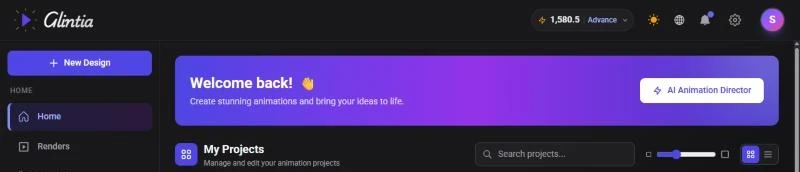
- Left sidebar: the New Design button and links to the other pages
- Header (top): your credits and plan, theme, language, notifications, settings and account menu
- Main area: a “Welcome back!” banner with the AI Animation Director button, then My Projects
On a phone or narrow window the sidebar is hidden. Tap the menu button at the top left to open it.
The left sidebar
Section titled “The left sidebar”| Item | What it opens |
|---|---|
| New Design | Creates a new design. See Create a new design below |
| Home | This dashboard |
| Renders | Your export history, where you download finished videos and images |
| My Files | Everything you’ve uploaded, in one place |
| Billing | Your plan, trial status, usage, payment details and cancellation |
| Settings | Your profile, password and two-factor authentication |
| Help & Support | These help docs, in a new tab |
| Logout | Signs you out |
The header
Section titled “The header”From left to right on the right-hand side:
- Credits and plan pill: shows how many AI credits you have and your plan name, with a Trial badge during a trial. Click it to see credits available and how many of your monthly credits are left, plus:
- Top up: buy extra AI credits
- Upgrade: move to a higher plan (or Choose a plan if you don’t have one yet)
- Start plan now: during a trial, ends the trial early and starts your paid plan. See Create Your Account and Start Your Trial
- Usage & billing: opens the Billing page
- Sun or moon icon: switches between light and dark themes
- Globe icon: changes the app’s language (“Select Language”)
- Bell icon: your notifications, for example when an export finishes or fails, or when you reach a usage limit. Click Mark all as read to clear the unread count, or View all notifications to open the full list, which you can filter by All or Unread
- Gear icon: opens Settings
- Your initial: shows the email you’re signed in with, and links to Billing, Settings and Logout
Create a new design
Section titled “Create a new design”- Click New Design at the top of the left sidebar
- Under “What do you want to create?”, pick an editor mode: Animation, Whiteboard, Video Editor, AI Builder or Full Editor. The mode decides which tools the editor shows, and you can change it later. See Choosing an Editor Mode
- Under “Choose a canvas size to get started”, pick Landscape (1920 × 1080), Square (1920 × 1920) or Portrait (1080 × 1920). Click ← Back to change the mode. The size can’t be changed later, so pick the one that matches where the video will be shown. See Canvas Sizes and Resizing a Design
- Glintia shows “Creating your design…” and opens the editor with one empty scene
New designs are named “Untitled Design …” until you rename them in the editor.
Start with AI Animation Director
Section titled “Start with AI Animation Director”Click AI Animation Director in the banner at the top of the dashboard. The Director walks you through five steps: Choose Template, Choose Character, Describe Animation, Audio Settings and Review the Plan. You choose the template and the character, and the AI drafts the script, voiceover, visuals and music. The result opens as a normal, editable design in AI Builder mode, on a Landscape (1920 × 1080) canvas.
AI Animation Director uses AI credits. See AI Animation Director for the full walkthrough.
Find your projects
Section titled “Find your projects”My Projects lists every design you’ve made, most recently edited first.
Each project card shows:
- A thumbnail of the design. If it has more than one scene, hover over it to play through the scenes, with a counter such as “2 / 5”
- The video’s length in the bottom-right corner, once the design has been saved
- A badge with its editor mode (designs in Full Editor mode have no badge)
- Its name and when it was last edited, for example “Yesterday” or “2 weeks ago”
Use the controls next to the My Projects heading to narrow and arrange the list:
- Search projects…: filters by project name as you type. Click the × in the box, or Clear search under the results, to show everything again
- Grid view and List view: list view shows one compact row per project, with the canvas size (for example 1920 × 1080) and the last-edited time. Hover the time to see the exact date and time
- Tile size: in grid view, drag the slider to make the cards smaller or larger. The slider appears on wider screens
The dashboard shows 25 projects at first. Click Load More at the bottom to see the next 25. Your view and tile-size choices are remembered in this browser.
Open, rename and delete projects
Section titled “Open, rename and delete projects”Open a project: click its thumbnail or name. To open it in a new browser tab instead, hold Ctrl (Cmd on a Mac) while you click.
Rename a project: open it and click the name in the middle of the editor header, then type a new name. The new name shows on the dashboard the next time you return to it.
Delete a project:
- Hover over the project’s card or row. A × button appears in the corner (it’s always visible on touch screens)
- Click the × (its tooltip reads “Delete project”)
- In the “Delete Project?” box, click Yes, Delete, or Keep Project to cancel
The dashboard has no option to duplicate a whole project. Inside a design you can copy a scene with Duplicate Scene. See Working with Scenes.
If you don’t have a plan yet
Section titled “If you don’t have a plan yet”Without an active trial or plan, the dashboard shows “Welcome to Glintia!” with an Upgrade Now button instead of the AI Animation Director banner and your projects, and clicking New Design opens a “Subscription Required” prompt. To choose a plan, click the credits pill at the top right and choose Choose a plan. See Create Your Account and Start Your Trial.
The other dashboard pages
Section titled “The other dashboard pages”- Renders: the “Render History” of every video and image you’ve exported, with its status, plus “Renders this month” (used out of your monthly allowance). Download finished files here, or retry a failed render once. See Cloud Rendering and the Renders Page
- My Files: everything you’ve uploaded while editing, with search, sorting, grid and list views, and how much of your plan’s upload limit you’ve used. Deleting a file here removes it from any design that uses it. See Managing Your Files and Projects
- Billing: your plan, next billing date, trial status, a usage overview, Manage Billing for your payment details, and cancellation. See Billing, Trial and Cancelling and Plans, Limits and Usage
- Notifications: open from the bell icon, then View all notifications
- Settings: your profile, password and two-factor authentication. See Create Your Account and Start Your Trial