Choosing an Editor Mode
An editor mode decides which tools appear on the editor’s left rail, so you see the panels that matter for the video you’re making. Every mode edits the same kind of design: scenes, a timeline and a canvas. You can switch modes at any time without losing anything.
You choose a mode when you click New Design, and you can change it later from the editor header.
The five modes at a glance
Section titled “The five modes at a glance”| Mode | Description in the app | Best for | Panel that opens first | Timeline when the design opens |
|---|---|---|---|---|
| Animation | Characters, actions & keyframes | Character explainers, stories, intros | Template | Scene |
| Whiteboard | Hand-drawn explainer style | Lessons, pitches, how-tos drawn on screen | Elements | Scene |
| Video Editor | Edit footage, subtitles & audio | Cutting and captioning your own footage, Shorts, Reels, ads | Upload | Scenes (every scene in a row) |
| AI Builder | Generate content with AI | AI images, video clips, avatars and talking characters | AI Studio | Scene |
| Full Editor | Every tool in one place | Mixed projects, or when you’re not sure yet | Template | Scene |
The Scene timeline shows the items in the current scene. The Scenes timeline shows all your scenes one after another. You can switch timeline views at any time. See The Timeline.
The rail in each mode
Section titled “The rail in each mode”The rail shows icons only. Hover over an icon to see its name and, where it has one, its keyboard shortcut. If the rail is taller than your window, small arrows at the top or bottom (“More tools above”, “More tools below”) scroll it.
The Full Editor rail without the three footage-editing panels (Video, Edit by Text and AI Video), in this order:
- Template: scene templates and layouts in your canvas size
- AI Studio: every AI generator in one place
- Character: ready-made characters and the ones you build or rig
- Avatars: AI avatars that present on camera
- Brand: your Brand Kit (Advance plan)
- Upload: your own images, video and audio
- Record: record your screen, webcam or voice
- Image / vector: stock photos and vector graphics
- Elements: shapes, icons and illustrations
- Data & Layout: grids, frames, charts and maps
- Overlays: full-scene effects such as rain and snow
- Visual FX: fire, smoke, sparks and magic effects
- Background: background images for the scene
- GIF: animated GIFs
- Text: text boxes and animated text designs
- Audio: music and sound effects
- Subtitle: automatic subtitles and captions
- Emojis
- Layers: the stacking order of everything in the scene
A short rail with what an explainer needs:
- Template
- Elements
- AI Studio
- Text
- Upload
- Character
- Audio
- Layers
In Whiteboard mode, vector artwork such as SVG elements and characters is drawn in a hand-drawn style automatically, unless you’ve given an item a style of its own. See Whiteboard Videos.
Built around footage, starting with the ways to get some:
- Template
- Upload
- Record
- AI Studio
- Video: stock video clips
- Edit by Text: cut a video by editing its transcript
- AI Video: the AI video editor
- Subtitle
- Audio
- Text
- Elements
- Data & Layout: including grids for split-screen layouts and maps
- Visual FX
- Layers
- Brand (Advance plan)
Each AI generator gets its own slot:
- AI Studio
- Talking Character: turn a script into a talking character
- AI Video Generator: generate video clips
- AI Image: generate images
- AI Background: generate full-scene backgrounds
- AI Icon: generate icons
- AI Sound: generate sound effects and music
- Avatars
- Dynamic Text: text that fills itself in when the video plays
- AI Video
- Edit by Text
- Upload
- Text
- Layers
A sparkle icon at the bottom of the rail opens AI Animation Director. AI generators use AI credits. See AI Studio and AI Credits.
Every rail panel, in this order: Template, AI Studio, Character, Avatars, Brand, Upload, Record, Image / vector, Elements, Data & Layout, Overlays, Visual FX, Background, Video, Edit by Text, AI Video, GIF, Text, Audio, Subtitle, Emojis and Layers.
The individual AI generators (such as AI Image or Talking Character) aren’t separate rail items here. Open them from AI Studio.
Panels that act on something you’ve selected, such as Effects, Animations, character Actions or Lip Sync, aren’t rail items in any mode. They open from the item’s toolbar, so they’re available in every mode. See A Tour of the Editor.
Choose a mode for a new design
Section titled “Choose a mode for a new design”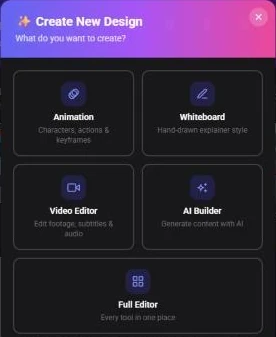
- On the dashboard, click New Design
- Under “What do you want to create?”, click a mode
- Choose a canvas size: Landscape, Square or Portrait
- The editor opens in that mode, with that mode’s first panel open
Designs created with AI Animation Director open in AI Builder mode.
Switch modes in the editor
Section titled “Switch modes in the editor”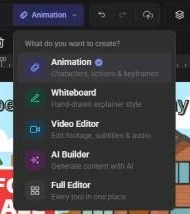
- In the middle of the editor header, next to the design’s name, click the mode button. It shows the current mode’s icon (and its name on wider screens)
- Under “What do you want to create?”, click the mode you want. A check mark shows the current one
You can also press Ctrl+P (Cmd+P on a Mac) to open the command palette and run Switch to Animation Editor, Switch to Whiteboard Editor, Switch to Video Editor, Switch to AI Builder or Switch to Full Editor.
The mode is saved with the design, so it opens in the same mode next time. On the dashboard, project cards show their mode as a badge (Full Editor designs have none).
What happens to your content when you switch
Section titled “What happens to your content when you switch”Nothing is deleted or changed. Your scenes, items, audio and timing stay exactly as they were. Switching only changes:
- The rail: you see the new mode’s panels
- The open panel: if the panel you had open isn’t on the new mode’s rail, the new mode’s first panel opens instead. Panels opened from an item’s toolbar, such as Effects, stay open
- The hand-drawn look: switching into Whiteboard mode redraws vector artwork and characters in the hand-drawn style, and switching out puts them back. Items you’ve set a hand-drawn style on yourself (or turned it off for) keep that choice in every mode
The timeline view isn’t changed by switching. Video Editor designs open on the Scenes timeline each time you open them.
Which mode should I pick?
Section titled “Which mode should I pick?”- Making a character video? Start in Animation
- Want the hand-drawn, sketched-on look? Start in Whiteboard, then use the Draw entrance effect on each item to draw it on screen
- Editing your own recordings or clips? Start in Video Editor
- Want AI to generate most of the visuals? Start in AI Builder, or use AI Animation Director from the dashboard
- Not sure, or mixing everything? Use Full Editor. You can narrow it down later