Music, Sound Effects and Audio Settings
The Audio panel holds Glintia’s library of music and sound effects. Use it to add a soundtrack, drop a whoosh on a transition, or place a click on a button press. Once a clip is on the timeline, you can change its volume, trim it, fade it in and out, and add effects such as echo or a telephone voice.
For voiceovers, use the character’s Lip Sync panel instead. See Text-to-Speech and Recording Your Voice, Screen and Webcam.
Open the Audio panel
Section titled “Open the Audio panel”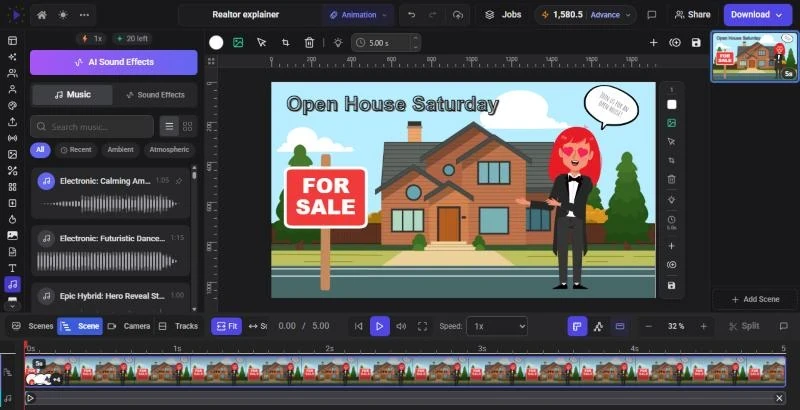
Click Audio on the left rail. It’s on the rail in the Animation, Whiteboard, Video Editor and Full Editor modes. In any mode, you can also press Ctrl+P (Cmd+P on a Mac) to open the command palette and choose Open Audio Panel.
The panel has two tabs:
- Music: background tracks
- Sound Effects: short sounds such as hits, whooshes and clicks
The AI Sound Effects button at the top of the panel makes a new sound from a text description. See AI Sound Effects.
Find a track
Section titled “Find a track”- Search: type in Search music… or Search sound effects…. The search covers track names and tags, so words like “calm”, “epic” or “drums” find tracks that don’t have those words in their titles.
- Categories: the chips under the search box filter by genre or mood. All clears the filter.
- Preview: click a track’s play button (Preview audio) to hear it without adding it. Click it again (Stop preview) to stop.
- Pin: click the pin (Pin to the top) to keep a track at the top of the list. Pinned tracks appear first, then the ones you used recently. Use the Pinned and Recent chips to see only those.
- List or grid: the two buttons next to the search box switch between a list with large waveforms and a more compact grid.
Pins and recent tracks are remembered in your browser, so they follow you from design to design on the same computer.
Add music or a sound to a scene
Section titled “Add music or a sound to a scene”- Click an empty part of the canvas so nothing is selected
- Move the playhead to where the sound should start
- In the Audio panel, click the track. Clicking anywhere on the row other than the play or pin button adds it
The clip appears on the timeline at the playhead, at 50% volume. If the track is longer than the rest of the current scene, the clip is cut to end with the scene. You can lengthen it afterwards (see below).
Run music under the whole video
Section titled “Run music under the whole video”Scene audio isn’t locked to one scene. To stretch a soundtrack across several scenes:
- Above the timeline, switch to the Scenes view. It shows the whole video on one ruler
- Drag the music clip to where it should start
- Drag the clip’s right edge to where it should end, up to the end of the video
Music doesn’t loop. If your video is longer than the track, the clip goes silent once the track itself ends, so pick a longer track or add a second one.
Attach a sound to an item
Section titled “Attach a sound to an item”When exactly one item is selected, clicking a track attaches the sound to that item. This is useful for sound effects that belong to something on screen, such as a pop when an icon appears.
- The sound moves with the item when you move the item on the timeline
- It can’t play longer than the item is on screen
- To see it, select the item: its sounds appear in the item’s Audio row on the timeline. Voice clips go in a separate voice row
If you see “Move the cursor to an empty spot”, the item already has a sound of the same type at the playhead. Move the playhead to a free spot and try again.
Select, move and preview clips
Section titled “Select, move and preview clips”- Scene audio shows on the timeline in the Scene view when nothing on the canvas is selected, and always in the Scenes and Tracks views
- Click a clip to select it and open its settings
- Drag a clip to move it, and drag its right edge to change its length
- Hover a clip to see its name and trim range. Click its play button to preview just that clip
- In the Tracks view, audio sits on numbered audio tracks (A1, A2 and so on). Click a track’s speaker icon to mute or unmute everything on it while you work
Change volume, trim and fades
Section titled “Change volume, trim and fades”Click an audio clip on the timeline to open its settings panel. It shows the clip’s name and length, then these controls:
- Volume: 0 to 100%. Tracks you add from the Audio or Upload panel start at 50%, and takes from the Record panel at 100%
- Effect: a one-click preset (see below)
- Trim: Start Time sets where in the file the clip starts playing, and Duration sets how long it plays. Both are in milliseconds
- Fades: Fade In and Fade Out in milliseconds. Each can be up to half the clip’s length
A blue dot next to a section name means that section has been changed from its default.
Trim on the timeline
Section titled “Trim on the timeline”You can also trim by dragging:
- Double-click a clip on the timeline. Drag the in and out handles to trim, or drag the middle of the clip to change which part of the track plays. Click the Finish trimming button, or double-click the clip again, when you’re done
- With a scene clip selected, click Trim in the toolbar above the canvas to open a waveform view of the same trim
Add audio effects
Section titled “Add audio effects”The same settings panel has a set of effects that you can combine. They play in the editor preview and are included in your export.
The Effect menu applies a ready-made sound: None, Telephone, Radio, Megaphone, Muffled, Cathedral, Cave, Chipmunk, Deep voice or Podcast. A preset changes the tone settings but keeps your fades and speed.
Gain from -24 to +24 dB, plus Bass, Mid and Treble from -15 to +15 dB each.
Stereo, Mono, Left only, Right only or Swap channels.
Pitch from -12 to +12 semitones (st), and Speed from 0.5× to 2×. Speed keeps the pitch the same.
Turn on Echo, then set Delay (10 to 2,000 ms) and Decay (5% to 90%).
Compressor evens out loud and quiet parts, with Threshold, Ratio, Attack and Release. Limiter stops peaks going over the Ceiling you set.
To undo everything at once, click Reset effects at the bottom of the panel.
Remove audio
Section titled “Remove audio”- Scene audio: hover the clip on the timeline and click the × (Remove audio)
- Item audio: select the item, then click the × (Remove) on the clip in its audio row on the timeline
Removing a clip doesn’t delete the original file. Your own uploads stay in the Upload panel and in My Files.
Use your own audio
Section titled “Use your own audio”- Your own music or sound files: upload them in the Upload panel, then click one to add it the same way as a library track. See Uploading Your Own Media
- Voiceover: generate one with Text-to-Speech, or record yourself. See Recording Your Voice, Screen and Webcam
- A new sound effect: describe it to AI Sound Effects
Add an audio visualizer
Section titled “Add an audio visualizer”A visualizer is a set of bars or shapes that move to your audio. It’s in the Data & Layout panel on the rail (Animation, Video Editor and Full Editor modes), under Visualizer.
- Add music or a voice clip to the scene first
- Open Data & Layout and click a visualizer under Visualizer
- With the visualizer selected, press Ctrl+P (Cmd+P on a Mac) and choose Visualizer Audio & Style
- Under Audio source, keep Automatic to follow the scene’s first clip, or pick a specific clip
- Adjust the Style, Colours, Background, Response and Shape
If the scene has no audio yet, the visualizer shows a resting shape and a music button that opens the Audio panel.
Troubleshooting
Section titled “Troubleshooting”- I added a track but don’t see it on the timeline: if an item was selected, the sound went onto that item. Select the item to see its audio rows. If you’re in the Scene view with an item selected, scene audio rows are hidden, so click an empty part of the canvas. You can also switch to the Scenes view to see every scene clip in the video
- The track stops early: it was cut to the end of the scene when you added it. In the Scenes view, drag its right edge further
- “Error loading audio. Try again.”: the library couldn’t load. Click Try again, or check your connection