Keyboard Shortcuts and the Command Palette
Keyboard shortcuts make everyday editing faster, and the command palette lets you run almost any command by typing its name. This page lists the editor’s shortcuts by task. Use your browser’s find (Ctrl+F, or Cmd+F on a Mac) to jump to the one you need.
Before you start
Section titled “Before you start”- Mac keys: wherever the tables say Ctrl, you can use Cmd on a Mac, and Alt is Option. The Mac column spells this out. On Linux, use the Windows keys
- Focus matters: shortcuts don’t fire while you’re typing in a text box, a search box or a panel field. Click an empty part of the canvas first
- Single-letter shortcuts such as T, H or S act on the canvas, so they also need the canvas to have focus
- In the app: click More (the three dots in the editor header) and choose Keyboard shortcuts, or press Ctrl+/, for a searchable list. Hovering over a rail button also shows its shortcut, for example “Layers (⌘/Ctrl+Shift+Y)”
General
Section titled “General”| Action | Windows | Mac |
|---|---|---|
| Open the command palette | Ctrl+P | Cmd+P |
| Show the list of shortcuts | Ctrl+/ | Cmd+/ |
| Save now (the design also saves automatically) | Ctrl+S | Cmd+S |
| Undo | Ctrl+Z | Cmd+Z |
| Redo | Ctrl+Y or Ctrl+Shift+Z | Cmd+Y or Cmd+Shift+Z |
| Open the screen recorder, or stop the current recording | Ctrl+Alt+R | Not available |
| Leave the preview, the current mode or group, or clear the selection | Esc | Esc |
Undo and redo are covered in detail in Autosave, Undo and Version History.
Selecting and editing items
Section titled “Selecting and editing items”| Action | Windows | Mac |
|---|---|---|
| Select every item in the scene | Ctrl+A | Cmd+A |
| Delete the selection | Delete or Backspace | Delete |
| Copy | Ctrl+C | Cmd+C |
| Paste into the current scene | Ctrl+V | Cmd+V |
| Duplicate | Ctrl+D | Cmd+D |
| Copy the selected item’s style | Ctrl+Alt+C | Not available |
| Paste that style onto items of the same type | Ctrl+Alt+V | Not available |
| Group | Ctrl+G | Cmd+G |
| Ungroup | Ctrl+Shift+G | Cmd+Shift+G |
| Nudge 1 pixel | Arrow keys | Arrow keys |
| Nudge 10 pixels | Shift+arrow keys | Shift+arrow keys |
| Keep proportions while resizing | Hold Shift while dragging a handle | Hold Shift |
| Bring forward one layer | ] | ] |
| Send back one layer | [ | [ |
| Hide or show the selected item | H | H |
| Flip vertically | Shift+V | Shift+V |
| Set opacity to 10%–90% | 1 to 9 | 1 to 9 |
| Set opacity to 100% | 0 (when not playing) | 0 |
| Turn snapping off or on | S | S |
Pasted items are placed slightly offset from the originals and are set to show for the whole scene, so copy and paste is also the way to move items to another scene. S has no on-screen indicator: if items suddenly stop snapping to guides, press S once.
Adding things and transform modes
Section titled “Adding things and transform modes”| Action | Windows | Mac |
|---|---|---|
| Add a text box | T | T |
| Open the Elements panel | R | R |
| Crop the selected image or video in its edit panel | C | C |
| Pivot point mode for the selected item | O | O |
| Crop mode (drag the edges to crop) for the selected item | P | P |
| Warp / skew mode for the selected item | W | W |
Press the same key again, click Done on the banner, or press Esc to leave a transform mode. The modes are explained in Selecting, Arranging and Aligning Items.
Aligning to the page
Section titled “Aligning to the page”These need an item to be selected.
| Action | Windows | Mac |
|---|---|---|
| Align to the top / bottom edge | Ctrl+↑ / Ctrl+↓ | Cmd+↑ / Cmd+↓ |
| Align to the left / right edge | Ctrl+← / Ctrl+→ | Cmd+← / Cmd+→ |
| Align left / center / right | Alt+L / Alt+C / Alt+R | Not available |
| Align top / middle / bottom | Alt+T / Alt+M / Alt+B | Not available |
| Center on the page both ways | Alt+Shift+M | Not available |
Scenes
Section titled “Scenes”| Action | Windows | Mac |
|---|---|---|
| Add a new scene | Ctrl+Alt+N | Not available |
| Next scene | Page Down | Page Down (Fn+↓ on keyboards without it) |
| Previous scene | Page Up | Page Up (Fn+↑) |
| Next / previous scene, if your browser allows | Ctrl+Tab / Ctrl+Shift+Tab, or Ctrl+Page Down / Ctrl+Page Up | Ctrl+Tab / Ctrl+Shift+Tab (Cmd+Tab belongs to macOS) |
| Go to scene 1 to 8, if your browser allows | Ctrl+1 to Ctrl+8 | Cmd+1 to Cmd+8 |
| Go to the last scene, if your browser allows | Ctrl+9 | Cmd+9 |
These wrap around: Page Down on the last scene goes back to the first. To jump to any scene by number, open the command palette and type the number, for example 12.
Playback and the timeline
Section titled “Playback and the timeline”| Action | Windows | Mac |
|---|---|---|
| Play / pause | Space or K | Space or K |
| Back / forward 10 seconds while playing | J / L | J / L |
| Back / forward 5 seconds while playing or in fullscreen | ← / → | ← / → |
| Go to the start while playing | 0 | 0 |
| Stop playback | Home | Home (Fn+← on keyboards without it) |
| Mute / unmute the preview | M | M |
| Fullscreen preview on / off | F | F |
| Leave the preview | Esc | Esc |
| Switch timeline view (Scene, Scenes, Camera, Tracks) | Shift+Tab | Shift+Tab |
| Move the playhead one frame (click the timeline first) | ← / → | ← / → |
| Zoom the timeline around the pointer | Ctrl+scroll wheel over the timeline | Cmd+scroll, or pinch on a trackpad |
| Split a scene at the mouse | Hold Ctrl over the scene row, then click the scissors | Hold Cmd |
M only mutes the preview in the editor. It doesn’t change your design or your export.
With keyframes selected on the timeline, Delete or Backspace removes them and Esc clears the selection. With a keyframe focused, ← and → move it by 1% of the bar (5% with Shift). See Keyframes, Motion Paths and Camera Moves.
| Action | Windows | Mac |
|---|---|---|
| Bold / italic / underline | Ctrl+B / Ctrl+I / Ctrl+U | Cmd+B / Cmd+I / Cmd+U |
| Font size 2 larger / smaller, while typing | Ctrl+Shift+. / Ctrl+Shift+, | Cmd+Shift+. / Cmd+Shift+, |
| Stop editing the text | Esc | Esc |
With a text box selected, bold, italic and underline apply to the whole box. While you’re typing, they apply to the highlighted characters. Font-size steps work while you’re typing in the box. See Text, Fonts and Text Styles.
Opening panels
Section titled “Opening panels”| Panel | Windows | Mac |
|---|---|---|
| Effects (entrance and exit effects) | Ctrl+E | Cmd+E |
| Animations (looping motion and keyframes) | Ctrl+Shift+A | Cmd+Shift+A |
| More Tools for the selected item | Ctrl+Shift+D | Cmd+Shift+D |
| Properties (exact position, size and timing) | Ctrl+Shift+S | Cmd+Shift+S |
| Layers | Ctrl+Shift+Y | Cmd+Shift+Y |
| Upload | Ctrl+Shift+U | Cmd+Shift+U |
| Character | Ctrl+Shift+H | Cmd+Shift+H |
| Lip Sync (with a character selected) | Ctrl+Shift+L | Cmd+Shift+L |
| Fonts | Ctrl+Shift+F | Cmd+Shift+F |
| Text styles (Styles in the text toolbar) | Ctrl+Shift+T | Cmd+Shift+T |
| Color picker | Ctrl+Shift+K | Cmd+Shift+K |
| Image editor (adjust, filters, crop) | Ctrl+Shift+E | Cmd+Shift+E |
| Mask Editor | Ctrl+Shift+M | Cmd+Shift+M |
| Stock images | Ctrl+Shift+I | Cmd+Shift+I |
| Stock video (Video) | Ctrl+Shift+O | Cmd+Shift+O |
| Brand (Brand Kit) | Ctrl+Shift+B | Cmd+Shift+B |
| Elements | R | R |
In many browsers Ctrl+Shift+T reopens a closed tab. If that happens, click Styles in the text toolbar instead.
| Action | Windows | Mac |
|---|---|---|
| Show or hide rulers | Ctrl+R | Cmd+R |
| Show or hide guides | Ctrl+; | Cmd+; |
| Show or hide the grid | Ctrl+‘ | Cmd+‘ |
| Zoom the canvas around the pointer | Ctrl+scroll wheel | Cmd+scroll, or pinch on a trackpad |
| Pan the canvas | Drag with the middle mouse button (the wheel) | Drag with the middle mouse button |
The command palette
Section titled “The command palette”The command palette finds commands by name, so you don’t need to remember where a button lives or what its shortcut is.
Open and use it
Section titled “Open and use it”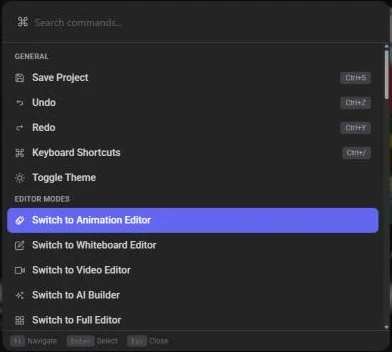
- Press Ctrl+P (Cmd+P on a Mac) anywhere in the editor
- Start typing what you want, for example “flip”, “background” or “whiteboard”. You don’t need the exact name: the palette matches partial words and related terms, and puts the best matches first
- Use ↑ and ↓ to move through the list, and press Enter to run the highlighted command. You can also click a command
- Press Esc to close the palette without running anything
Each command shows its keyboard shortcut, when it has one, so the palette is also a good way to learn shortcuts.
What it lists
Section titled “What it lists”Commands are grouped under headings: General, Editor Modes, Edit, Object, Slides, Text, Image, Video, Character, Panels, View and Playback.
The palette follows your selection. Commands that need a selection, or a particular kind of item, only appear when that’s what you have selected. With nothing typed, commands for the selected item are listed first under Suggested for Selection. For example, select a video to see Split Selected Video at Playhead, Edit Video and Trim Video, or a character to see Character Actions, Character Expressions, Lip Sync and Character Settings.
Some useful commands that have no keyboard shortcut:
- Toggle Theme: switch between light and dark
- Switch to Animation Editor, Switch to Whiteboard Editor, Switch to Video Editor, Switch to AI Builder and Switch to Full Editor: change the editor mode. See Choosing an Editor Mode
- AI Animation Director: start an AI-drafted video
- Duplicate Slide and Split Slide at Playhead: copy the current scene, or cut it in two at the playhead
- Clip to Shape and Set as Background for the selected item
- Open … Panel entries for most panels, including ones that aren’t on your current mode’s rail, such as Open Templates Panel, Open Audio Panel, Open AI Studio, Open Record Panel, Open Subtitles Panel and Open Version History
Jump to a scene by number
Section titled “Jump to a scene by number”Type a scene number, such as 12 or slide 12, and the palette offers Go to Slide 12 at the top of the list. Press Enter to go there. This works for any scene, including ones past the ninth that Ctrl+1 to Ctrl+9 can’t reach.