Autosave, Undo and Version History
Glintia saves your design automatically while you work, so there’s no Save step to remember. Undo and redo cover the changes you make in the current session, and version history keeps older copies of the design so you can go back further. This article explains all three, and what to do if saving runs into trouble.
How autosave works
Section titled “How autosave works”Every change you make, such as adding an item, moving it or editing a scene, is saved to Glintia’s servers within seconds. You don’t need to do anything.
The icon to the right of Undo and Redo in the editor header shows the save status:
| Icon | Meaning |
|---|---|
| Cloud with an arrow | Normal. Your changes are being saved automatically. Hover to see “Save (Ctrl+S)“ |
| Spinner | A save you started is running |
| Green check | That save finished |
| Red warning triangle | Saving failed. Hover to see why, and click to try again |
To save on demand, click the cloud icon or press Ctrl+S (Cmd+S on a Mac). It isn’t required, but it also refreshes the design’s thumbnail on the dashboard straight away.
Leaving the editor
Section titled “Leaving the editor”- Home or the Glintia logo in the header saves the design first. You’ll see “Saving your design…” for a moment before the dashboard opens
- Closing or reloading the tab sends your last changes on the way out. If something still couldn’t be saved, for example because saving has been failing, your browser asks whether you really want to leave. Choose to stay, and wait until the warning icon clears
Your browser keeps a backup copy
Section titled “Your browser keeps a backup copy”As you edit, Glintia also keeps a copy of your recent changes in your browser. If the tab crashes, the computer restarts or the connection drops before a change reaches the server, the next time you open the design in the same browser within 24 hours, Glintia adds those changes back in.
This copy lives only in that browser on that computer. A private or incognito window may not keep it, and clearing your browser’s site data removes it.
If saving fails or you go offline
Section titled “If saving fails or you go offline”If your connection drops, keep working and keep the tab open.
- The save icon turns into a red warning triangle. Hover over it to see a message such as “Saving failed (Network Error). Retrying automatically.”
- Glintia retries on its own, starting after 10 seconds and then less often, up to once a minute
- When the connection is back and a save succeeds, the icon returns to normal. To retry right away, click the warning icon
You may also see an Offline badge in the header when the live connection to Glintia can’t be made. Hover over it for details. Your changes are still saved through the normal route while it shows.
Other messages you might see:
- “Autosave paused”: Glintia stopped saving because something in the design looked wrong. “Your work is kept in this tab — please do not close it until saving resumes.” Keep the tab open. If it doesn’t clear, contact support
- “Your design is safe — please reload”: a problem in the tab tried to erase the whole design, and the server refused it. Your saved design is untouched. Reload the page to carry on
- “We couldn’t open your design”: the server didn’t respond in time while opening a design. “Your design is safe — nothing was changed.” Click Try Again, or Back to dashboard
Undo and redo
Section titled “Undo and redo”| Action | Windows | Mac |
|---|---|---|
| Undo | Ctrl+Z | Cmd+Z |
| Redo | Ctrl+Y or Ctrl+Shift+Z | Cmd+Y or Cmd+Shift+Z |
You can also click Undo and Redo in the editor header. They’re greyed out when there’s nothing to undo or redo. If you press the shortcut anyway, the edges of the screen flash red.
How undo behaves:
- Changes are grouped. Changes made within half a second of each other count as one step, so a drag or a quick burst of edits undoes in one go
- Up to 200 steps are kept. Older steps drop off
- What it covers: items, scenes and audio, including adding, deleting, moving, restyling and timing changes
- What it doesn’t cover: renaming the design, switching editor mode, and view settings such as zoom, rulers or which panel is open
- It lasts for this session. Undo history is cleared when you leave the editor or reload the page. To go back further, use version history
Version history
Section titled “Version history”Version history is a list of earlier copies of your design that Glintia keeps on its servers: “every hour while you edit, and before any large delete.” Use it to get back work you removed or changed some time ago, after undo history is gone.
Open version history
Section titled “Open version history”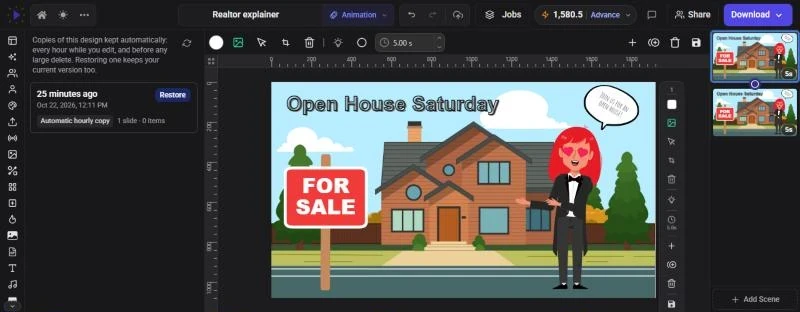
- Click More (the three dots in the editor header), then Version history, or
- Press Ctrl+P (Cmd+P on a Mac) and choose Open Version History
The panel opens on the left. Newest versions are at the top. Each version shows:
- When it was taken, as a relative time (for example “3 hours ago”) and the exact date and time
- Why it was taken:
- Automatic hourly copy: at most one per hour while the design is being edited
- Before a large delete: taken just before a change that removed at least half of the design’s items (when it had 10 or more) or at least half of its scenes (when it had 3 or more) in one go
- Before restoring: your design as it was just before you restored another version
- How big it was, for example “4 slides · 37 items”
Click the refresh button at the top of the panel to update the list. A brand-new design shows “No earlier versions yet. A copy is kept every hour while you edit.”
Restore a version
Section titled “Restore a version”- Find the version you want and click Restore
- “Restore this version?” explains what the design goes back to. Your current version is kept, so nothing is lost
- Click Restore
You’ll see “Version restored”, and the canvas switches to the restored version. If the live connection is down at that moment, the page reloads to open it.
Versions can’t be previewed before restoring. The time and the scene and item counts are your guide. If you restore the wrong one, open version history again and restore the Before restoring entry at the top to get back to where you were.
Working with two tabs open
Section titled “Working with two tabs open”You can have the same design open in two tabs or windows. While you’re online, the tabs stay in sync: a change made in one appears in the other moments later.
- Undo is per tab. Pressing Ctrl+Z in one tab only undoes changes made in that tab
- Restoring a version updates every tab that has the design open
- To avoid confusion, it’s simplest to edit in one tab and close the other