Layers, Groups and Locking
Items in a scene are stacked on top of each other: whatever is higher in the stack covers what’s below it. The Layers panel lists that stack for the scene you’re on. Use it to pick out items that are hard to click, change what sits in front, hide or lock items, and organize items into groups.
Open the Layers panel
Section titled “Open the Layers panel”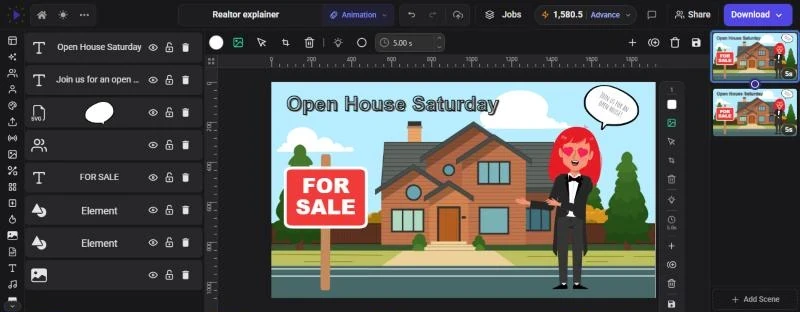
Click Layers on the left rail. It’s on the rail in every editor mode. You can also press Ctrl+Shift+Y (Cmd+Shift+Y on Mac).
The panel shows the items in the current scene, front first: the top row is the item in front of everything else. Each row shows the item’s type and a thumbnail, followed by these buttons:
| Button | What it does |
|---|---|
| Eye | Hide layer / Show layer |
| Padlock | Lock layer / Unlock layer |
| Trash | Delete the item |
| Shadow | Turn this object’s cast shadow on or off. Shown only when the scene has scene lights |
Groups appear as their own rows with their items listed underneath. If the scene has scene lights, a Scene lights section sits at the top of the panel. An empty scene shows “No layers yet”.
Select items from the panel
Section titled “Select items from the panel”Click a row to select that item on the canvas. This is the easiest way to reach an item that’s hidden behind another one, or one that’s too small to click. Selecting from the panel switches the timeline to the Scene view.
To select a single item inside a group, expand the group and click the item’s row.
Change what’s in front
Section titled “Change what’s in front”There are three ways to move an item up or down the stack:
- Drag rows in the Layers panel. Drop a row higher to bring the item forward, lower to send it back
- Position & Layers in the item’s toolbar. Under Layer Order, click Up or Down to move one step, or Top or Bottom to go all the way to the front or back
- Keyboard: press ] to bring the selected item forward one step and [ to send it back one step
Inside a group, drag the group’s item rows to change their order within the group. Items can’t be dragged out of a group in the panel; ungroup them instead.
Hide and show items
Section titled “Hide and show items”Click the eye on a row to hide the item, and again to show it. You can also select an item and press H.
A hidden item disappears from the canvas, from playback and from your exported video, but it stays in the design. Because you can’t click a hidden item on the canvas, bring it back from the Layers panel. Hiding a group hides everything in it.
Hiding is handy for trying out alternatives: keep two versions of a title in the scene and show only the one you want.
Lock and unlock items
Section titled “Lock and unlock items”Locking stops you from moving an item by accident, for example a background picture you keep grabbing instead of the text on top of it.
- Select the item and click Lock in its toolbar (click Unlock to undo)
- Or right-click it and choose Lock or Unlock
- Or click the padlock on its row in the Layers panel
A locked item can’t be dragged, resized or rotated on the canvas, and neither can anything inside a locked group. It shows a small lock badge when selected, and its row can’t be dragged in the Layers panel. You can still select it, change its color, effects and other settings, and delete it.
Group items
Section titled “Group items”Grouping ties items together so they move, resize and rotate as one, and you can give the whole group an effect.
- Select two or more items: Shift+click them, or drag a box around them on the canvas
- Click Group in the toolbar, press Ctrl+G (Cmd+G on Mac), or right-click and choose Group
The toolbar shows how many items the group holds. The scene background can’t be added to a group. Groups can contain other groups, up to 5 levels deep.
Work inside a group
Section titled “Work inside a group”You don’t have to ungroup to change one item:
- Double-click an item in the group to select just that item. Double-clicking text inside a group starts editing it straight away
- Or right-click the group and choose Enter group
- Press Esc to step back out, one level at a time
While you’re inside a group, Position & Layers shows Align to group, which lines items up within the group’s box. A duplicate made inside a group stays in the group.
Rename a group
Section titled “Rename a group”In the Layers panel, double-click the group’s name, type a new one and press Enter. Press Esc to cancel. Only groups can be renamed; other rows show the item’s type or thumbnail.
Ungroup
Section titled “Ungroup”Select the group and click Ungroup in the toolbar, press Ctrl+Shift+G (Cmd+Shift+G on Mac), or right-click and choose Ungroup. You can also click the ungroup button on the group’s row in the Layers panel.
Clip items to a shape
Section titled “Clip items to a shape”Clipping shows items only where they overlap a shape, for example a photo cut to a circle, or video playing inside text.
- Put the shape, text or image you want to clip with on top of the items to clip
- Select the shape and the items under it
- Click Clip in the toolbar, or right-click and choose Clip
The top object becomes the mask for the ones below it. Glintia makes a clip group, which the Layers panel shows with a mask icon and the name “Clip”. Inside it, the mask’s row is labelled Mask.
- To use a different item as the mask, click Use this as the mask on its row in the Layers panel
- Invert clip shows everything outside the mask instead of inside it
- Release clip stops clipping and shows the mask shape again, but keeps the items grouped. Ungroup takes the group apart
Images with a removed background
Section titled “Images with a removed background”When you remove the background from an image, its row in the Layers panel gets a mask icon and an expand arrow. Expand it to see the Original Image and the Mask Layer. Click Edit mask to touch up the cut-out, or Remove mask to restore the original image. See Removing Backgrounds.
Troubleshooting
Section titled “Troubleshooting”- I can’t drag a row in the Layers panel. The item is locked. Click its padlock first.
- An item has disappeared. It may be hidden. Look for a row with a crossed-out eye in the Layers panel and click the eye. Pressing H with the item selected also hides it.
- The Group button isn’t there. Select at least two items. The scene background doesn’t count.
- Clicking an item selects a whole group. The item is in a group. Double-click it to select just that item.