Visual Effects (VFX)
The Visual FX panel holds more than 300 ready-made effects: flames, smoke, explosions, sparks, lightning, rain and snow, water, light rays, confetti, combat slashes, sci-fi beams and cartoon reactions. They aren’t video clips. Each one is drawn live, so you can resize it without losing quality, recolor it, change how strongly it plays, loop it or fire it once, and pin it to a character’s hand or head so it follows them.
Effects don’t use AI credits and are available on every plan. They’re included in your exported video.
Open the Visual FX panel
Section titled “Open the Visual FX panel”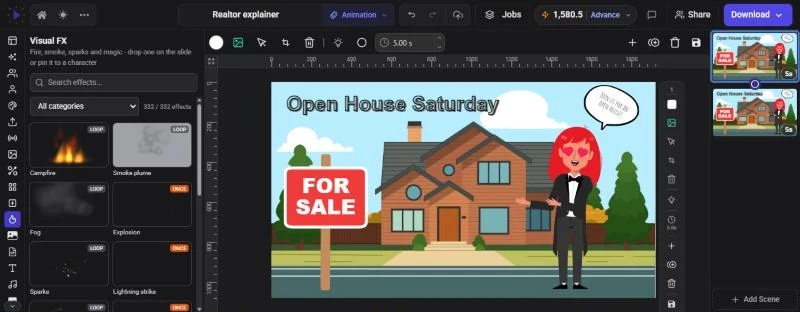
- Click Visual FX on the rail. It’s there in the Animation, Video Editor and Full Editor modes
- Or open AI Studio, choose the Video tab and click VFX effects
- Or press Ctrl+P (Cmd+P on a Mac) and choose Open Visual Effects Panel
Find an effect
Section titled “Find an effect”Every tile plays its effect, so you see exactly what you’ll get. A badge in the corner says LOOP for effects that repeat or ONCE for one-shot effects such as explosions and bursts.
- Search effects…: search by name or by words like “fire”, “rain”, “magic” or “hit”
- All categories: pick one category to see only its effects. The counter beside it shows how many effects match
- Show more: the panel opens with one effect from each category. Click Show more to see them all, grouped by category
| Category | Examples |
|---|---|
| Fire | Campfire, Torch, Fireball, Wall of fire, Candle |
| Smoke | Smoke plume, Steam |
| Explosions | Explosion, Firework burst, Impact puff |
| Sparks | Sparks, Welding, Ember shower |
| Electric | Lightning strike, Electric arc, Static crackle |
| Magic | Sparkle trail, Pixie dust, Star burst, Magic circle, Energy orb |
| Atmosphere | Fog, Light Rain, Blizzard, Hail Shower, Strong Gust, Sandstorm, Dust motes |
| Light | Sun rays, God rays, Lens flare, Soft glow, Neon pulse |
| Water | Splash, Ocean swell, Gentle stream, Waterfall, Deep sea, Pouring water, Rising Bubbles, Garden Fountain |
| Celebration | Confetti Shower, Streamer Cannon, Chrysanthemum Firework, Coin burst |
| Combat | Sword Slash, Punch Impact, Comic Pow, Radial Speed Lines, Parry Ring |
| Sci-fi | Laser Beam, Force Shield, Radar Sweep, Hologram Grid, Warp Gate |
| Reactions | Sweat drop, Anger vein, Question mark, Love hearts, Dizzy stars, Light bulb, Chilli hot, Freezing cold |
| Cartoon | Poof, Footstep dust, Dash trail, Mini tornado, Falling Leaves |
Add an effect to a scene
Section titled “Add an effect to a scene”Click a tile to add the effect to the current scene, then drag it into place and resize it with its handles like any other item. To put an effect inside a frame, drag the tile onto the frame.
A new effect lasts the whole scene. To change when it plays, drag or resize its bar on the timeline. See The Timeline.
Effects sit in the layer order like any other item, so an effect above a video plays over the footage. Move it behind other items in Layers or with Position & Layers on the toolbar. See Layers, Groups and Locking.
Adjust an effect
Section titled “Adjust an effect”Select the effect on the canvas. Its toolbar has these controls:
- Preset: swap the effect for a different one. It keeps its position, size, timing and any pin, and takes the new preset’s settings. The list is grouped by category and searchable
- Effect settings: sliders for the look of the effect. Which ones appear depends on the effect:
- Intensity: how much there is, such as how many sparks or how dense the smoke
- Scale: the size of the flames, flakes or particles
- Speed: how fast it moves
- Spread: how wide it fans out
- Direction: which way it travels, in degrees (0 is up, 90 is right, 180 is down)
- Hue: shifts all the colors around the color wheel
- Palette: the color scheme: Ember, Gold, Ice, Neon, Violet, White, Mono, Aqua or Ocean
- Opacity: how see-through it is
- Turbulence: how much it flickers and swirls
- Look: a variation of the same effect, for example a magic effect can be an orbit, a trail, dust or a burst
- Forces: on particle effects such as fire, smoke, sparks, rain, snow, confetti and water, push the particles around with Wind, Turbulence, Vortex and Attract / repel, change Gravity and Air drag, and on some effects add a Floor that particles Bounce off, Splash on or Stop at
- Blend: Normal, Screen, Lighten or Add. Screen and Add make bright effects glow over what’s beneath them
- Loop or Once, and a duration in milliseconds
- Shuffle (the dice): gives the effect a new random pattern with the same settings, so two campfires side by side don’t flicker in step
- Attach to: pins the effect to another item (see below)
Effects also take entrance, exit and looping effects and keyframes like any other item.
Loop or play once
Section titled “Loop or play once”The effect repeats for as long as its bar lasts on the timeline. The duration is the length of one cycle, so a longer duration makes a slower, calmer loop.
The effect plays once, starting at the beginning of its bar, and lasts for the duration you set (from 100 to 60,000 ms). After that it’s gone, even if the bar is longer. To time an explosion to a moment in your video, drag the start of the effect’s bar to that moment.
Pin an effect to a character
Section titled “Pin an effect to a character”Effects can ride on a character: a torch in a hand, a sweat drop on the head, dust at a foot. A pinned effect follows the character as it moves and animates.
- Select the character and click Add effect on its toolbar. The Visual FX panel opens with a banner that says “Attaching to” and the character’s name
- Pick the body part from the chips in the banner: Center, Head, Chest, Hips, Left hand, Right hand, Left foot or Right foot
- Click an effect tile. It’s added to that body part and sized to the character
If you don’t pick a body part, Add effect starts on the right hand, but effects that belong somewhere particular go there instead. For example, reactions such as Sweat drop or Question mark land on the head. Click Cancel in the banner to add effects to the scene normally again.
Pin an effect to any item
Section titled “Pin an effect to any item”You can pin an effect you’ve already added to text, a picture, a video, a shape or a character on the same scene:
- Select the effect and click Attach to on its toolbar
- Pick the item from the list. For a rigged character, choose the body part from the chips
- Optional: nudge it with Offset X and Offset Y, and tick Rotate with target to turn the effect when the item rotates
To unpin it, open Attach to and click Detach. If you delete the item an effect is pinned to, the effect is unpinned and stays on the scene in its own box. Effects can’t be pinned to audio, the scene background or another effect.
- Want fire or smoke filmed on a real camera instead? Stock clips shot on black blend in with Screen. See Removing Backgrounds.
- A full-scene weather effect (rain, snow, fog, embers) reads best above everything else. Keep it at the top of Layers.
- Combine a one-shot Combat or Explosions effect with a sound from the Audio panel at the same moment. See Music, Sound Effects and Audio Settings.
- Reactions are designed for characters’ heads. Use Add effect on the character so they land in the right place and at the right size.