Subtitles and Captions
The Subtitle panel turns the speech in a video, voiceover or recording into captions. You can generate them automatically, type them yourself or import an SRT or VTT file, then style them, translate them and filter out words you don’t want shown or heard. Subtitles are on every plan. The AI steps use AI credits, listed below.
Captions that show on your canvas are burned into the exported video.
Open the Subtitle panel
Section titled “Open the Subtitle panel”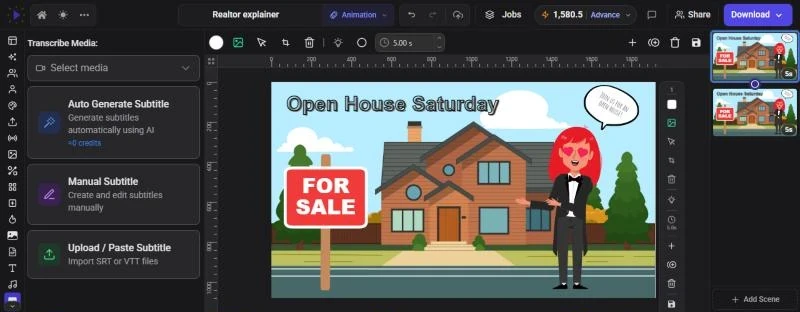
- Click Subtitle on the left rail. It’s on the rail in the Animation, Video Editor and Full Editor modes
- With a video clip selected, click Subtitles in its toolbar
- In any mode, press Ctrl+P (Cmd+P on a Mac) and choose Open Subtitles Panel
If the selected clip already has subtitles, the panel opens straight into the Subtitle Editor for that clip.
Choose what to caption
Section titled “Choose what to caption”At the top of the panel, open the Transcribe Media: list (Select media) and pick what the subtitles belong to:
- A video clip on your canvas. If a video is selected, it’s picked for you
- An audio clip: a voiceover, recording, music track or sound, on a scene or attached to an item
- No media (standalone subtitle): a subtitle track that isn’t tied to any clip and can show over any scene
Then choose one of three ways to create the subtitles:
| Option | What it does |
|---|---|
| Auto Generate Subtitle | Transcribes the speech with AI and times every line |
| Manual Subtitle | Opens the editor so you can type the lines yourself |
| Upload / Paste Subtitle | Imports an existing .srt or .vtt file, or pasted subtitle text |
Generate subtitles automatically
Section titled “Generate subtitles automatically”- Pick a video or audio clip under Transcribe Media:
- Check the cost shown on the Auto Generate Subtitle card, for example “≈0.25 credits”
- Click Auto Generate Subtitle and wait for the transcription to finish
- Review the lines in the Subtitle Editor and fix any words the AI misheard
Automatic subtitles cost 0.25 AI credits per minute of audio, with a minimum of 0.25 credits. Lines are broken at natural pauses and kept to about 42 characters and at most 5 seconds each. Each word is also timed, which is what makes the word-by-word highlight work (see Highlight words as they’re spoken).
Type subtitles yourself
Section titled “Type subtitles yourself”- Pick a clip, or No media (standalone subtitle), under Transcribe Media:
- Click Manual Subtitle
- Click Add First Subtitle (for a clip with no lines yet), type the text, and set the start and end times
- Click Add Subtitle at the bottom of the list for each new line
- Click Save & Add to Slide. This also adds a caption text box to the scene; see How subtitles appear on your video
A standalone track is named “Subtitles 1”, “Subtitles 2” and so on. It starts with one line reading “New subtitle” from 0 to 3 seconds and spans the whole video, so you can place lines over any scene.
Import an SRT or VTT file
Section titled “Import an SRT or VTT file”- Pick a clip, or No media (standalone subtitle), under Transcribe Media:
- Click Upload / Paste Subtitle
- In Upload or Paste Subtitles, choose a file under Upload File (Select .srt or .vtt file), or paste the subtitle text into Paste Subtitles
- Click Process Subtitles
Imported lines replace any subtitles the clip already had. Imported into a standalone track, they become a new track named after the file. Imported subtitles have line timings but no word timings, so the word highlight doesn’t move along with the speech.
Edit lines and timing
Section titled “Edit lines and timing”The Subtitles tab of the Subtitle Editor lists every line.
- Filter the list: In Scene (the default) shows the lines in the part of the clip you’re using, after trimming. Not in Scene shows the lines in trimmed-off parts, marked Outside Scene. All shows everything
- Follow playback: while the video plays, the line on screen is marked Active
- Change the timing: edit the start and end times on either side of the arrow. They read hours:minutes:seconds.milliseconds, but you can also type
1:05or65.5. Press Enter to apply - Change the text: type in the line’s text box
Each line has these buttons:
- Toggle formatting: style just this line (see below)
- Duplicate subtitle: copies the line and places it right after
- Split subtitle: click in the text where you want to split, then click this. The timing is divided in proportion to the text
- Delete subtitle
Between two lines, Merge joins them into one and Add inserts a new line in the gap. The + above the first line adds a line at the start.
At the bottom of the panel:
- Change Media (arrow): goes back to the media picker
- Remove Subtitles (bin): deletes all subtitles from this clip. For a standalone track, it deletes the track
- Save & Add to Slide: saves your edits and adds a caption text box to the scene. See How subtitles appear on your video
Style your subtitles
Section titled “Style your subtitles”Open the Templates tab of the Subtitle Editor. It has two sections:
- Caption designs: complete caption looks with their own decorations and animation, matched to your canvas shape. See the next section
- Quick styles: 51 text styles in five groups: Clean & Professional, Bold & Viral, Keyword Highlight, Elegant & Editorial and Stylish & Creative. Click one to apply it to every line
To style a single line, click its Toggle formatting button. The line gets its own set of tabs:
The same quick styles, applied to this line only.
Font Family, Font Size, Font Weight, Text Align and Text Color.
Background Color, Background Opacity, Stroke Color, Stroke Width, Text Shadow and Shadow Blur.
How the spoken word is highlighted: Highlight Color, Highlight Background, Font Weight, Scale, Decoration (Underline or Line Through) and Glow.
Position: Top, Center or Bottom, or turn on Custom and drag the caption in the preview. Animation: None, Fade, Slide or Bounce.
A line you’ve styled on its own keeps its look when you apply a quick style to the whole track. To restyle those lines too, open the Global Settings tab, turn on Override custom formatting, and click Apply to All Subtitles. Global Settings is also where you set the Default Formatting used for new lines.
Highlight words as they’re spoken
Section titled “Highlight words as they’re spoken”When subtitles have word timings, the word being said is highlighted as the video plays, using the line’s Karaoke settings. Every quick style sets a highlight colour, and the Keyword Highlight styles add a coloured chip behind the word. Automatic subtitles have word timings. Lines you typed or imported show without the moving highlight.
How subtitles appear on your video
Section titled “How subtitles appear on your video”There are three ways captions can show on the canvas and in your export:
- Subtitle overlay: as soon as a clip has subtitles, they’re drawn over the video using the styles you set in this panel. This is the only way to get the word highlight and the bilingual display
- Caption text box: Save & Add to Slide also adds a text box named “Dynamic Text” to the scene, linked to the subtitles. It shows the current line as the video plays, and for that clip it takes the place of the overlay. Move, resize and style it like any text item. If you’d rather keep the overlay’s look, delete the text box: the subtitles stay on the clip and the overlay comes back
- Caption design: click a design under Templates > Caption designs. It’s added as a group linked to the subtitles and also takes the place of the overlay. If you have subtitles on more than one clip, choose which ones it shows under Captions from. Picking another design replaces the previous one
Saving again doesn’t add a second text box for the same clip.
Translate subtitles
Section titled “Translate subtitles”- In the Subtitles tab, find AI Translate
- Choose a language and click Translate
- When “Translated … subtitles to …” appears, the preview switches to the new language
Translation costs 1 AI credit per translation, for the whole track. You can translate into 20 languages: English, Spanish, French, German, Italian, Portuguese, Dutch, Russian, Arabic, Hindi, Chinese (Simplified), Japanese, Korean, Turkish, Polish, Swedish, Indonesian, Vietnamese, Thai and Norwegian.
Once a track has a translation:
- Display: choose Original or any language you’ve translated into. This is the language that shows on the canvas and in your export
- Bilingual: shows the translation with the original underneath in smaller text
- While a translated language is chosen under Display, each line shows its translation in a second box, where you can correct it
A track keeps all its translations, so you can switch the display between them at any time.
Filter profanity and sensitive words
Section titled “Filter profanity and sensitive words”The Filter tab (Content Filter) finds words you don’t want shown or heard and hides them in the captions, the audio and even the speaker’s mouth. Generate or import subtitles first, because the filter scans the transcript.
- Choose what to look for: Profanity (on by default), Sensitive data (phone numbers, addresses, IDs, card numbers and emails), and any Custom words (type a word and press Enter)
- Under Audio, choose Bleep (the default) or Mute for flagged words
- Choose a Subtitle mask:
f***,****or#$@%. Censor subtitles is on by default - Censor character mouth is also on by default and hides the speaker’s mouth while a flagged word is said. Pick a Cover: Blur, Bar, an emoji or Image (your own image or logo), and its Cover size. Turn it off if you only want to filter the captions and audio
- Click Scan with AI
- Review the matches and switch off any you want to keep
Scanning costs 0.5 AI credits for each block of up to 1,500 words, and each translated language is scanned separately. For a video clip, Glintia tracks the speaker’s mouth automatically after the scan so the cover follows it. If you retime the clip, click Track again. Click Clear filter to remove the filter.
If a track has no word timings, whole lines are filtered instead of single words.
Export
Section titled “Export”Visible captions are burned into the exported video, in the display language and bilingual setting you chose. Glintia doesn’t export separate subtitle files (.srt or .vtt). See Exporting Your Video.
Troubleshooting
Section titled “Troubleshooting”- “First select a media file”: pick a clip under Transcribe Media: before choosing an option
- “Subtitle Generation Failed”: the clip may be from a stock library, the file may be over 25 MB, or you may be out of AI credits. Use your own upload or recording
- “No valid subtitles found in text”: the pasted text or file isn’t valid SRT or VTT. Check that each line has a timing row such as
00:00:01,000 --> 00:00:03,000 - My captions look plain after saving: Save & Add to Slide added a caption text box, which replaces the styled overlay. Style the text box, pick a caption design, or delete the text box to bring the overlay back
- The words don’t highlight as they’re spoken: the subtitles were typed or imported, so there are no word timings. Use Auto Generate Subtitle instead