Text-to-Speech
Glintia’s Text-to-Speech turns your written script into a natural-sounding voiceover. Choose from 592 AI voices in 82 languages, and when a character speaks the line, it lip-syncs to every word automatically. Text-to-Speech is included on every plan.
Available Voices
Section titled “Available Voices”- 564 neural voices across 82 languages and 154 locales
- Regional variants listed separately, such as English (US) and English (UK)
- 47 voices with selectable speaking styles
- 2 AI credits per minute of audio, so Basic’s 400 monthly credits cover up to 200 minutes
- 28 multilingual ElevenLabs voices for especially lifelike, expressive reads
- Three models: v3 (expressive), Multilingual v2 and Turbo v2.5
- 0.5 AI credits per second of audio
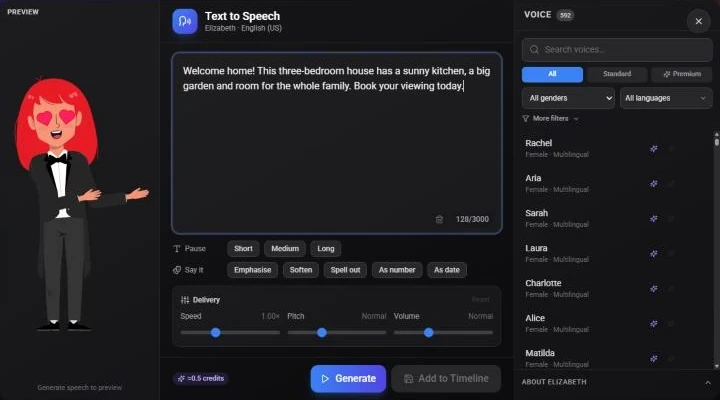
Find a voice with the search box or the filters: Standard or Premium, gender and language. More filters narrows by age, use case, personality and speaking style.
Creating a Voiceover
Section titled “Creating a Voiceover”- Select the character who should speak. For narration without a character, click an empty part of the canvas so nothing is selected
- Click Lip Sync in the character’s toolbar, or press Ctrl+Shift+L (Cmd+Shift+L on a Mac) to open the Lip Sync panel
- Click Text to Speech
- Type or paste your script (up to 3,000 characters per clip)
- Choose a voice
- Adjust the delivery if needed
- Click Generate, listen to the result, and click Regenerate if you want another take
- Click Add to Timeline
The clip is added at the playhead. If a character is selected, the voiceover is attached to it and the character lip-syncs to it. With nothing selected, it is added to the scene as narration.
Voice Settings
Section titled “Voice Settings”Delivery (Standard voices)
Section titled “Delivery (Standard voices)”- Speed: from 0.5× to 2×. Slower suits complex explanations, faster suits quick updates
- Pitch: lower for authoritative content, higher for energetic content
- Volume
- Speaking style and Style intensity: on voices that support styles
Voice settings (Premium voices)
Section titled “Voice settings (Premium voices)”- Stability, Similarity and Expression
- Speed
- Speaker boost
Pauses and emphasis
Section titled “Pauses and emphasis”- Pause: insert a Short (250 ms), Medium (500 ms) or Long (1 second) pause anywhere in the script
- Say it (Standard voices): select words and choose Emphasise, Soften, Spell out, As number or As date to control how they’re read
- Perform (Premium v3 voices): add performance tags such as laughs, whispers, sighs, applause or [excited]
Best Practices
Section titled “Best Practices”- Write for speech: Use conversational language, not formal writing
- Read aloud first: Test your script by reading it yourself
- Use punctuation: Periods and commas create natural pauses
- Keep sentences short: Easier to follow and sound more natural
- Preview often: Listen to generated audio before finalizing
Syncing with Animation
Section titled “Syncing with Animation”- Generate your voiceover first
- Add it to the timeline
- Adjust visual timing to match audio cues
- Use the waveform on the audio clip to align animations
- Fine-tune transitions to key phrases
Subtitles
Section titled “Subtitles”Turn your narration into captions with the Subtitle panel: generate subtitles automatically, style them with 51 caption presets, and translate them into 20 languages.
Alternatives
Section titled “Alternatives”If Text-to-Speech doesn’t fit your needs:
- Record your own voice: use Record in the Lip Sync panel, and your character lip-syncs to it
- Upload custom audio: upload an MP3 from the Lip Sync or Upload panel
- Music only: Use background music from the Audio panel without narration
- Silent videos: Some content works with text overlays only
Related Features
Section titled “Related Features”- Quick Start - Basic video creation
- Whiteboard Videos - Narration-heavy format
- Create First Animation - Full workflow