Adding and Directing Characters
Characters are pre-rigged figures you drop into a scene and direct: pick what they do (actions), how they look (expressions), when each change happens, and how they blink and talk. This article covers placing characters and directing them. To design your own look, see Character Builder.
Open the Character panel
Section titled “Open the Character panel”Click Character in the left rail, or press Ctrl+Shift+H (Cmd+Shift+H on a Mac). The panel is on the rail in the Full Editor, Animation and Whiteboard modes.
The panel has:
- New Character: opens the Character Editor. The button also shows how many character slots your plan has left, for example “New Character · 3 left”. When none are left, clicking it shows an upgrade option instead
- Search characters…: matches character names and tags
- All, Animation and Whiteboard style filters: the panel starts on the filter that matches your editor mode, so Whiteboard designs show whiteboard-style characters first
- My Characters: a strip of characters you built or rigged yourself. Hover one and click the pencil to edit it
- Templates: the ready-made characters. Hover a tile to see its name and tags
Two badges can appear on tiles:
- Pro: the character needs the Pro plan or higher. On a lower plan, clicking it shows an upgrade option
- Image: an image character, animated from a picture. Its expressions are generated by AI the first time you use each one
Add a character to a scene
Section titled “Add a character to a scene”- Open the scene you want in the timeline
- Click a character in the Character panel. It’s added to the current scene with its default action and a neutral expression, and stays on screen for the whole scene
- Drag it into position and use the corner handles to resize it
- To make it face the other way, open Position & Layers in its toolbar and choose Flip Horizontal
To change when the character appears and disappears, drag the ends of its bar on the timeline. See The Timeline.
Recolor a placed character
Section titled “Recolor a placed character”When you select a vector character, its colors appear as swatches in the toolbar. Click a swatch and pick a new color to repaint every part that uses it. This changes only this copy on the canvas, not the saved character. Image characters are a single picture, so they have no swatches.
The character toolbar
Section titled “The character toolbar”
Select a character to see its toolbar:
| Button | What it does |
|---|---|
| Settings | Opens Character Settings: blinking, lip sync tuning, facing and replace |
| Replace | Swaps in a different character while keeping its animation, audio and lip sync |
| Actions | Opens the Actions panel |
| Expressions | Opens the Expressions panel |
| Lip Sync | Opens the Lip Sync panel (Ctrl+Shift+L, Cmd+Shift+L on a Mac) |
| Mouth shapes | Appears once a vector character has speech. See Lip Sync and Mouth Shapes |
| Add effect | Attaches a visual effect to the character’s hand. See Visual Effects (VFX) |
Characters also get the usual Effects and Animations buttons for entrance, exit and motion effects.
Choose an action
Section titled “Choose an action”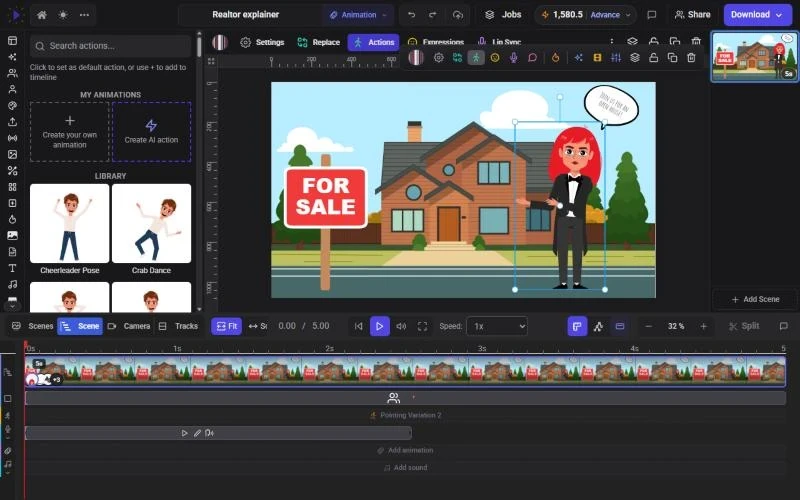
Click Actions in the toolbar. The panel has a Search actions… box and two sections:
- My animations: tiles to create your own (Create your own animation and Create AI action), followed by animations you’ve made for this character
- Library: the ready-made actions, such as idle standing, waving and walking
Hover a tile to preview the motion. Then:
- Click the tile to make it the character’s default action, which plays whenever no other action is set. A blue check marks the current default
- Click + (Add to timeline) to add the action as a clip at the playhead
A number badge on a tile shows how many times that action is already on the character’s timeline.
Chain actions over time
Section titled “Chain actions over time”To make a character do one thing and then another, add several actions as clips.
- Select the character and open Actions
- Move the playhead to where the first action should start
- Hover the action and click +. The clip uses the action’s natural length, or 2 seconds, and is shortened to fit before the next clip or the end of the character’s time on screen. If there’s no room at the playhead, nothing is added
- Move the playhead and add the next action
- With the character selected, its clips appear on the Actions row of the timeline. Drag a clip to move it, or drag its edges to change its length
Each action clip on the timeline has small controls:
- Loop (repeat icon): on, the action repeats to fill the clip (“Loop: Action repeats to fill duration”); off, it slows down to fit the clip (“No loop: Action slows down to fit duration”)
- Transition in: how long the character blends from the previous action into this one. The default is 0.30 seconds. Drag the slider up to 1.5 seconds for a slower blend, or to 0 for Snap (no blend)
- Remove action (X): deletes the clip
Gaps between clips play the default action. Click a gap to open the Actions panel and change it.
Set expressions
Section titled “Set expressions”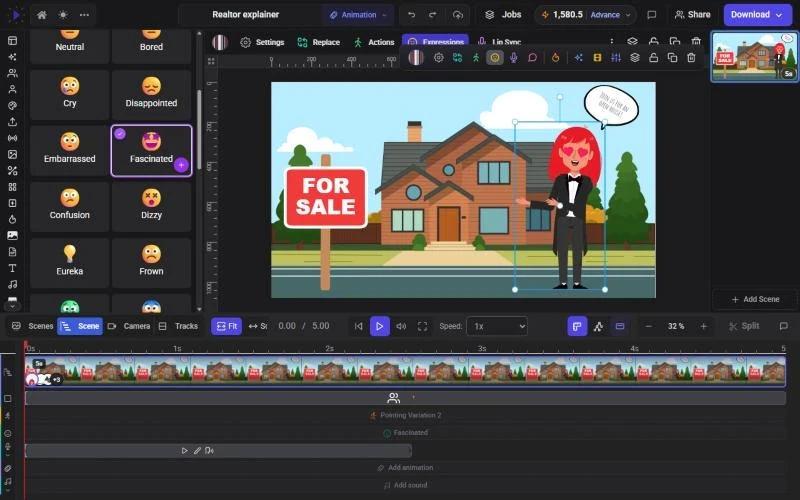
Click Expressions in the toolbar. Characters can have up to 30 expressions, such as Smile, Laugh, Surprise, Confusion, Worried, Wink and Whistling. Which ones a character has depends on how it was made. Use Search expressions… to find one.
- Click an expression to make it the default face
- Click + (Add to timeline) to add it as a 2-second clip at the playhead
Expression clips sit on the Expressions row and work like action clips: drag to move, drag the edges to resize, and click Remove expression (X) to delete one. Gaps show the default expression. A green badge marks an animated expression, which moves when placed on the timeline.
Turn a character to face another way
Section titled “Turn a character to face another way”Some characters are drawn from more than one side. For those, a Facing control appears in the Actions panel and in Character Settings, with Front, Side or 3/4. Characters drawn only from the front don’t show it.
If some of the character’s actions have no drawing for the side you pick, a dialog lists them and explains that they’ll play the idle action for that side instead. Click Turn to (side) to confirm, or Cancel.
Your own animations are drawn from the front. To create or use them, turn the character back to Front.
Character Settings
Section titled “Character Settings”Click Settings in the toolbar to open Character Settings.
Eye blinking
Section titled “Eye blinking”Eye Blinking is on by default, so characters blink on their own. Turn the switch off to keep the eyes open. With it on:
- Blink Speed: presets Slow (every 5 seconds), Normal (3 seconds), Fast (1.5 seconds) and Very Fast (0.8 seconds)
- Time Between Blinks: any value from 0.5 to 10 seconds
- Blink Duration: how long the eyes stay closed, from 50 to 500 milliseconds (150 is normal)
Blinking depends on the character’s eye artwork. If a character has no eyelids defined, blinking may not be visible. Image characters don’t blink.
Lip Sync
Section titled “Lip Sync”The Lip Sync section tunes how this character’s mouth moves when it speaks. See Lip Sync and Mouth Shapes.
Replace a character
Section titled “Replace a character”Replace swaps who the character is without redoing the scene.
- Select the character and click Replace in the toolbar (or Replace in Character Settings)
- The Character panel opens with a banner asking you to pick a character
- Click the new character
The new character takes the same place and timing, and keeps the actions, expressions, audio and lip sync. Actions are matched by name, so “walking” carries over if the new character has it. If it lacks one, that clip plays idle instead and a message tells you which.
Troubleshooting
Section titled “Troubleshooting”- Characters stand still and a message mentions WebAssembly: animating characters needs WebAssembly. Turn off Lockdown Mode or strict security settings for the site, or use another browser, then reload
- Clicking + adds nothing: there’s no free space at the playhead. Move the playhead to a gap, or shorten the next clip
- A Pro character opens an upgrade prompt: it needs the Pro plan or higher