Recording Your Voice, Screen and Webcam
Glintia can record your screen, your webcam and your microphone in the browser, with nothing to install. Use the Record panel for product demos, tutorials, talking-head clips and plain voiceovers. Each take can run for up to 10 minutes and lands on your timeline as separate layers you can edit.
To record a voice that a character lip-syncs to, use the Record button in the character’s Lip Sync panel instead. See Record a voice for a character below.
Before you start
Section titled “Before you start”- Browser: screen recording needs a desktop browser that can share a screen, such as Chrome, Edge or Firefox. Recording sound from the screen or tab you share works in Chromium browsers such as Chrome and Edge. Other browsers record your microphone but not the screen’s sound
- Storage: recordings are saved to your upload storage. If your storage is nearly full, the dialog tells you how many minutes you have room for. If there isn’t room for a useful take, recording is blocked until you free up space in My Files or upgrade. See Plans, Limits and Usage
- Length: up to 10 minutes per take. Each recorded file must also stay under 200 MB, so at 1080p a long take is recorded at a lower bitrate. The Quality hint in the dialog tells you when 720p would keep more detail
Open the Record panel
Section titled “Open the Record panel”Click Record on the left rail. It’s on the rail in the Animation, Video Editor and Full Editor modes. From any mode, you can also press Ctrl+Alt+R (Windows) to open the recording dialog, or press Ctrl+P (Cmd+P) and choose Open Record Panel.
The panel shows:
- New recording: opens the recording dialog
- Start with: quick starts for Screen, Screen + cam, Camera and Voice
- Recent recordings: your takes, newest first. “What you record shows up here and in My Files”
Make a recording
Section titled “Make a recording”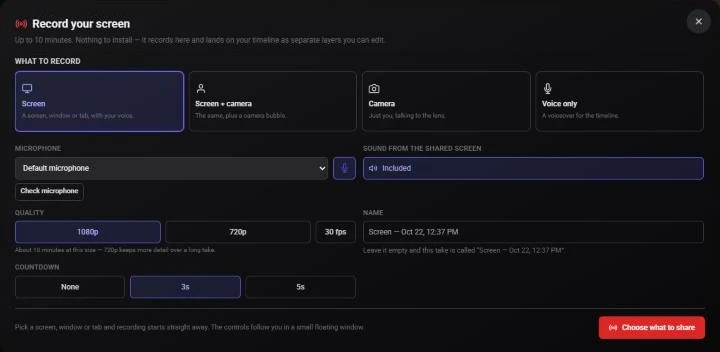
- Click New recording, or one of the Start with tiles
- Under What to record, choose a mode:
- Screen: a screen, window or tab, with your voice
- Screen + camera: the same, plus a round camera bubble
- Camera: just you, talking to the lens
- Voice only: a voiceover for the timeline
- Under Microphone, pick your microphone or keep Default microphone. The microphone button next to it turns your voice on or off
- Click Check microphone and say something. The green bar should move. Click Stop check when you’re happy
- For the camera modes, pick a Camera, then choose what’s Behind you: Room (as it is), Blur or Colour
- For the screen modes, set Sound from the shared screen to Included or Not included
- Under Quality, choose 1080p or 720p, and click the fps button to switch between 30 fps and 60 fps
- Optionally type a Name. If you leave it empty, the take is named after the mode and the time
- Choose a Countdown: None, 3s or 5s
- Click Choose what to share
What happens next depends on the mode:
Your browser opens its sharing picker. Choose a whole screen, a window or a browser tab and click your browser’s share button. Recording starts after the countdown. If you share a tab, Chrome switches you to that tab; where your browser supports it, the countdown and the recording controls follow you in a small floating window.
There’s no sharing picker. The browser asks for your camera or microphone if you haven’t allowed it yet, then the countdown starts.
If you pick the Glintia tab itself, the recording would only show the recorder, so the dialog stops and asks. Click Change to choose something else, or Record it anyway.
While you’re recording
Section titled “While you’re recording”A control bar shows the elapsed time and the time left. The time left turns amber in the last minute. The controls are:
- Microphone: shows your level. Click it to mute or unmute your voice
- Pause and Resume
- Stop: ends the take and saves it
- Discard (bin icon): throws the take away
Where your browser supports it, these controls open in a small floating window that stays on top of other windows, so you can stop the take from whatever you’re demonstrating. Otherwise, come back to the Glintia tab to stop.
You can also stop a take by:
- Pressing Ctrl+Alt+R (Windows) again while the Glintia tab is in front
- Clicking your browser’s own Stop sharing button
- Reaching the time limit, which stops and saves the take automatically
Where your recording goes
Section titled “Where your recording goes”After you click Stop, the take uploads and appears on your timeline. Each source becomes its own layer, so you can edit them separately.
| Mode | What lands on the timeline |
|---|---|
| Screen | A video clip of the screen, plus the sound (your voice, and the screen’s sound if you included it) as a separate voice clip at full volume |
| Screen + camera | The screen clip, a round camera bubble in the bottom-right corner, and the sound as a separate voice clip. The camera clip itself is muted so words aren’t doubled |
| Camera | The camera clip as the main shot, plus your voice as a separate voice clip |
| Voice only | A voice clip on the current scene, starting at the start of the scene |
For the screen and camera modes:
- If the current scene is empty, the recording goes there. Otherwise, Glintia adds a new scene at the end of your video, so your existing scenes aren’t covered
- The scene’s length is set to the length of the recording
- A scene can be at most 5 minutes long, so a longer recording is split across several new scenes. The screen, camera and voice are cut at the same points, so they stay in sync
For Voice only, the clip is cut to the length of the current scene if the take is longer. Make the scene longer, then drag the clip’s right edge out to hear the rest.
To change the narration’s volume, click the voice clip on the timeline. See Music, Sound Effects and Audio Settings.
Reuse a take
Section titled “Reuse a take”Click any take under Recent recordings to add it to the current scene again. It’s placed at the start of the scene and cut to the scene’s length. While a take is still being processed, its tile shows a progress bar. If you click it too early, you’ll see “That one is still being processed. Try again in a moment.”
Recover an interrupted recording
Section titled “Recover an interrupted recording”If the browser tab closes or crashes during a take, Glintia keeps the footage recorded so far. The next time you open the Record panel, you’ll see a message such as “A 3:12 recording was interrupted. The footage is still here.” Click Recover it to save it, or the bin icon to discard it.
Record a voice for a character
Section titled “Record a voice for a character”To make a character speak your own words with matching mouth movements, record in the Lip Sync panel:
- Select the character on the canvas
- Click Lip Sync in its toolbar, or press Ctrl+Shift+L (Cmd+Shift+L on a Mac)
- Click Record (“Record your voice for lip sync”)
- In the Voice Recorder, click the microphone button to start (“Click to start recording”), then click the stop button when you’re done
- Click Play to listen back, or Record Again to retake
- Click Add to Timeline
Glintia uploads the recording, transcribes it, and attaches it to the character so the character lip-syncs to it. If no character is selected, the recording is added to the scene. You can also Download the take from the recorder.
Transcribing the recording uses AI credits: 0.25 credits per minute of audio, with a minimum of 0.25. For more on mouth shapes, see Lip Sync and Mouth Shapes.
Add an animated cursor to a screen demo
Section titled “Add an animated cursor to a screen demo”To point at things in a demo, add a cursor that glides along a path and clicks. Cursors are in the Data & Layout panel, under Cursors.
- Open Data & Layout on the rail and click a pointer under Cursors. There are pointers, hands, text carets, resize arrows and status cursors
- With the cursor selected, click Draw the route in its toolbar. Click on the canvas to place waypoints and drag to curve the path. Double-click or press Enter to finish
- Move the playhead to a moment on the route and click Add a click at the playhead
- Click Pointer in the cursor’s toolbar to change the pointer and its Size. Under Clicks, choose each click’s kind: Click, Double, Right or Drag
- Click Click effect to choose how a click looks, such as Ripple, Pulse or Confetti, and set its Size, Length and Effect colour
A click has to be on the route. If a click falls after the route ends, the toolbar warns you that it won’t play.
Troubleshooting
Section titled “Troubleshooting”- “This browser cannot share a screen.”: use Chrome, Edge or Firefox on a desktop or laptop. Camera and Voice only still work where screen sharing doesn’t
- “Sharing was cancelled.”: you closed the browser’s picker. Click Choose what to share again
- “Screen sharing was blocked.”: allow screen sharing for the site in your browser settings and try again
- My recording has no voice: the microphone was blocked or off. Click the icon at the left of the address bar, allow the microphone, then reload. Click Check microphone before your next take
- Sound from the shared screen says “Not available here”: your browser can’t capture it. Your microphone still records
- “There is not enough upload storage left to save a recording.”: delete files in My Files or upgrade your plan
- The recording isn’t on the timeline: check the end of your video for a new scene. Your take is also under Recent recordings and in My Files