Entrance, Exit and Looping Effects
Glintia has two ready-made ways to bring an item to life. Effects play when an item appears (“on Enter”) or disappears (“on Exit”). Animations are motions you place anywhere in the item’s time, such as a Pulse, a Wiggle that keeps going, or a path across the scene. Both are on every plan and use no AI credits.
Add an entrance or exit effect
Section titled “Add an entrance or exit effect”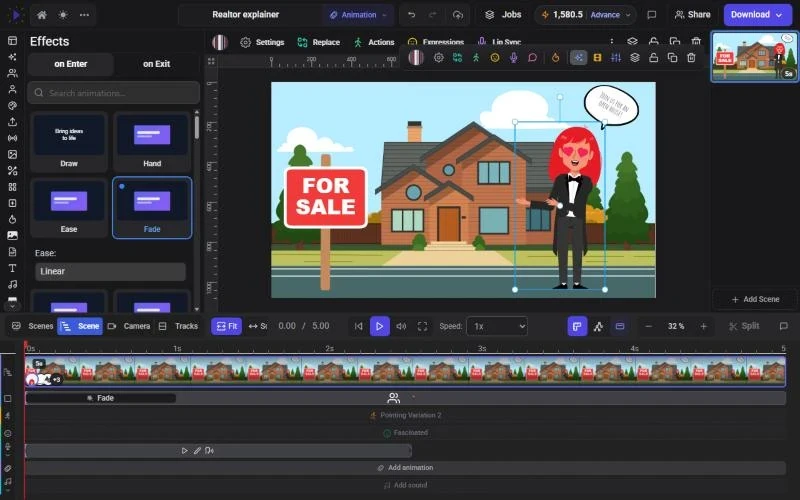
- Select the item on the canvas
- Click Effects in its toolbar, or press Ctrl+E (Cmd+E on a Mac)
- Choose the on Enter tab for an entrance or on Exit for an exit
- Rest the mouse on a tile. The tile plays the effect on a sample, and after a moment it also plays on your item, right on the canvas. Nothing is applied until you click
- Click a tile to apply it. Its settings open just below the tile
- Press Space to play the scene and see it in context
Each item can have one entrance and one exit effect. Picking another tile on the same tab replaces the current one. Use the search box at the top of the panel to find an effect by name.
Effect settings
Section titled “Effect settings”The settings under a selected tile depend on the effect:
- Hand picker for Draw and Hand: choose the hand that draws or drags the item in, or No hand. Draw also lets you pick the drawing tool, and on photos and video a Brush / Trace style. See Whiteboard Videos for the full set of hands and styles
- Directions for effects that move in from a side, such as Hand, Ease and Ease Out: pick left, right, up or down
- Ease: how the motion speeds up and slows down. Click the box to search the list of curves; a small graph previews the one you pick
Timing
Section titled “Timing”Effects take their timing from the item:
- An entrance effect starts the moment the item appears. An exit effect ends the moment it disappears
- Each effect comes with its own length. To change it, drag the free edge of the effect’s chip on the item’s bar in the timeline. The entrance chip’s right edge and the exit chip’s left edge move; the shortest an effect can be is 0.1 seconds
- To make an entrance happen later, start the item later: drag the start of its bar, or set From (ms) in the Properties panel. See The Timeline
Click an effect chip on the timeline to open the Effects panel on that effect.
What’s in the Effects panel
Section titled “What’s in the Effects panel”Most effects work on any kind of item. For any item there are 50 entrance effects and 36 exit effects, including:
- Entrances: Draw, Hand, Ease, Fade, Wipe, Spin, Pop in, Fade in zoom, Big to normal, Bounce, Bounce heavy, Tumble in, Breathe, the Rise, Pan and Drift directions, Horizontal split center, Vertical split center, a family whose names start with Video (for example Video pop in, Video wipe in and Video glitch in), and Scene move in, Scene iris in and Scene wipe from right
- Exits: Fade out, Pop out, Ease Out, Expand, Normal to big, Tumble out, Fade out zoom, the split exits, the Video exits (such as Video blink out, Video spin out and Video ticker out), and Scene move out, Scene iris out and Scene wipe to right
Text-only effects
Section titled “Text-only effects”When every selected item is text, the panel adds 24 entrance and 23 exit effects that animate letters, words or lines. Among them:
- Type and Type Out type the text on and off
- Chars 3D, Chars Slide, Letter Bounce, Scramble, Wave and Neon Glow work letter by letter
- Split Words, Words Scale and Words Drop work word by word
- Split Lines, Lines Slide and Lines 3D work line by line
- Count up counts up to the number in your text, keeping any prefix or suffix (for example “$1,250”)
- Blur Out, Neon Fade, Scramble Out and more on the on Exit tab
If you select text together with an image or shape, the text-only effects disappear from the list, because they can’t play on the other items.
Add a looping or one-off animation
Section titled “Add a looping or one-off animation”Animations live in their own panel and can start at any point in the item’s time.
- Select the item
- Move the playhead to where the animation should start
- Click Animations in the item’s toolbar, or press Ctrl+Shift+A (Cmd+Shift+A on a Mac)
- Rest the mouse on a tile to preview it on the canvas, then click it. The animation is added at the playhead and appears on the item’s Animations row in the timeline
If the playhead is over another animation on that item, Glintia shows “Move the cursor to an empty spot”. Move the playhead past the existing animation and try again.
The panel has 42 presets:
- Looping: Wiggle, Float, Hop, Heartbeat, Shake, Sway, Jelly, Tada, Breathe, Orbit and Focus pulse keep repeating until the item leaves the scene or the next animation on its row begins
- One-off motions: Pulse, Flash in, Flash out, Flicker, 360 Rotate, Scrapbook, popup clockwise and popup counterclockwise play once
- Paths: Move to right, Move To Left, ECG wave LR, Star clockwise, Zig zag climb, Triangle clockwise, Diamond, Fish Floating LR, Square top clockwise, UP the stairs right and their mirrored versions move the item along a route
- custom and custom curve start an animation you design yourself with keyframes. See Keyframes, Motion Paths and Camera Moves
Adding an animation to one item puts the editor in Animation mode for it, and the top of the Animations panel shows that animation’s controls. Press Esc or click Exit to leave the mode; the item stays selected.
Repeat and easing
Section titled “Repeat and easing”In the Animation mode box at the top of the Animations panel:
- Motion sets the easing: Linear, Ease in, Ease out, Ease in & out, Overshoot, Bounce or Elastic
- Repeat sets how many times it plays: Play once, 2 times up to 10 times, or Until the end. A repeat is trimmed to fit before the next animation on the row, or the item’s end
- Back and forth (shown once an animation repeats) plays every other repeat backwards, so the motion swings back instead of jumping to its start
On the timeline, a repeating animation shows a badge with its count (for example ×3), or ∞ for Until the end.
Move, lengthen or replace an animation
Section titled “Move, lengthen or replace an animation”- Drag the animation’s bar along the Animations row to change when it starts
- Drag the first or last diamond on the bar to change when it starts or ends
- While you are editing an animation, the panel’s preset grid is headed Replace animation. With one of the animation’s keyframes selected, click another preset to swap it in place
Apply to several items at once
Section titled “Apply to several items at once”Select several items (see Selecting, Arranging and Aligning Items), then open Effects or Animations. The panel says “Applies to all N selected items”.
- Effects: the effect you click is added to every selected item, each with its own copy, so you can change one later without changing the others. The settings under a tile appear only when all the selected items share that effect
- Animations: each item gets its own copy at the playhead. Items that already have an animation at the playhead are skipped, and Glintia tells you how many
- A selected group counts as one item, so its effect or animation plays on the whole group
Remove an effect or animation
Section titled “Remove an effect or animation”- Effect: click its highlighted tile in the Effects panel again, or click X on its chip in the timeline (Remove effect)
- Animation: click X on its bar in the Animations row (Remove)
Troubleshooting
Section titled “Troubleshooting”My entrance effect doesn’t play. Check that the playhead starts before the item’s bar. If the item is on screen from 0, press Go to start before playing.
Text effects are missing. Your selection includes something that isn’t text. Select only text items.
I can’t drag an effect along the bar. Entrance and exit effects are pinned to the item’s start and end. Move the item’s bar instead, or drag the effect’s free edge to change its length.
The effect settings disappeared. With several items selected, settings show only when every item has the same effect. Select one item to edit its effect.