Plans, Limits and Usage
Every Glintia plan comes with a monthly allowance: a number of exports, a maximum video length, storage for your uploads and a pool of AI credits. This article compares the plans, explains what each limit counts, and shows where to check your usage, when it resets and what to do when you run low.
Compare the plans
Section titled “Compare the plans”| Basic | Pro | Advance | |
|---|---|---|---|
| Monthly price | $25 | $45 | $70 |
| Yearly price | $180 ($15/month) | $300 ($25/month) | $480 ($40/month) |
| Exports per month | 10 | 30 | 50 in Full HD, or 25 in 2K |
| Export quality | Full HD | Full HD | Full HD or 2K |
| Maximum video length | 15 minutes | 30 minutes | 40 minutes |
| Storage | 5 GB | 15 GB | 100 GB |
| AI credits per month | 400 | 500 | 600 |
| Brand Kit | No | No | Yes |
| Commercial license | Yes | Yes | Yes |
| License to resell | No | No | Yes |
| 7-day free trial | Yes | Yes | Yes |
Enterprise is set up with our team rather than bought in the app: it includes 100 exports a month, 2K export, videos up to 60 minutes and 1 TB of storage. Contact us for details.
All plans are billed monthly or yearly. Yearly billing saves up to 44% (on Pro). There’s no free plan. Basic, Pro and Advance each come with a 7-day free trial, and a payment card is needed to start it. See Billing, Trial and Cancelling.
What each limit means
Section titled “What each limit means”Monthly Renders on the Billing page. Each export you start counts as one, however many pages it includes and whatever its format. A 2K video counts as two; 2K stills and GIFs count as one.
- A failed export is credited back automatically.
- Downloading a finished export again doesn’t count.
- When you’ve used them all, you can still export for 50 AI credits each (100 for a 2K video), or upgrade.
See Exporting Your Video.
Render Quality on the Billing page. Full HD is included on every plan, and 2K on Advance and Enterprise. Exports are never enlarged, so 2K only produces a bigger file when the design is bigger than Full HD, such as a Square design (1440 × 1440 instead of 1080 × 1080). See Choose a quality.
The longest video a single export can be. If the pages you export run longer, the export stops at your plan’s limit and the rest is cut off. Export a long video in parts by choosing a range of pages each time.
Upload Size on the Billing page, in GB. It counts the files you upload yourself: images, videos, audio and fonts. Media made by Glintia’s AI tools and voiceovers from text-to-speech don’t count.
Storage isn’t monthly, so it doesn’t reset. To free space, delete uploads you no longer need from My Files. If you’re out of space, you’ll see “Upload storage limit exceeded. Please upgrade your plan for more storage.”
AI Credits on the Billing page. AI tools draw on this monthly pool. For example, standard text-to-speech voices cost 2 credits per minute, automatic subtitles 0.25 credits per minute, and background removal 0.25 credits per image.
Your monthly credits are used first. Credits you’ve bought are then used by AI Animation Director, speech-to-text, extra exports and map tiles; the other AI tools use monthly credits only. Monthly credits you don’t use don’t carry over. Bought credits never expire. See AI Studio and AI Credits.
Custom Characters on the Billing page. It counts the new characters you create each month, whether you build them in the Character Builder or upload and rig your own. When you reach your plan’s number, you’ll see “You have reached your custom character limit. Please upgrade your plan for more characters.”
The count resets with your monthly allowance. Deleting a character doesn’t give the slot back for the current month.
Premium Stock Credits on the Billing page. Premium stock photos, videos and icons draw from a monthly pool of stock credits, separate from AI credits: a video costs 2, an image or audio clip 1, and an icon or element ½. Free stock doesn’t use this pool.
The exact numbers for your plan, including custom characters and premium stock credits, are on your Billing page.
Check your usage
Section titled “Check your usage”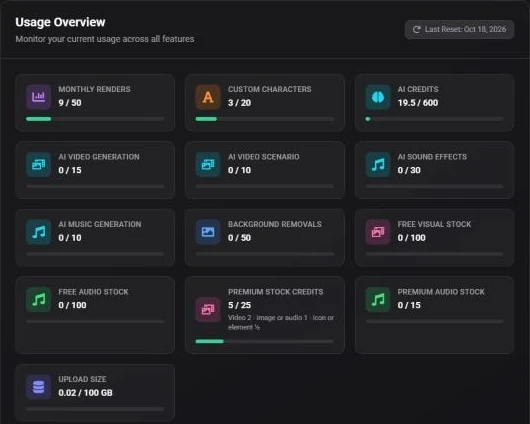
Click Billing in the left sidebar of your dashboard to open Billing & Subscription. Below your plan, Usage Overview lists each meter as “used / total” with a bar that turns yellow at 70% and red at 90%. Last Reset in the corner shows when your monthly allowance last started over. Render Quality shows your export quality.
The pill in the top bar of the dashboard and the editor shows your plan and the AI credits you have left. Click it to see your monthly credits (“120 of 400 monthly”, for example) and any credits you’ve bought, with Top up, Upgrade and Usage & billing buttons. During the trial it also shows how many days are left, with Start plan now.
In the editor’s export panel, the bar at the bottom shows how many exports you have left at the quality you’ve chosen, for example “8 of 10 Full HD exports left”.
The Renders page shows Renders this month: exports used out of your monthly allowance.
When limits reset
Section titled “When limits reset”Your monthly allowance starts over a month after the last reset, on the same date the next month. If that date doesn’t exist in the next month, the month’s last day is used (a reset on January 31 is followed by one on February 28 or 29). Glintia checks once a day, at midnight UTC, so the reset can land early the following day. The Last Reset date on the Billing page tells you when your current month began.
- Exports, AI credits, custom characters and premium stock credits go back to zero. Anything you didn’t use is gone.
- Yearly plans reset every month too. You get a fresh monthly allowance even though you pay once a year.
- Storage doesn’t reset, and bought AI credits don’t expire.
- Starting a paid plan, at the end of your trial or with Start my plan now, starts a fresh month that day. So does upgrading to a higher plan.
During the free trial
Section titled “During the free trial”The 7-day trial comes with a smaller starter allowance than a full month: fewer exports, a shorter maximum video length, and less storage and AI credits. Trial exports carry a Glintia watermark. Your exact trial numbers are on the Billing page and in the export panel.
The plan’s full monthly allowance, and clean exports, start when your first payment goes through, either when the trial ends or when you click Start my plan now. See Start your plan early.
When you run low
Section titled “When you run low”- Exports: export for AI credits, upgrade your plan, or wait for your reset.
- AI credits: click Top up in the plan pill to open Buy AI Credits and choose a pack under Select a Credit Pack. It’s a one-time purchase, and the credits never expire. Bought credits pay for AI Animation Director, speech-to-text, extra exports and map tiles. For other AI tools, upgrade for a bigger monthly pool.
- Storage: delete uploads you no longer need, or upgrade.
When a monthly meter runs out, Glintia also adds a Usage Limit Reached notification: “You’ve reached your monthly … limit. Upgrade your plan or purchase additional credits.” Its View Billing button opens your Billing page.
Upgrade prompts
Section titled “Upgrade prompts”Some features and assets belong to higher plans. When you click one that your plan doesn’t include, a popup explains what it is and which plan includes it, with Upgrade to and that plan’s name, Compare all plans and Not now. For example:
- 2K export and Brand Kit are included in Advance
- Uploading your own fonts is included in Pro
- Premium templates, characters, animations, effects and stock items show the plan they belong to
To upgrade, use the popup, Upgrade in the plan pill, or the upgrade button on your Billing page. See Upgrade or change your plan.