Elements, Stock Media, GIFs and Emojis
Glintia’s left rail holds several libraries of ready-made content: the Elements panel for shapes, icons and illustrations, premium stock photos, vectors and footage, GIFs from Giphy, animated emojis, and overlays such as snow or grid paper that cover the whole scene. This article explains what each panel holds, how to add items, and which downloads use your monthly premium stock credits.
Find the right panel
Section titled “Find the right panel”Each editor mode shows a different set of panels on the rail. This table shows where to find each library.
| Rail button | What’s in it | On the rail in |
|---|---|---|
| Elements | Shapes, icons, illustrations, hand-drawn doodles, animated elements and 3D shapes | Animation, Whiteboard, Video Editor, Full Editor |
| Image / vector | Premium stock photos and vector illustrations | Animation, Full Editor |
| Video | Premium stock footage | Video Editor, Full Editor |
| GIF | GIFs from Giphy | Animation, Full Editor |
| Emojis | Animated emojis | Animation, Full Editor |
| Overlays | Weather, confetti, paper and board effects that cover the scene | Animation, Full Editor |
Add an item to a scene
Section titled “Add an item to a scene”Every library panel works the same way:
- Open the panel and find what you need. In most panels you type a search term and press Enter
- Click a tile to add it to the middle of the current scene, or drag the tile onto the canvas to drop it where you want it
- The new item is selected, so its toolbar is ready for colors, effects and animations
When you drag a photo, video or GIF tile onto the canvas:
- Drop it on a frame or a grid cell to fill that frame. See Grids, Frames, Charts and Maps
- Hold it over an existing photo or video until Drop to replace appears, then let go to swap the media. Hold Alt to add it as a new item instead
- Hold Shift as you drop it to make it the scene’s background. See Backgrounds and Colors
The Elements panel
Section titled “The Elements panel”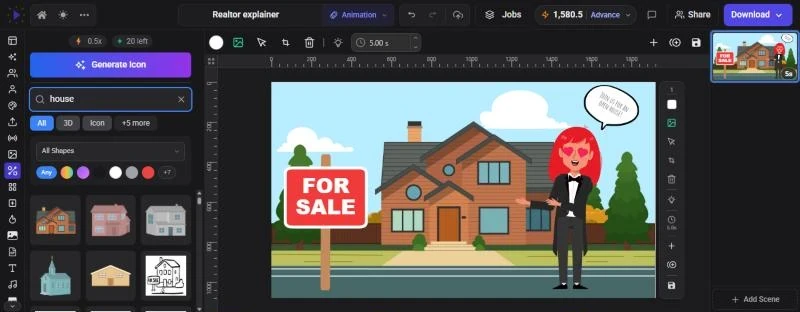
The Elements panel combines Glintia’s own library with a library of premium icons.
- Shapes: Line, Dashed Line, Triangle, Rectangle, Square, Pentagon, Hexagon, Heptagon, Octagon, Star-shaped Polygon, Arrow-shaped Polygon, Chevron, Rhombus, Parallelogram, Circle and Oval. Shapes are drawn by the editor, so you can change their fill and border colors from the toolbar
- Library art: icons, illustrations and hand-drawn doodles
- Premium icons: added to the results when you search
Filter what you see
Section titled “Filter what you see”Use the chips under the search box to narrow the panel. Chips that don’t fit fold behind a +N more button.
| Chip | Shows |
|---|---|
| All | Shapes, library art and, when you search, premium icons |
| 3D | 3D shapes and your uploaded 3D models (see below) |
| Icon | Shapes and library icons |
| Whiteboard | Hand-drawn doodle art. Selected automatically in Whiteboard mode |
| Animated | Animated elements, which play when you hover over them |
| Standard, Sticker, Uicon | Premium icon styles |
Premium icons only appear after you search. Type a word such as “rocket” and press Enter. A filter box then appears with a shape menu (All Shapes, Outline, Fill, Lineal, Hand Drawn) and a row of color swatches (Any or a color).
Hover over a tile to see its name, and for premium icons the author and style.
Add a premium icon
Section titled “Add a premium icon”- Search for an icon and press Enter
- Click the icon, or drag it onto the canvas
- In the Choose Format dialog, pick SVG (Editable) to get vector artwork you can recolor, or PNG (Image) to get a picture
Animated premium icons skip the dialog and are added as animations. Each premium icon you add uses 0.5 premium stock credits.
Generate an icon with AI
Section titled “Generate an icon with AI”Can’t find the right icon? Click Generate Icon at the top of the panel to open the AI Icon generator. Generating icons uses AI credits. See Generating Images, Icons and Backgrounds.
3D shapes and models
Section titled “3D shapes and models”Click the 3D chip to see:
- Shapes: Cube, Rounded box, Sphere, Icosahedron, Cylinder, Capsule, Cone, Torus, Torus knot, Ring and Plane. Click one to add it
- Your models: 3D models you uploaded. Click Upload a GLB to go to the Upload panel. Models must be glTF 2.0 GLB files (see Uploading Your Own Media)
Select a 3D object and click 3D controls in its toolbar to adjust it.
Stock photos and vectors
Section titled “Stock photos and vectors”The Image / vector panel searches a library of premium stock photos and vectors.
- Click Image / vector on the rail. Popular results show before you search
- Type a search term and press Enter
- Narrow the results with All, Image or Vector
- Hover over a tile to see its type, author and size. A PRO badge marks a premium file
- Click the tile, or drag it onto the canvas
A vector arrives as SVG artwork, so you can recolor its parts from the toolbar. Each new photo or vector uses 1 premium stock credit. Adding the same file again in the same design doesn’t use another credit.
Click Generate Image next to the search box to create an image with AI instead. Image generation uses AI credits.
Free stock images
Section titled “Free stock images”There is also a free Images panel of stock photos and vectors, which doesn’t use premium stock credits. It has no rail button. Press Ctrl+P (Cmd+P on Mac) and run Open Images Panel, or press Ctrl+Shift+I (Cmd+Shift+I). Search, then use the Image and SVG chips to choose photos, vectors or both.
Stock video
Section titled “Stock video”The Video panel searches premium stock footage. It is on the rail in the Video Editor and Full Editor modes.
- Click Video on the rail
- Type a search term and press Enter
- Move the pointer across a tile to scrub through the clip. The badge in the corner shows its length
- Click the tile, or drag it onto the canvas
Each new clip uses 2 premium stock credits, and adding the same clip again in the same design doesn’t use more. While you edit, the clip plays from a lighter 720p copy, and your export uses the 1080p version. Once added, a stock clip works like any other video. You can trim it, set its speed and more. See Editing Video Clips.
Generate AI Video next to the search box opens the AI video generator, which uses AI credits. See AI Video, AI Actor and Avatars.
The GIF panel searches Giphy. Type a search term and press Enter. Results are limited to G-rated GIFs, and adding GIFs doesn’t use any credits.
A GIF is added as a short video clip, so it appears on the timeline and has the same options as a video. To keep a GIF repeating, select it, click Edit Video in its toolbar and turn on Loop.
Emojis
Section titled “Emojis”The Emojis panel has animated emojis.
- Search by name or keyword as you type. You can also paste the emoji itself
- Narrow the grid with the category chips: All, Smileys, People, Nature, Food, Travel, Activities, Objects and Symbols
- Hover over an emoji to preview its animation, then click it to add it
An emoji keeps playing on a loop for the whole length of the scene, and you can resize and animate it like any other item. Emojis don’t use credits.
Overlays
Section titled “Overlays”Overlays are effects that cover the whole scene and last its full length, such as falling snow or a grid-paper sheet. The Overlays panel is on the rail in the Animation and Full Editor modes.
- Animation overlays: Rain, Snow, Hearts, Shapes, Emojis, Coins, Confetti, Bubbles, Sparkles, Shooting Stars, Leaves, Petals, Fireflies, Smoke, Embers and Balloons
- Whiteboard overlays: Grid Paper, Dot Grid, Ruled Paper, Marker Frame, Doodles, Sticky Notes, Ink Spots, Chalk Dust, Blueprint, Isometric Grid, Cross Hatch, Graph Axes, Taped Corners, Eraser Smudge, Handwriting, Math Symbols, Push Pins and Washi Tape
- Custom: repeats one of your own images across the scene. Clicking it opens Select Image, which lists the images in your Upload panel. If it’s empty, upload an image first
- Animated overlays from the library appear after the built-in effects
Use the All, Animation and Whiteboard chips to filter the panel. The chip that matches your editor mode is selected for you. You can also search by name.
Customize an overlay
Section titled “Customize an overlay”Select the overlay on the canvas to see its settings in the toolbar. The built-in effects have:
- Motion: Falling, Burst or Static pattern. The sheet-wide whiteboard overlays (Grid Paper, Dot Grid, Ruled Paper, Marker Frame, Blueprint, Isometric Grid, Cross Hatch, Graph Axes, Taped Corners and Eraser Smudge) don’t move, so they have no motion setting
- Color: the particle color, or the ink color for whiteboard overlays
- Shape, Doodle or Emoji: choose what the Shapes, Doodles and Emojis overlays scatter
- Change Image: pick a different picture for a Custom overlay
- Settings: sliders for Intensity (Density for a static pattern), Size, Rotation with Random rotation, Speed and Wind for moving overlays, Spacing, Position (Random or Grid) and Opacity. Whiteboard overlays also have Stroke and Hand-drawn
Overlays don’t use credits.
Premium stock credits
Section titled “Premium stock credits”Premium stock assets (icons, photos, vectors and video clips) come out of a monthly allowance of premium stock credits. The counter at the top of the Elements, Image / vector, Video and Background panels shows how many you have left this month, and so does Usage Overview on the Billing page.
| You add | Credits |
|---|---|
| A premium icon (Elements panel) | 0.5 |
| A premium stock photo or vector (Image / vector or Background panel) | 1 |
| A premium stock video clip (Video panel) | 2 |
These don’t use premium stock credits: shapes, Glintia’s own library elements, backgrounds and overlays, GIFs, emojis and images from the free Images panel. Templates that contain licensed stock media also use premium stock credits. A badge on the template’s tile shows how many.
When your allowance runs out, Glintia shows “You have reached your monthly premium stock download limit. Please upgrade your plan or wait until next month.” Your allowance refills when your plan’s monthly allowance renews. The free trial comes with a smaller starter allowance.
Troubleshooting
Section titled “Troubleshooting”- No premium icons appear: premium icons only show after you type a search term and press Enter
- “Error loading elements. Try again.”: check your connection and search again
- “Couldn’t add this icon”: the icon file couldn’t be loaded. Try again or pick another icon. If an icon fails to load, it doesn’t stay on your canvas
- A GIF stops after one play: turn on Loop under Edit Video