Character Builder
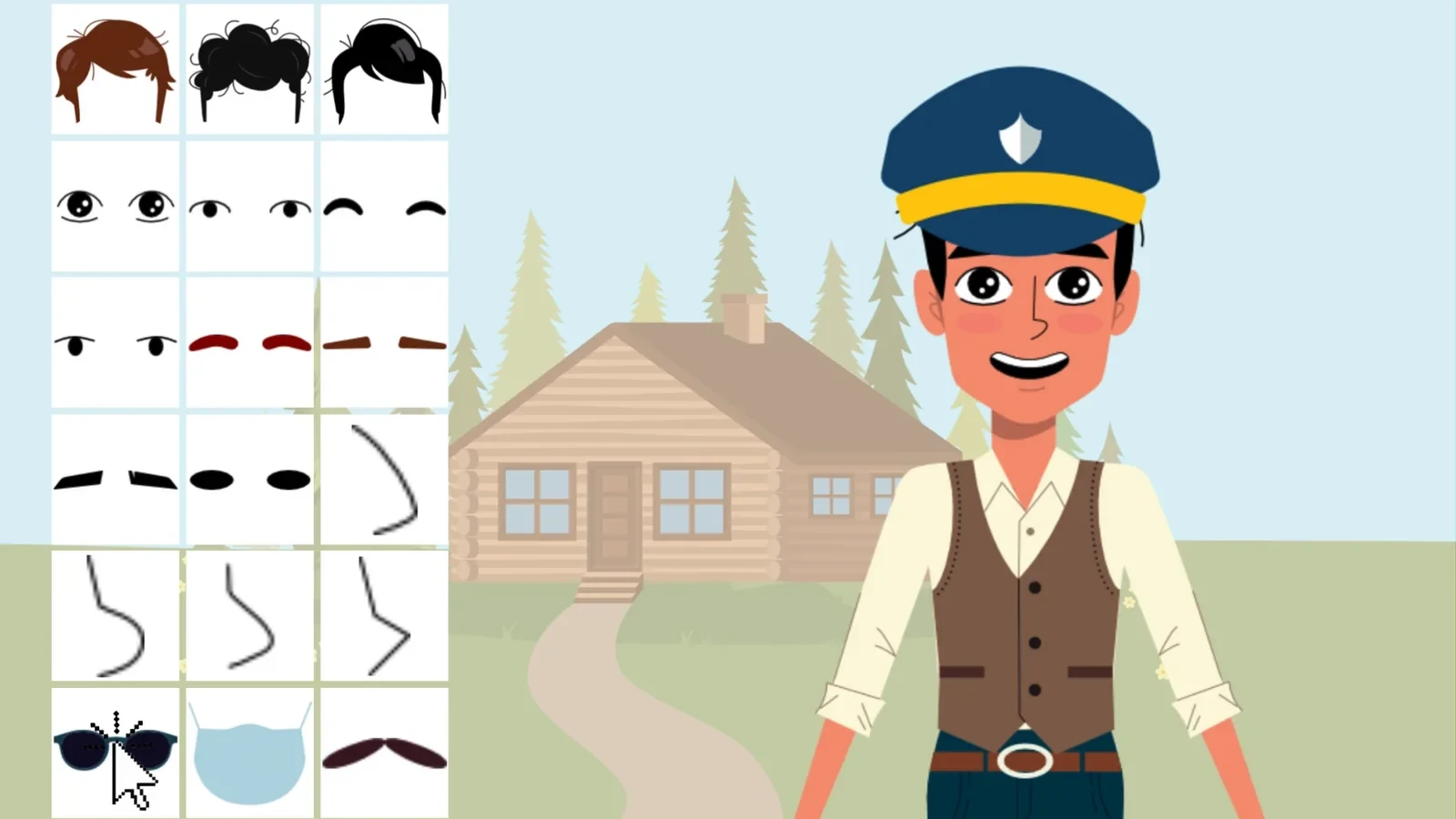
The Character Editor lets you build your own animated characters from skin tones, faces, hairstyles, outfits and accessories. Every character you make is pre-rigged, so it works straight away with the action library, 30 facial expressions and automatic lip-sync. If you already have character art, you can upload it and rig it with a step-by-step wizard instead.
Getting Started
Section titled “Getting Started”- Open a design in the Glintia editor
- Click Character in the left rail
- Click New Character (the button also shows how many character slots your plan has left)
- The Character Editor opens. Pick a base character, then choose Create from scratch or start from one of the ready-made character templates
Customization Options
Section titled “Customization Options”The editor’s category rail has five sections:
Colors
Section titled “Colors”When a selected part has colors, such as hair, eyes or clothing, colored dots appear next to its section. Click a dot to open a color picker with a hex field and 14 quick swatches.
Handy tools
Section titled “Handy tools”- Surprise me: picks a random head, hairstyle and face to start from
- Search parts: finds a part by name instead of browsing
- Revert: takes you back to the look you started with
Animations
Section titled “Animations”Select a character on the canvas and its toolbar gives you:
- Actions: the pre-animated action library, with 76 actions such as idle standing, presenting, pointing, waving, walking, talking on the phone, carrying a heavy box, standing up and clapping, a happy dance and jumping jacks. Characters blend smoothly from one action to the next.
- Expressions: 30 facial expressions: Neutral, Smile, Laugh, Giggle, Surprise, Shock, Awe, Eureka, Fascinated, Confusion, Skeptical, Worried, Nervous, Fear, Angry, Frown, Disappointed, Cry, Sob, Embarrassed, Bored, Tired, Sleepy, Yawning, Dizzy, Hungry, Silly, Smirk, Wink and Whistling.
- Lip Sync: makes the character speak a script, your microphone recording or an uploaded audio file. Use Mouth shapes to fine-tune individual mouth positions.
Eye blinking is on by default, so characters blink on their own. If the library has no action for what you need, you can create your own animation, for example by acting it out on your webcam with motion capture.
Saving Your Character
Section titled “Saving Your Character”- Customize your character in the Character Editor. There is no save button: every change saves automatically, and the editor shows “Saving…” and then “Saved”
- Close the editor when you’re done
- Your character appears under My Characters at the top of the Character panel
- It is saved to your account, so you can add it to any of your designs
Upload Your Own Character
Section titled “Upload Your Own Character”- In the Character Editor, choose Upload your own SVG
- Upload an SVG (up to 2MB, recommended) or a PNG or JPG picture (up to 6MB). A picture becomes an image character, with expressions generated by AI
- Follow the wizard’s steps. For an SVG: Upload, Map body parts, Place joints, Test and Save. For a picture: Prepare, Place joints, Test and Save
- Enter a Character name and click Save my character
Best Practices
Section titled “Best Practices”- Start from an outfit: a complete look gets you most of the way, then adjust individual parts
- Match your brand: reuse the same colors and saved characters across a series
- Consider your audience: a suit for a business explainer, a uniform for a workplace training video
- Test actions and expressions: preview a few on the canvas before you build the whole scene
Related Features
Section titled “Related Features”- Quick Start Guide - Get started with Glintia
- Create First Animation - Full tutorial
- Whiteboard Videos - Different animation style