Scene Transitions
A transition is how one scene changes into the next: a dissolve, a wipe, a slide, a 3D flip. It belongs to the join between two scenes, so each scene except the last can have one transition into the scene after it. Transitions are on every plan.
Add a transition
Section titled “Add a transition”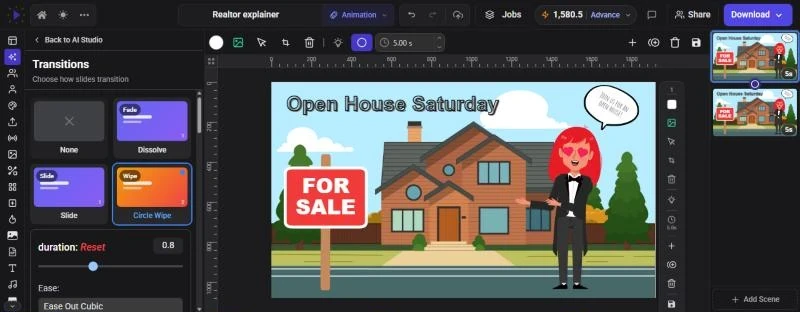
- Open the Transitions panel for the scene you are leaving. Any of these works:
- In the timeline, click the small + at the right end of the scene’s bar (“Add a transition to the next scene”)
- Click … on the scene bar, or right-click it, and choose Scene Transition
- In the scene list beside the canvas, click the + between two scene thumbnails
- With nothing selected, click the transition button in the toolbar (its tooltip reads Scene Transition)
- Rest the mouse on a tile to watch the transition loop in the tile
- Click a tile to apply it. Its settings open just below it
- Press Space in the Scenes view to play across the join
Once a transition is set, the + on the scene bar and in the scene list changes to that transition’s icon. Click it to come back and change it.
Transition settings
Section titled “Transition settings”Every transition has:
- duration: from 0.1 to 2 seconds, in 0.1-second steps
- Ease: how the transition speeds up and slows down. Click the box to search the list of curves; a small graph previews the one you pick
Some transitions add their own options:
| Option | Transitions |
|---|---|
| Color | Circle Wipe, Color Wipe, Dip to Color |
| Direction: left, right, up or down | Slide, Cover, Reveal, Soft Wipe, Whip Pan, Flip 3D, Cube 3D |
| Corner and Rotation (left or right) | 90 Degree Rotate, 90 Degree Rotate Bounce |
| softness | Blur Dissolve, Soft Wipe |
| angle and Rotation | Clock Wipe |
| bars (2 to 24) and Bars: Vertical or Horizontal | Blinds |
| Shape: Circle or Box, and From: Center or a corner | Iris |
Transitions that move the scene, such as Slide or 90 Degree Rotate, adjust to your canvas size, so they travel the right distance on Portrait and Square designs too.
The transitions
Section titled “The transitions”The panel has 33 transitions, each tagged with a category:
| Category | Transitions |
|---|---|
| Fade | Dissolve, Fade In |
| Dip | Dip to Color |
| Blur | Blur Dissolve |
| Slide | Slide, Cover, Reveal, Bouncing Slide Down, Bouncing Slide Right |
| Wipe | Circle Wipe, Color Wipe, Line Wipe, Soft Wipe, Blinds, Iris, Clock Wipe |
| Smart | Match & Move |
| Motion | Whip Pan, Zoom Punch, Glitch |
| Flow, Stack, Chop | Flow, Stack, Chop |
| Rotate | 90 Degree Rotate, 90 Degree Rotate Bounce, Full Rotate |
| 3D | Flip 3D, Cube 3D |
| Zoom | Bouncing Zoom, Zoom In, Zoom Out |
| Expand | Horizontal Expand Switch, Horizontal Expand |
Match & Move
Section titled “Match & Move”Match & Move is the “smart” transition. Items that appear in both scenes glide from where they are in the first scene to where they are in the next, instead of the whole scene changing at once. Glintia matches items of the same kind: text with the same words, or the same picture, video, artwork or character. Items with no match fade out (from the first scene) or fade in (in the next), and the background colour blends from one scene to the other.
How transitions affect timing
Section titled “How transitions affect timing”During a transition the two scenes overlap: the next scene starts halfway through the transition. So every transition makes the whole video shorter by half its own length. A 1-second transition, for example, takes 0.5 seconds off the total.
In the timeline, a transition shows as a shaded band across the join between two scene bars. Keep this in mind when you time narration to the start of a scene.
Change or remove a transition
Section titled “Change or remove a transition”- Change it: open the Transitions panel again and click a different tile
- Remove it: click None (the first tile), or click the highlighted tile again
- Combining scenes removes the transition at the join (scene menu → Combine with Next Scene or Combine with Previous Scene)
Each join has its own transition. To use the same transition throughout a video, set it on each scene in turn.
Troubleshooting
Section titled “Troubleshooting”I can’t add a transition to a scene. It is the last scene. Add a scene after it, or set the transition on the scene before.
With Match & Move, items fade instead of moving. Glintia found no match for them. Make sure the item in both scenes is the same kind and uses the same text or the same image.
My video got shorter after adding transitions. That’s the overlap described above. Lengthen the scenes slightly if you need the original running time.