Backgrounds and Colors
Every scene has its own background: a solid color, a gradient, a picture or a looping video clip. This article covers each way to set one, then explains the color picker you use for backgrounds, shapes, vector artwork and text.
Set a background color or gradient
Section titled “Set a background color or gradient”- Click an empty part of the canvas so nothing is selected. The toolbar now shows the scene’s own controls
- Click the color swatch at the left of the toolbar. The color panel opens on the left
- Choose Solid or Gradient at the top of the panel, then pick a color (see Use the color picker below)
The color applies to the current scene only. To give several scenes the same background, set it on one scene and duplicate that scene. See Working with Scenes.
Add a background image
Section titled “Add a background image”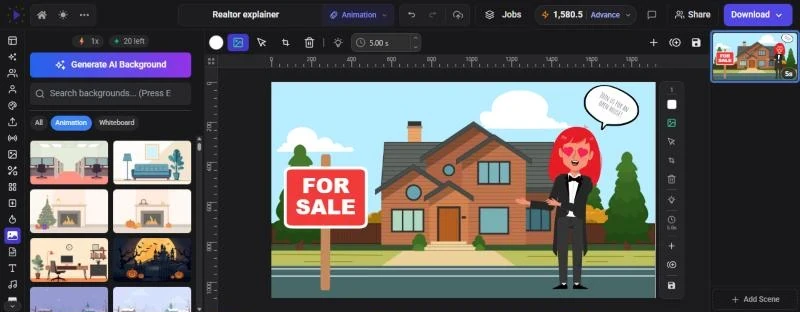
- With nothing selected, click Add Background Image in the scene toolbar (the picture icon). In the Animation and Full Editor modes you can also click Background on the rail
- Browse the backgrounds, or type a search term and press Enter
- Click a background. It fills the whole scene behind everything else
The Background panel mixes Glintia’s own backgrounds with premium stock photos that match your canvas shape (landscape, portrait or square). A Pro badge marks a premium photo. Premium stock backgrounds use 1 premium stock credit each, and Glintia’s own backgrounds are free. See Premium stock credits.
Use the All, Animation and Whiteboard chips to filter the list. The chip that matches your editor mode is selected for you.
Want something specific? Click Generate AI Background at the top of the panel to create one with AI. This uses AI credits. See Generating Images, Icons and Backgrounds.
Change, crop or remove the background image
Section titled “Change, crop or remove the background image”Once a scene has a background image, the scene toolbar shows more buttons:
| Button | What it does |
|---|---|
| Change Background Image | Opens the Background panel so you can pick a different one |
| Select Background | Selects the background so you can use its own toolbar, for example Replace, or Adjust and Filters under More Tools |
| Crop Background | Opens the crop view so you can choose which part of the picture shows |
| Remove Background Image | Removes the picture. The background color shows again |
To swap the background for one of your uploads, a stock photo or a brand logo, select the background and click Replace in its toolbar. A background takes pictures only, not video.
Use your own photo or video as the background
Section titled “Use your own photo or video as the background”There are three ways to turn a photo or a clip into the background:
Select a photo or video on the canvas and click Set as background in its toolbar. You can also right-click it and choose Set as background.
Drag a photo or clip from any media panel, or a file from your computer, and hold Shift as you drop it on the canvas. The canvas shows Drop to set as background while Shift is held.
If the scene already has a background image, select it, click Replace, then pick a picture from Uploads, Photos, AI image or Brand.
A photo becomes the scene’s background image. A video clip fills the scene behind everything else and is locked so it stays put. To move or resize it, unlock it in the Layers panel. See Layers, Groups and Locking.
Use the color picker
Section titled “Use the color picker”The same color panel opens wherever you change a color: the scene background, a shape’s fill or border, vector artwork, text and text backgrounds. It has these parts, from top to bottom:
- Solid and Gradient tabs. These only appear where a gradient is allowed
- A color field. Type a hex code such as
#1A73E8. You can add two more digits for transparency, such as#1A73E880for 50%. In browsers that support it, such as Chrome and Edge, an eyedropper button in this field lets you pick a color from anywhere on your screen - The color picker itself, with a transparency slider
- A row of swatches: the colors the selected item already uses, followed by your brand colors
- Brand colours, if you have a Brand Kit (Advance plan). See Brand Kit
- Colors: a palette of named colors, starting with a Transparent swatch. Type in Search colors by name… to find more, such as “teal” or “coral”
Changes show on the canvas straight away, and each change can be undone with Ctrl+Z (Cmd+Z on Mac).
Make a gradient
Section titled “Make a gradient”- Click Gradient at the top of the color panel
- Under Direction, choose a side (left, right, top or bottom), a corner, or the center dot for a radial gradient
- Click From and pick the first color, then click To and pick the second. The preview bar shows the result
- Or pick a ready-made gradient from the Gradients list. Search it by name or by a color, for example “blue”
Recolor items
Section titled “Recolor items”Select a shape from the Elements panel. The toolbar shows a fill swatch and a border swatch. Click either to open the color panel. Fills and borders can be solid or gradient. The border swatch also shows border options, such as weight and style, above the picker.
Select one SVG item, such as a vector icon or illustration. The toolbar shows the colors it uses: up to four as separate swatches, or one combined swatch that opens a grid when there are more. Pick a swatch and choose a new color. Every part of the artwork that used that color changes together. Vector artwork takes solid colors only.
Select a text box and use its color and text-background swatches. See Text, Fonts and Text Styles.
Select a character to see swatches for its colors in the toolbar, such as clothing. See Adding and Directing Characters.
Photos and video clips don’t have a fill color. To change how they look, select one, click More Tools in its toolbar and use Adjust or Filters. See Editing Video Clips.
Change an item’s opacity
Section titled “Change an item’s opacity”To make a whole item see-through, rather than just one of its colors:
- Select the item, click More Tools in its toolbar, then Properties. Drag the Opacity slider or type a percentage. Ctrl+Shift+S (Cmd+Shift+S on Mac) opens Properties directly
- Or press a number key with the item selected: 1 sets 10%, 2 sets 20% and so on up to 9 for 90%, and 0 sets 100%. While a preview is playing, 0 jumps back to the start instead
Troubleshooting
Section titled “Troubleshooting”- The color swatch for the background isn’t in the toolbar: something is selected. Click an empty part of the canvas, or press Esc
- There’s no Gradient tab: the thing you’re coloring doesn’t take gradients. Vector artwork palettes are solid only
- “Background not set”: the picture or clip couldn’t be loaded. Try again, or pick another file
- A video background won’t move: video backgrounds are locked. Unlock it in the Layers panel